Q/KDB+ Blog
Welcome to the Q/KDB+ Blog. Here you’ll find articles exploring various aspects of the Q programming language and KDB+ database.
Latest Articles
| Title | Published | Description |
|---|---|---|
| C Interface for Q - Part 2 | Oct 19, 2026 | Create and read mixed lists, dictionaries, tables, and keyed tables from C, and learn who owns what. |
| C Interface for Q - Part 1 | Sep 25, 2026 | Meet the Q object (QObj) and learn to create and read Q atoms and lists from C. |
| Sym File Maintenance in KDB+ | Mar 9, 2026 | If your sym file is in need of maintenance, look no further. |
| Recursion vs Iteration in Q/KDB+ | Feb 12, 2026 | Examine the intricate details of recursion and iteration in Q/KDB+. |
| Database Maintenance in KDB+ | Feb 04, 2026 | An in-depth look into how to maintain your database. |
| KDB-X Modules | Nov 25, 2025 | Learn the basics of the KDB-X module system. |
| Performance Costs of KDB+ Attributes | Aug 15, 2025 | Explore the performance costs that KDB+ attributes can have. |
| Performance Benefits of KDB+ Attributes | Aug 4, 2025 | See what performance benefits can be realised when using KDB+ attributes. |
| KDB+ Attributes | May 6, 2025 | Understand the basics of attributes in KDB+. |
| Floating-Point Datatypes in Q/KDB+ | Feb 28, 2025 | Master floating-point datatypes in Q. |
| Measuring Compression Performance in Q/KDB+ | Jan 31, 2025 | Find out how to measure the performance of different compression algorithms and settings. |
| An Introduction to Compression in Q/KDB+ | Oct 13, 2024 | A detailed look at how compression works in Q. |
| Command Line Arguments in Q/KDB+ | Sep 20, 2024 | Discover how to customise Q session behavior using command line arguments. |
| An Introduction to Interacting with REST APIs in Q/KDB+ | Sep 11, 2024 | Learn how to interact with REST APIs using Q, including HTTP GET requests, HTTPS, and handling responses. |
| The Little Q Keywords That Could | Aug 15, 2024 | Explore lesser-known and underutilised Q keywords that can be powerful when used effectively. |
| Analysis of Q Memory Allocation | Aug 15, 2024 | Delve into how Q handles memory allocation using the buddy memory allocation system. |
Feedback & Questions
If you spot an issue, have a suggestion for improvement, or want to ask a question about my blogs, feel free to get in touch. I’m always happy to hear feedback — especially when it helps make things clearer, more accurate, or more useful for others.
You can reach me via email at jkane17x@gmail.com.
C Interface for Q - Part 2

In Part 1, we looked at the Q object (QObj) and at the simplest values it can hold: atoms, and lists of plain C values such as longs or chars. Each of those values was self-contained, with all of its data stored inside a single object.
However, real data can have a more complex structure. A list of strings is a list of lists, a dictionary pairs a list of keys with a list of values, and a table is a set of named columns. In C, each of these is a Q object that holds pointers to other Q objects. In this part, we look at how to create and read them: mixed lists, dictionaries, tables, and keyed tables.
Putting objects inside other objects raises two questions that did not come up in Part 1:
- Ownership. Once an object has been placed inside another, which code is responsible for releasing it?
- Errors. Creation functions now have arguments that can be wrong, for example keys and values of different lengths. When a function fails, how do we find out why?
We answer both along the way, starting with mixed lists.
The examples are built in the same way as in Part 1 (see Building the Examples).
Recap
In Part 1, we saw that:
- Every Q value is a
QObj: a 16-byte object made up of an 8-byte header holding the value’stype,attr, and reference count (refs), and an 8-byte union holding either an atom’s value or a list’slengthand data. - The
typefield is negative for an atom and positive for a list, for example-7for a long atom and7for a long list. - Atoms and lists are created with the
qNewfunctions and read with theqGetfunctions, for exampleqNewLongListandqGetLongAtIndex. qNewListallocates a list of a given type and length whose elements we fill in ourselves.- A newly created object has
refs == 0, and we release it withqDecRefwhen we have finished with it.
Mixed Lists
A mixed list is a list whose items can be of different types. Its type is 0 (Q_TYPE_MIXED), and each item is a pointer to another QObj, which can be an atom, a list, or anything else.
A mixed list is created with qNewMixedList:
QObj *qNewMixedList(QSize length, ...);
length is the number of items, and ... is replaced with that many QObj pointers.
Because qNewMixedList is variadic, nothing checks that length matches the number of arguments, or that each argument is a QObj *. Passing the wrong number of arguments is undefined behaviour.
Ownership
qNewMixedList is the first function we have seen that takes Q objects as arguments, so it is a good place to look at ownership. The mixed list takes ownership of its items: the references you held are handed over to the list. This means:
- You release only the list.
qDecRef(mixedList)releases every item in it. - You must not also call
qDecRefon the items, as that would release them twice. - If you want to keep using an item after the list has been released, call
qIncRefon it before creating the list.
If any item is NULL, qNewMixedList returns NULL (a domain error) and releases the other items. A NULL item usually means an earlier creation call failed, which is easy to miss when creation calls are nested inside the argument list.
Note: There is one exception. If
lengthis greater thanINT32_MAX,qNewMixedListreturns adomainerror without reading any of its arguments, so it does not release them, and you must release them yourself. This only happens iflengthis wrong, for example a negative number converted to the unsignedQSize, because no call can pass that many arguments.
Access
To access the item at a given index, use qGetMixedAtIndex:
QObj *qGetMixedAtIndex(const QObj *obj, QSize index);
Because a mixed list holds objects of different types, qGetMixedAtIndex returns a pointer to the item’s QObj rather than a value. The pointer is borrowed: it points to an object owned by the list, so you must not release it, and it is only valid while the list is.
From there, if you know the item’s type, you can read its value with the matching accessor. For example, to read the first item of a mixed list as a symbol, we write:
qGetSymbol(qGetMixedAtIndex(mixedList, 0))
If you do not know the type of the item at a given index, check it first, either by inspecting obj->type or (better) by using one of the type check functions described below.
Example
Create a mixed list consisting of 3 items:
- A symbol
`abc - A long
10 - A char list
"xyz"
#include <inttypes.h>
#include <stdio.h>
#include "q.h"

int main(void) {
    QObj *symbol = qNewSymbol("abc");
    QObj *long_ = qNewLong(10);
    QObj *chars = qNewCharListFromString("xyz");

    // The mixed list takes ownership of symbol, long_, and chars
    QObj *mixedList = qNewMixedList(3, symbol, long_, chars);

    printf("Type = %d\n", mixedList->type);
    printf("Length = %" PRIu64 "\n\n", mixedList->length);

    printf("mixedList[0] = %s\n", qGetSymbol(qGetMixedAtIndex(mixedList, 0)));
    printf("mixedList[1] = %" PRId64 "\n", qGetLong(qGetMixedAtIndex(mixedList, 1)));

    QObj *charList = qGetMixedAtIndex(mixedList, 2); // borrowed: do not release
    printf("mixedList[2] = %.*s\n", (int)charList->length, (char *)charList->list);

    // Releases the list and its three items
    qDecRef(mixedList);
    return 0;
}
Output:
Type = 0
Length = 3

mixedList[0] = abc
mixedList[1] = 10
mixedList[2] = xyz
Only mixedList is released. Releasing it also releases the symbol, the long, and the char list.
The char list is printed with %.*s rather than %s because a char list is not null-terminated. Its length is passed as the precision, so printf reads exactly that many characters from list. We use the same pattern for char lists throughout this part.
Lists of Lists
A list whose items are lists is also a mixed list. The most common example is a list of strings: in Q, ("alpha";"beta";"gamma") is a mixed list of char lists.
When the number of items is only known at run time, a variadic call cannot be used. Instead, allocate a mixed list with qNewList (see List Allocation in Part 1) and fill in the QObj * slots yourself. As with qNewMixedList, the list owns the items stored in it:
#include <inttypes.h>
#include <stdio.h>
#include "q.h"

int main(void) {
    const QChar *words[] = {"alpha", "beta", "gamma"};
    QSize count = sizeof(words) / sizeof(words[0]);

    QObj *strings = qNewList(Q_TYPE_MIXED, count);
    QObj **items = (QObj **)strings->list;
    for (QSize i = 0; i < count; i++) {
        items[i] = qNewCharListFromString(words[i]); // the list owns each item
    }

    printf("Type = %d\n", strings->type);
    for (QSize i = 0; i < strings->length; i++) {
        QObj *item = qGetMixedAtIndex(strings, i);
        printf("strings[%" PRIu64 "] = %.*s\n", i, (int)item->length, (char *)item->list);
    }

    qDecRef(strings);
    return 0;
}
Output:
Type = 0
strings[0] = alpha
strings[1] = beta
strings[2] = gamma
As with any list from qNewList, every slot must be set before the list is used. In real code, also check each item for NULL before storing it.
Uniform Items Are Not Collapsed
A mixed list stays a mixed list even if all of its items have the same type. For example:
QObj *list = qNewMixedList(3, qNewLong(1), qNewLong(2), qNewLong(3));
creates a list of type 0 containing three long atoms, not a long list of type 7. In Q, by contrast, (1;2;3) is a long list. Calling qGetLongAtIndex on this list fails an assert (in a release build with NDEBUG, it reads garbage).
When you know the items up front, the simplest fix is to create the typed list directly with qNewLongList. When you don’t, for example because the items came from elsewhere, qCollapseMixedList collapses a mixed list into a simple list (if possible):
QObj *qCollapseMixedList(QObj *obj);
Note: The underlying function used in
qCollapseMixedList,vk, is only provided by the Q executable, not by KX’s standalone C API library (such asc.o).qCollapseMixedListcan therefore only be used in code that runs inside a Q process, such as a shared library loaded with2:.
If every item is an atom of the same type, it returns a new simple list of that type and releases obj. Otherwise, it returns obj unchanged. This includes an empty list, items of different types, and items that are themselves lists, such as a list of strings. Either way it takes ownership of obj, so always carry on with the returned pointer:
list = qCollapseMixedList(list); // list is now a long list (type 7)
qCollapseMixedList can also turn a list of dictionaries into a table, which we will see in Tables.
qNewMixedListVar
qNewMixedListVar is the va_list form of qNewMixedList:
QObj *qNewMixedListVar(QSize length, va_list args);
It is intended for writing your own variadic functions that forward their arguments to create a mixed list. Ownership and errors work as for qNewMixedList. The caller still owns args and must call va_end on it.
Dictionaries
A dictionary maps a list of keys to a list of values of the same length. The keys are usually a simple list, such as a symbol list. The values can be any list, including a mixed list when they have different types. Keys and values can also be tables, which is how keyed tables are built (see Keyed Tables).
A dictionary is created using qNewDict:
QObj *qNewDict(QObj *keys, QObj *values);
keys and values are pointers to QObjs containing the keys and the values respectively.
Like qNewMixedList, qNewDict takes ownership of its arguments: releasing the dictionary releases its keys and values too. It does so even when it fails, so after calling qNewDict you must not release keys or values yourself.
Given a QObj containing a dictionary, we can get the number of key-value pairs using qGetDictCount (or the generic qGetCount, which works on any object). We can also get the keys and the values using qGetDictKeys and qGetDictValues. These return borrowed pointers into the dictionary, so, as with qGetMixedAtIndex, they must not be released and are only valid while the dictionary is.
Example
#include <inttypes.h>
#include <stdio.h>
#include "q.h"

int main(void) {
    QSymbol symbols[] = {"abc", "def", "ghi"};
    QObj *keys = qNewSymbolList(symbols, 3);

    QLong longs[] = {10, 20, 30};
    QObj *values = qNewLongList(longs, 3);

    // The dictionary takes ownership of keys and values
    QObj *dict = qNewDict(keys, values);

    printf("Type = %d\n", dict->type);
    printf("Length = %" PRIu64 "\n", dict->length);
    printf("Count = %" PRIu64 "\n\n", qGetDictCount(dict));

    // Borrowed pointers: do not release
    QObj *dictKeys = qGetDictKeys(dict);
    QObj *dictValues = qGetDictValues(dict);
    for (QSize i = 0; i < qGetDictCount(dict); i++) {
        printf("%s | %" PRId64 "\n", qGetSymbolAtIndex(dictKeys, i),
               qGetLongAtIndex(dictValues, i));
    }

    // Releases the dictionary, its keys, and its values
    qDecRef(dict);
    return 0;
}
Output:
Type = 99
Length = 2
Count = 3

abc | 10
def | 20
ghi | 30
The dictionary’s length is 2, not 3. A dictionary is a type-99 object whose list data holds exactly two QObj pointers, the keys and the values, laid out just like a two-item mixed list. This is why qGetDictKeys and qGetDictValues simply return the first and second pointers. The number of key-value pairs is the count of the keys, which is what qGetDictCount returns.
Values of Different Types
When the values have different types, store them in a mixed list. This dictionary is the C equivalent of `name`age!("Bob";42) in Q:
#include <inttypes.h>
#include <stdio.h>
#include "q.h"

int main(void) {
    QSymbol symbols[] = {"name", "age"};
    QObj *keys = qNewSymbolList(symbols, 2);
    QObj *values = qNewMixedList(2, qNewCharListFromString("Bob"), qNewLong(42));

    QObj *person = qNewDict(keys, values);

    QObj *personValues = qGetDictValues(person);
    QObj *name = qGetMixedAtIndex(personValues, 0);
    QObj *age = qGetMixedAtIndex(personValues, 1);

    printf("Values type = %d\n", personValues->type);
    printf("name = %.*s\n", (int)name->length, (char *)name->list);
    printf("age = %" PRId64 "\n", qGetLong(age));

    qDecRef(person);
    return 0;
}
Output:
Values type = 0
name = Bob
age = 42
Errors
qNewDict checks its arguments and returns NULL on failure:
| Error | Cause |
|---|---|
domain | keys or values is NULL |
type | keys or values is an atom or a function, not a list, table or dictionary |
length | keys and values have different counts |
A NULL return tells us that something failed, but not what. To find out, call qCheckError immediately after the failing call. It returns an error object (type -128) holding the message, which qGetError reads. The error object is ours to release:
#include <stdio.h>
#include "q.h"

int main(void) {
    QChar chars[] = {'a', 'b', 'c'};
    QObj *keys = qNewCharList(chars, 3);

    QInt ints[] = {10, 20};
    QObj *values = qNewIntList(ints, 2);

    // On failure, qNewDict returns NULL and has already released keys and values
    QObj *dict = qNewDict(keys, values);
    if (!dict) {
        QObj *error = qCheckError(dict);
        printf("error: %s\n", qGetError(error));
        qDecRef(error);
        return 0;
    }

    qDecRef(dict);
    return 0;
}
Output:
error: length
Note that qNewDict does not check that the keys are unique. Q allows duplicate keys, and a lookup finds the first match.
Tables
A table is a set of named columns of the same length. It is created from a header (a symbol list of column names) and one column per name, using qNewTable:
QObj *table = qNewTable(header, column0, column1, ...);
qNewTable is not a function but a macro (in C++, a function template). It counts its column arguments at compile time and passes them, with the count, to qNewTableFromArray. Unlike qNewMixedList, you don’t pass a count, so the count can’t be wrong: if the number of columns does not match the number of column names, qNewTable returns a length error rather than causing undefined behaviour.
qNewTable takes ownership of the header and every column, even when it fails. Releasing the table releases everything in it.
Layout
This is where the nested pointer from The Q Object in Part 1 is used. A table is a type-98 object whose nested pointer points to a dictionary. That dictionary’s keys are the column names, and its values are a mixed list with one item per column:
table (type 98)
  nested ──> dictionary (type 99)
               keys:   `col0`col1              (symbol list)
               values: (col0 list; col1 list)  (mixed list)
qGetTableHeader and qGetTableColumns return that dictionary’s keys and values. Both are borrowed pointers. Because the columns are held in a mixed list, each column is read with qGetMixedAtIndex. qGetTableColumnCount and qGetTableRowCount return the number of columns and rows respectively.
Tables are stored by column, not by row. There is no row accessor: to read a row, index into each column.
Example
#include <inttypes.h>
#include <stdio.h>
#include "q.h"

static QObj *makeTable(void) {
    QSymbol symbols[] = {"col0", "col1"};
    QObj *header = qNewSymbolList(symbols, 2);

    QLong longs[] = {1, 2, 3};
    QObj *col0 = qNewLongList(longs, 3);

    QChar chars[] = {'a', 'b', 'c'};
    QObj *col1 = qNewCharList(chars, 3);

    // The table takes ownership of header, col0, and col1
    return qNewTable(header, col0, col1);
}

static void printTable(const QObj *table) {
    // Borrowed pointers: do not release
    QObj *header = qGetTableHeader(table);
    QObj *columns = qGetTableColumns(table);

    for (QSize i = 0; i < header->length; i++)
        printf("%s ", qGetSymbolAtIndex(header, i));
    printf("\n---------\n");

    QObj *col0 = qGetMixedAtIndex(columns, 0);
    QObj *col1 = qGetMixedAtIndex(columns, 1);

    // Tables are stored by column, so a row is read by indexing each column
    for (QSize row = 0; row < qGetTableRowCount(table); row++) {
        printf("%" PRId64 "    ", qGetLongAtIndex(col0, row));
        printf("%c\n", qGetCharAtIndex(col1, row));
    }
}

int main(void) {
    QObj *table = makeTable();

    printf("Type = %d\n", table->type);
    printf("Column count = %" PRIu64 "\n", qGetTableColumnCount(table));
    printf("Row count = %" PRIu64 "\n\n", qGetTableRowCount(table));

    printTable(table);

    // Releases the table and everything in it
    qDecRef(table);
    return 0;
}
Output:
Type = 98
Column count = 2
Row count = 3

col0 col1
---------
1    a
2    b
3    c
Building a Table at Run Time
qNewTable needs the columns written out in the call. When the number of columns is only known at run time, use qNewTableFromArray, which takes a C array of columns and its length:
QObj *qNewTableFromArray(QObj *header, QObj *const *columns, QSize count);
It takes ownership of the header and of each column, but not of the array itself, which stays yours:
#include <inttypes.h>
#include <stdio.h>
#include "q.h"

int main(void) {
    QSymbol names[] = {"x", "x2", "x3"};
    QSize columnCount = sizeof(names) / sizeof(names[0]);
    QSize rowCount = 4;

    // Build each column in turn: column c holds row + 1 raised to the power c + 1
    QObj *columns[sizeof(names) / sizeof(names[0])];
    for (QSize c = 0; c < columnCount; c++) {
        columns[c] = qNewList(Q_TYPE_LONG, rowCount);
        QLong *values = (QLong *)columns[c]->list;
        for (QSize row = 0; row < rowCount; row++) {
            QLong value = 1;
            for (QSize p = 0; p <= c; p++)
                value *= (QLong)(row + 1);
            values[row] = value;
        }
    }

    // Takes ownership of the header and each column, but not of the columns array itself
    QObj *table = qNewTableFromArray(qNewSymbolList(names, columnCount), columns, columnCount);

    printf("Columns = %" PRIu64 ", rows = %" PRIu64 "\n", qGetTableColumnCount(table),
           qGetTableRowCount(table));
    QObj *cube = qGetMixedAtIndex(qGetTableColumns(table), 2);
    printf("x3[3] = %" PRId64 "\n", qGetLongAtIndex(cube, 3));

    qDecRef(table);
    return 0;
}
Output:
Columns = 3, rows = 4
x3[3] = 64
There is also qNewTableVar, which takes a va_list and reads one column for each column name. Like qNewMixedListVar, it is intended for writing your own variadic functions.
QObj *qNewTableVar(QObj *header, va_list args);
Note: Unlike the other table functions,
qNewTableVardoes not always release its columns on error. It finds out how many columns to read from the number of column names. IfheaderisNULLor not a symbol list, it cannot know that number, so it returns an error (domainortype) without reading any columns fromargs. It still releasesheaderif it is notNULL, but you must release the columns yourself.
Errors
The table functions check their arguments and return NULL on failure:
| Error | Cause |
|---|---|
domain | The header or a column is NULL |
type | The header is not a symbol list, or a column is not a list or table (e.g. an atom or dictionary) |
length | The number of columns does not match the number of column names, or the columns have different lengths |
rank | There are no columns and no column names |
On error, the header and all columns are released, except in the qNewTableVar case described above. For example:
#include <stdio.h>
#include "q.h"

int main(void) {
    QSymbol names[] = {"a", "b"};
    QLong longs[] = {1, 2, 3};
    QChar chars[] = {'x', 'y'};

    // Three rows in the first column, but only two in the second
    QObj *table =
        qNewTable(qNewSymbolList(names, 2), qNewLongList(longs, 3), qNewCharList(chars, 2));
    if (!table) {
        QObj *error = qCheckError(table);
        printf("error: %s\n", qGetError(error));
        qDecRef(error);
        return 0;
    }

    qDecRef(table);
    return 0;
}
Output:
error: length
qNewTable does not check that column names are unique. Like flip in Q, it keeps duplicates as they are.
Finally, a table can also be built row by row. qCollapseMixedList (see Uniform Items Are Not Collapsed) collapses a mixed list of conforming dictionaries (the same symbol keys, in the same order) into a table, with one row per dictionary. This is the C equivalent of Q turning a list of dictionaries like (`a`b!1 2;`a`b!3 4) into a table.
Keyed Tables
A keyed table is made up of two tables with the same number of rows: the first holds the key columns and the second holds the value columns. It is a dictionary whose keys and values are both tables, which is why a keyed table has the dictionary type, 99.
A keyed table can be created from its two tables using qNewKeyedTable:
QObj *qNewKeyedTable(QObj *keys, QObj *values);
keys is a table of the key columns, and values is a table of the value columns.
Like qNewDict, qNewKeyedTable takes ownership of both tables, even when it fails. The two tables are read with qGetKeyedTableKeys and qGetKeyedTableValues, which return borrowed pointers.
Example
#include <inttypes.h>
#include <stdio.h>
#include "q.h"

static QObj *makeKeyedTable(void) {
    QSymbol keySymbols[] = {"key0", "key1"};
    QObj *keyHeader = qNewSymbolList(keySymbols, 2);
    QLong keyLongs[] = {1, 2, 3};
    QObj *key0 = qNewLongList(keyLongs, 3);
    QChar keyChars[] = {'a', 'b', 'c'};
    QObj *key1 = qNewCharList(keyChars, 3);

    QObj *keys = qNewTable(keyHeader, key0, key1);

    QSymbol valueSymbols[] = {"col0", "col1", "col2"};
    QObj *valueHeader = qNewSymbolList(valueSymbols, 3);
    QLong valueLongs[] = {10, 20, 30};
    QObj *col0 = qNewLongList(valueLongs, 3);
    QChar valueChars[] = {'x', 'y', 'z'};
    QObj *col1 = qNewCharList(valueChars, 3);
    QFloat valueFloats[] = {1.2, 3.4, 5.6};
    QObj *col2 = qNewFloatList(valueFloats, 3);

    QObj *values = qNewTable(valueHeader, col0, col1, col2);

    // The keyed table takes ownership of keys and values
    return qNewKeyedTable(keys, values);
}

static void printKeyedTable(const QObj *keyedTable) {
    // Borrowed pointers: do not release
    QObj *keys = qGetKeyedTableKeys(keyedTable);
    QObj *values = qGetKeyedTableValues(keyedTable);

    QObj *keysHeader = qGetTableHeader(keys);
    for (QSize i = 0; i < keysHeader->length; i++)
        printf("%s ", qGetSymbolAtIndex(keysHeader, i));

    printf("| ");

    QObj *valuesHeader = qGetTableHeader(values);
    for (QSize i = 0; i < valuesHeader->length; i++)
        printf("%s ", qGetSymbolAtIndex(valuesHeader, i));

    printf("\n--------- | --------------\n");

    QObj *keysColumns = qGetTableColumns(keys);
    QObj *key0 = qGetMixedAtIndex(keysColumns, 0);
    QObj *key1 = qGetMixedAtIndex(keysColumns, 1);

    QObj *valuesColumns = qGetTableColumns(values);
    QObj *col0 = qGetMixedAtIndex(valuesColumns, 0);
    QObj *col1 = qGetMixedAtIndex(valuesColumns, 1);
    QObj *col2 = qGetMixedAtIndex(valuesColumns, 2);

    for (QSize i = 0; i < qGetTableRowCount(keys); i++) {
        printf("%" PRId64 "    ", qGetLongAtIndex(key0, i));
        printf("%c    | ", qGetCharAtIndex(key1, i));
        printf("%" PRId64 "   ", qGetLongAtIndex(col0, i));
        printf("%c    ", qGetCharAtIndex(col1, i));
        printf("%.1f\n", qGetFloatAtIndex(col2, i));
    }
}

int main(void) {
    QObj *keyedTable = makeKeyedTable();

    printf("Type = %d\n", keyedTable->type);
    printf("Keys type = %d\n", qGetKeyedTableKeys(keyedTable)->type);
    printf("Values type = %d\n\n", qGetKeyedTableValues(keyedTable)->type);

    printKeyedTable(keyedTable);

    // Releases the keyed table and both of its tables
    qDecRef(keyedTable);
    return 0;
}
Output:
Type = 99
Keys type = 98
Values type = 98

key0 key1 | col0 col1 col2
--------- | --------------
1    a    | 10   x    1.2
2    b    | 20   y    3.4
3    c    | 30   z    5.6
The key table and the value table must have the same number of rows (three here). Otherwise, qNewKeyedTable returns a length error (see the errors table below).
Keying and Unkeying a Table
Often the columns are already in a single table, and some of them should become the key. qKeyTable keys a table on its first nkeys columns, like Q’s n!table:
QObj *qKeyTable(QSize nkeys, QObj *table);
nkeys must be at least 1, and less than the number of columns, so that there is at least one value column.
qUnkeyTable does the reverse, like Q’s 0!keyedTable. It returns a simple table with the key columns followed by the value columns:
QObj *qUnkeyTable(QObj *keyedTable);
Both take ownership of their argument, so a table can be keyed and unkeyed without releasing anything in between:
#include <inttypes.h>
#include <stdio.h>
#include "q.h"

static void printKinds(const char *name, const QObj *obj) {
    printf("%-7s type = %d, qIsTable = %d, qIsKeyedTable = %d, qIsDict = %d\n", name, obj->type,
           qIsTable(obj), qIsKeyedTable(obj), qIsDict(obj));
}

int main(void) {
    QSymbol names[] = {"id", "sym", "price"};
    QLong ids[] = {1, 2, 3};
    QSymbol syms[] = {"abc", "def", "ghi"};
    QFloat prices[] = {1.5, 2.5, 3.5};
    QObj *table = qNewTable(qNewSymbolList(names, 3), qNewLongList(ids, 3),
                            qNewSymbolList(syms, 3), qNewFloatList(prices, 3));
    printKinds("table", table);

    // Key on the first column: qKeyTable takes ownership of table
    QObj *keyedTable = qKeyTable(1, table);
    printKinds("keyed", keyedTable);
    printf("        key columns = %" PRIu64 ", value columns = %" PRIu64 "\n",
           qGetTableColumnCount(qGetKeyedTableKeys(keyedTable)),
           qGetTableColumnCount(qGetKeyedTableValues(keyedTable)));

    // And back again: qUnkeyTable takes ownership of keyedTable
    QObj *unkeyed = qUnkeyTable(keyedTable);
    printKinds("unkeyed", unkeyed);

    qDecRef(unkeyed);
    return 0;
}
Output:
table   type = 98, qIsTable = 1, qIsKeyedTable = 0, qIsDict = 0
keyed   type = 99, qIsTable = 0, qIsKeyedTable = 1, qIsDict = 0
        key columns = 1, value columns = 2
unkeyed type = 98, qIsTable = 1, qIsKeyedTable = 0, qIsDict = 0
This example also shows why type checks matter here. A keyed table has type 99, just like a dictionary, so obj->type alone cannot tell the two apart. qIsKeyedTable and qIsDict can (see Type Check Functions).
Errors
| Function | Error | Cause |
|---|---|---|
qNewKeyedTable | domain | keys or values is NULL |
type | keys or values is not a table | |
length | keys and values have different row counts | |
qKeyTable | domain | table is NULL |
type | table is not a table | |
length | nkeys is 0, or not less than the number of columns | |
qUnkeyTable | domain | keyedTable is NULL |
type | keyedTable is not a keyed table or table |
In every case the arguments are released on error. qUnkeyTable returns a simple table unchanged.
Type Check Functions
So far we have checked an object’s type by reading obj->type directly. That works for atoms and simple lists. As we have seen, though, the type code alone cannot tell a dictionary from a keyed table. Code that reads obj->type must also check for NULL first, or it will crash.
The type check functions (declared in is.h) handle both problems. Each takes a const QObj * and returns a bool, and each returns false for NULL. This means we can pass the result of a creation call straight in without checking it first.
Atoms
qIsAtom checks whether an object is an atom of any type (a negative type code). There is also one function per atom type, such as qIsLong, qIsSymbol, and qIsTimestamp:
bool qIsAtom(const QObj *obj);
bool qIsLong(const QObj *obj);
bool qIsSymbol(const QObj *obj);
Each per-type function calls qIsAtomType, which takes a type code. Pass the list type code, such as Q_TYPE_LONG, not the negative atom type code:
bool qIsAtomType(const QObj *obj, QTypeCode type);

qIsAtomType(obj, Q_TYPE_LONG); // same as qIsLong(obj)
Lists
There are three functions for lists in general:
qIsListchecks whether an object is a list of any kind: mixed (0), simple (1to19), or enumerated and mapped (20to97). Tables (98) and dictionaries (99) are not lists.qIsSimpleListchecks whether an object is a simple list (1to19). A mixed list is not simple, even if every item has the same type.qIsListTypechecks whether an object is a list of a given type code.
As with atoms, there is one function per list type, such as qIsLongList and qIsCharList, and each calls qIsListType.
Recall from Uniform Items Are Not Collapsed that a mixed list of longs is not a long list. The list checks show the difference:
#include <stdio.h>
#include "q.h"

int main(void) {
    QLong longs[] = {1, 2, 3};
    QObj *longList = qNewLongList(longs, 3);
    QObj *mixedList = qNewMixedList(3, qNewLong(1), qNewLong(2), qNewLong(3));

    printf("            qIsList qIsSimpleList qIsLongList qIsMixedList\n");
    printf("longList    %-7d %-13d %-11d %d\n", qIsList(longList), qIsSimpleList(longList),
           qIsLongList(longList), qIsMixedList(longList));
    printf("mixedList   %-7d %-13d %-11d %d\n", qIsList(mixedList), qIsSimpleList(mixedList),
           qIsLongList(mixedList), qIsMixedList(mixedList));
    printf("NULL        %-7d %-13d %-11d %d\n", qIsList(NULL), qIsSimpleList(NULL),
           qIsLongList(NULL), qIsMixedList(NULL));

    qDecRef(longList);
    qDecRef(mixedList);
    return 0;
}
Output:
            qIsList qIsSimpleList qIsLongList qIsMixedList
longList    1       1             1           0
mixedList   1       0             0           1
NULL        0       0             0           0
Both are lists, but only longList is a long list. qGetLongAtIndex can therefore be used on longList, but on mixedList it fails an assert (in a release build with NDEBUG, it reads garbage).
Composite Values
The remaining functions check for the composite values covered in this part:
| Function | true when |
|---|---|
qIsMixedList | The type is 0 |
qIsTable | The type is 98 |
qIsKeyedTable | The type is 99, and both the keys and the values are tables |
qIsDict | The type is 99, and the object is not a keyed table |
qIsKeyedTable and qIsDict look inside the object, not just at its type code. That is how they tell a keyed table from a dictionary. Exactly one of them is true for any type-99 object, so they can be checked in either order.
Example
Earlier we saw that before reading an item from a mixed list, we may need to check its type. The describe function below does that for each item of a mixed list holding one of each kind of value from this part:
#include <inttypes.h>
#include <stdio.h>
#include "q.h"

static void describe(const QObj *obj) {
    if (qIsLong(obj))
        printf("long atom %" PRId64 "\n", qGetLong(obj));
    else if (qIsSymbol(obj))
        printf("symbol atom %s\n", qGetSymbol(obj));
    else if (qIsAtom(obj))
        printf("other atom (type %d)\n", obj->type);
    else if (qIsCharList(obj))
        printf("char list %.*s\n", (int)obj->length, (char *)obj->list);
    else if (qIsSimpleList(obj))
        printf("simple list (type %d) of length %" PRIu64 "\n", obj->type, obj->length);
    else if (qIsMixedList(obj))
        printf("mixed list of length %" PRIu64 "\n", obj->length);
    else if (qIsTable(obj))
        printf("table with %" PRIu64 " rows\n", qGetTableRowCount(obj));
    else if (qIsKeyedTable(obj))
        printf("keyed table with %" PRIu64 " key column(s)\n",
               qGetTableColumnCount(qGetKeyedTableKeys(obj)));
    else if (qIsDict(obj))
        printf("dictionary with %" PRIu64 " keys\n", qGetDictCount(obj));
    else
        printf("something else (type %d)\n", obj->type);
}

int main(void) {
    QSymbol names[] = {"id", "price"};
    QLong ids[] = {1, 2, 3};
    QFloat prices[] = {1.5, 2.5, 3.5};

    QObj *items = qNewMixedList(
        9,
        qNewLong(42),
        qNewSymbol("abc"),
        qNewFloat(1.5),
        qNewCharListFromString("hello"),
        qNewLongList(ids, 3),
        qNewMixedList(2, qNewLong(1), qNewLong(2)),
        qNewDict(qNewSymbolList(names, 2), qNewMixedList(2, qNewLong(1), qNewFloat(1.5))),
        qNewTable(qNewSymbolList(names, 2), qNewLongList(ids, 3), qNewFloatList(prices, 3)),
        qKeyTable(1, qNewTable(qNewSymbolList(names, 2), qNewLongList(ids, 3),
                               qNewFloatList(prices, 3)))
    );

    for (QSize i = 0; i < items->length; i++) {
        printf("items[%" PRIu64 "] = ", i);
        describe(qGetMixedAtIndex(items, i));
    }

    qDecRef(items);
    return 0;
}
Output:
items[0] = long atom 42
items[1] = symbol atom abc
items[2] = other atom (type -9)
items[3] = char list hello
items[4] = simple list (type 7) of length 3
items[5] = mixed list of length 2
items[6] = dictionary with 2 keys
items[7] = table with 3 rows
items[8] = keyed table with 1 key column(s)
The order of the checks matters. The specific checks, such as qIsLong and qIsCharList, come before the general ones, qIsAtom and qIsSimpleList, which catch everything else of that kind.
Conclusion
In this part, we have moved from self-contained values to values built from other values. The key points are:
- Composite values are objects that point to other objects. A mixed list holds a pointer to each item. A dictionary holds two pointers, to its keys and its values. A table’s
nestedpointer points to a dictionary of column names and columns. A keyed table is a dictionary whose keys and values are both tables. - Creation functions take ownership of their arguments.
qNewMixedList,qCollapseMixedList,qNewDict,qNewTable,qNewTableFromArray,qNewKeyedTable,qKeyTable, andqUnkeyTableall take ownership of the objects passed to them, and almost always do so even when they fail (see the notes onqNewMixedListandqNewTableVarfor the exceptions). Only the outermost object is released, and releasing it releases everything inside it. To keep using an object after passing it in, callqIncRefon it first. - Accessors return borrowed pointers.
qGetMixedAtIndex,qGetDictKeys,qGetTableColumns, and the other accessors that return aQObj *point into the containing object. They must not be released, and are only valid while the containing object is. - A
NULLreturn means an error.qCheckErrorturns it into an error object whose messageqGetErrorreads, such asdomain,type, orlength. The error object is ours to release. - The type code alone is not always enough. Dictionaries and keyed tables share the type
99, so the type check functions are the reliable way to tell them apart.
Next Time
Over these two parts, we have seen how to create and read most of Q’s types from C, but every object has been built in one go, with a fixed length. In Part 3 (link does not exist yet), we look at more functions for working with lists, in particular how to add new items to an existing list. We then put everything together to build a shared library that can be loaded into a live Q session with 2: and called from Q.
C Interface for Q - Part 1
Q is fast, but sometimes you need to reach outside it: to call an existing C library, to speed up a hot loop, or to talk to a Q process from a C program. kdb+ supports all of this through its C API. A C function can be compiled into a shared library and loaded into a Q process with 2:, and a standalone C program can create Q values and exchange them with Q processes by linking against KX’s C API library.
Everything that crosses between C and Q is a Q object, and working with Q objects is what the C API is all about. KX’s header for it, k.h, is famously terse: a Q object is a K, a long atom is created with kj, a list with ktn, the elements of a long list are reached with the kJ macro, and an object is released with r0. Once learned, these names are quick to type, but they make code hard to read for anyone who has not learned them.
This series uses the C interface from QLib, which wraps k.h with descriptive names, C types that mirror Q’s types, and extra checking. The table below shows a few examples:
k.h | QLib | Purpose |
|---|---|---|
K | QObj * | A Q object |
kj(x) | qNewLong(x) | Create a long atom |
ktn(KJ, n) | qNewList(Q_TYPE_LONG, n) | Allocate a long list |
kJ(x)[i] | qGetLongAtIndex(x, i) | Read an element of a long list |
ks(s) | qNewSymbol(s) | Create a symbol atom |
r0(x) | qDecRef(x) | Release a Q object |
The wrappers are thin: a QObj has exactly the same memory layout as a K, and most functions call their k.h counterpart directly. So everything in this series also applies to code written against k.h, just with different names.
In this first part, we look at the Q object itself: how it is laid out in memory, the types of value it can hold, and how to create and read atoms and lists. In Part 2, we move on to more complex types like mixed lists, dictionaries, and tables.
Building the Examples
The C interface requires a C23 compiler (-std=c2x), and either GCC or Clang, since QObj relies on a compiler extension (see Size). Every example in this post is a complete program. To build one, compile it against the QLib headers, QLib’s libcdk.so (built by running ./build.sh in the QLib repository), and KX’s C API library. On Linux, that looks like:
gcc -std=c2x -I $QLIB/include example.c $QLIB/libcdk.so $QCLIB/c.o -lm -o example
where
QLIB- Path to qlib install (e.g./home/USER/.kx/mod/qlib)QCLIB- Path to KX’s C API library (e.g./home/USER/.kx/c)
KX’s C API library provides the kdb+ functions that the C interface calls, such as kj and ktn. It is not included with QLib, but is available from KX for each platform (see C client for q). On Linux and macOS it is c.o, or e.o for SSL/TLS support, which also requires OpenSSL. On Windows it is a DLL and its import library, such as c.dll and c.lib. Code that is loaded into a Q process as a shared library does not need the library, as the Q process provides those functions itself.
Note: You will see
#include "q.h"in examples below.q.hexists to make including all header files a single line in your source.
The Q Object (QObj)
The QObj is a C struct that represents a Q value. It stores both the value itself and metadata associated with it, including its type, reference count, attributes, and, for lists, their length. Some fields are reserved for Q’s internal use.
Definition
The QObj is defined as follows:
typedef struct _q0 {
    signed char _reserved_m; // internal value
    signed char _reserved_a; // internal value

    QType type;   // data type (negative for atom, zero or positive for list)
    QAttr attr;   // attribute flag (sorted, unique, grouped, parted)
    int32_t refs; // reference count

    union {
        QByte qbyte;     // boolean, byte, char
        QShort qshort;   // short
        QInt qint;       // int, month, date, minute, second, time
        QLong qlong;     // long, timestamp, timespan
        QReal qreal;     // real
        QFloat qfloat;   // float, datetime
        QSymbol qsymbol; // symbol

        struct _q0 *nested; // table (points to its column dictionary)

        struct {
            QSize length; // number of elements in list
            QByte list[]; // start of contiguous list data
        };
    };
} QObj;
The struct is tagged _q0 so that it can refer to itself, which the nested pointer needs.
The layout matches kdb+’s own K object (struct k0 in k.h) byte for byte. That’s what lets a QObj * be passed straight to kdb+ with no conversion. If you’ve used k.h, you’ll recognise the fields: _reserved_m, _reserved_a, type, attr, and refs correspond to m, a, t, u, and r.
The individual fields are:
-
_reserved_mand_reserved_a: Fields reserved for kdb+’s internal use. They should never be read or written directly. -
QType type: The data type of the stored value. This corresponds to Q’s type values: for example,7represents a long and9represents a float. Negative values represent atoms, while zero and positive values represent lists. See Q Types for more on types. -
QAttr attr: The attribute applied to the value, one of theQAttrCodevalues:Q_ATTR_NONE(0),Q_ATTR_SORTED(1,`s#),Q_ATTR_UNIQUE(2,`u#),Q_ATTR_PARTED(3,`p#), orQ_ATTR_GROUPED(5,`g#). Grouped is an oddity: it is5in memory, but IPC serialisation (-8!) encodes it as4. -
int32_t refs: The object’s reference count, used for memory management. A newly created object hasrefs == 0, which means it has a single owner and no additional references. Positive values mean additional references exist. Because an object with additional references may be shared, operations that mutate the object should take this into account. The count is changed withqIncRefandqDecRef(defined inmem.h), never by modifyingrefsdirectly. CallingqDecRefon an object whose count is already0frees the object’s memory. -
The anonymous
union: The storage used by the value. A Cunionallocates enough space for its largest member, and all of its members occupy the same memory location. Which member is meaningful depends on the value stored intype.QByte qbyte: A one-byte value used for Q boolean, byte, and char values. Note thatQCharischarwhileQByteisunsigned char, so a char atom’s value is stored inqbyteand converted back toQCharwhen it is read.QShort qshort: A two-byte value used for the Q short type.QInt qint: A four-byte value used for Q int, month, date, minute, second, and time values.QLong qlong: An eight-byte value used for Q long, timestamp, and timespan values.QReal qreal: A four-byte value used for Q real values.QFloat qfloat: An eight-byte value used for Q float and datetime values.QSymbol qsymbol: A pointer-sized value used for Q symbols.struct _q0 *nested: Used by tables (type98). A table’snestedpointer points to a dictionary that maps the column names to the column values.struct { QSize length; QByte list[]; }: The list representation.lengthstores the number of elements in the list, whilelistis a flexible array member containing the list’s contiguous data. Becauselistis stored as bytes, it must be interpreted or cast as the appropriate element type when accessing its elements.
You may notice that the union has no member for GUIDs. A GUID atom is 16 bytes, which is too large for any member of the union, so its bytes are stored where list data would begin. This is why qGetGuid reads a GUID atom from obj->list.
Size
Every Q value carries a QObj header, so its size tells us the fixed cost of every Q value, even a single boolean.
We can calculate the size of a QObj using C’s sizeof operator. The size is determined by the size of its individual fields, the size of the union’s largest member, and any alignment padding inserted by the compiler.
Assuming the following sizes on our platform:
signed char = 1 byte
QType       = 1 byte
QAttr       = 1 byte
QByte       = 1 byte
QShort      = 2 bytes
QInt        = 4 bytes
int32_t     = 4 bytes
QLong       = 8 bytes
QReal       = 4 bytes
QFloat      = 8 bytes
QSymbol     = 8 bytes
pointer     = 8 bytes
QSize       = 8 bytes
we might initially calculate the union’s size as:
max(
    sizeof(QByte),
    sizeof(QShort),
    sizeof(QInt),
    sizeof(QLong),
    sizeof(QReal),
    sizeof(QFloat),
    sizeof(QSymbol),
    sizeof(struct _q0 *),
    sizeof(struct { QSize length; QByte list[]; })
)
= max(1, 2, 4, 8, 4, 8, 8, 8, 8)
= 8
The last value is important. Although the list contains both a QSize and an array of QByte values, list is a flexible array member. Flexible array members do not contribute to the size reported by sizeof applied to the containing structure. Consequently:
sizeof(struct {
    QSize length;
    QByte list[];
})
is sizeof(QSize), which is 8 bytes on our platform.
Note: Strictly speaking, a flexible array member inside an anonymous struct inside a union is a GCC/Clang extension rather than standard C, so the library requires one of those compilers.
Therefore:
sizeof(QObj)
= 1 (_reserved_m) + 1 (_reserved_a) + 1 (type) + 1 (attr) + 4 (refs) + 8 (union)
= 16 bytes
In general, sizeof includes any alignment padding the compiler inserts, but here none is needed. The four one-byte fields and refs together take exactly 8 bytes, so the union, which requires 8-byte alignment, starts at offset 8 without any padding.
We don’t have to take this on trust. obj.h checks the layout at compile time, so the code will not compile if the layout ever drifts from kdb+’s K object:
static_assert(sizeof(QObj) == 16, "QObj size must match kdb+ K object");
static_assert(offsetof(QObj, type) == 2, "QObj type offset must match kdb+ K object");
static_assert(offsetof(QObj, attr) == 3, "QObj attr offset must match kdb+ K object");
static_assert(offsetof(QObj, refs) == 4, "QObj refs offset must match kdb+ K object");
static_assert(offsetof(QObj, length) == 8, "QObj length offset must match kdb+ K object");
static_assert(offsetof(QObj, list) == 16, "QObj list offset must match kdb+ K object");
The last assertion shows that list data starts at byte 16, immediately after the header. So an atom needs exactly 16 bytes (a GUID atom, stored in the list data area, is the exception), and a list of n elements needs 16 + n * sizeof(element) bytes, although kdb+’s allocator may round the actual allocation up.
Q Types
Now that we have seen how a QObj stores a Q value, we need to look at the types of values it can represent. These are defined in type.h.
At first glance, Q appears to have quite a large number of types: booleans, bytes, shorts, ints, longs, reals, floats, characters, symbols, and several temporal types. However, many of these types share the same underlying representation in C. This makes the C interface relatively simple while still preserving the distinctions made by Q.
Booleans and Bytes
typedef unsigned char QBoolean;
typedef unsigned char QByte;
A Q boolean and byte are both represented by a single unsigned byte. A boolean should only ever hold 0 or 1, and qNewBoolean converts any non-zero input to 1 (see Atoms).
Numeric Types
Q provides signed integers of three different sizes:
typedef int16_t QShort;
typedef int32_t QInt;
typedef int64_t QLong;
A short is a 16-bit signed integer, an int is a 32-bit signed integer, and a long is a 64-bit signed integer.
Q also has two floating-point types:
typedef float QReal;
typedef double QFloat;
A real is represented by a 32-bit float, while a float is represented by a 64-bit double.
Characters and Symbols
Q’s character type is represented by QChar:
typedef char QChar;
A Q symbol is different from a character. Symbols are represented by QSymbol:
typedef char *QSymbol;
A symbol is an interned string. Rather than each Q object storing its own copy of the characters, Q keeps one copy of each distinct symbol in a shared symbol table, and a QSymbol points to that copy. A Q char list, by contrast, stores its characters directly in its own list data.
We can see this with an example:
#include <stdio.h>
#include "q.h"

int main(void) {
    QObj *sym0 = qNewSymbol("hello");
    QObj *sym1 = qNewSymbol("hello");

    QObj *str0 = qNewCharListFromString("hello");
    QObj *str1 = qNewCharListFromString("hello");

    printf("sym0: %p\n", (void *)sym0->qsymbol);
    printf("sym1: %p\n", (void *)sym1->qsymbol);
    printf("str0: %p\n", (void *)str0->list);
    printf("str1: %p\n", (void *)str1->list);

    return 0;
}
Output:
sym0: 0x55555556d2e8
sym1: 0x55555556d2e8
str0: 0x7ffff6b00030
str1: 0x7ffff6b00050
The two symbols point to the same memory location because "hello" is interned: both sym0 and sym1 refer to the same shared symbol data. The two char lists are different, because each call to qNewCharListFromString creates its own Q object with its own character storage.
This has a useful practical consequence: two interned symbols are equal exactly when their pointers are equal, so symbols can be compared with == rather than strcmp.
See Atoms and Lists for more on the functions qNewSymbol and qNewCharListFromString used in the previous example.
GUIDs
Q also has a GUID type:
typedef struct {
    unsigned char bytes[16];
} QGuid;
A GUID is 16 bytes, or 128 bits, in size. Unlike the other primitive types, it is represented by a small structure containing the raw bytes. As we saw in The Q Object, a GUID atom is too large for the QObj union, so its bytes are stored in the list data area.
Temporal Types
Q has a number of types specifically designed for working with dates and times:
typedef int64_t QTimestamp;
typedef int32_t QMonth;
typedef int32_t QDate;
typedef double  QDatetime;
typedef int64_t QTimespan;
typedef int32_t QMinute;
typedef int32_t QSecond;
typedef int32_t QTime;
Each type has its own typedef name, but these names are only documentation: they resolve to the same few C types used by the numeric types. An int32_t by itself does not tell us whether a value is an int, a date, a month, a minute, a second, or a time. Only the type code stored in the QObj tells them apart.
The table below shows each temporal type’s C representation and what the number it stores means. Types that represent a point in time count from the Q epoch, 2000.01.01. The others represent a duration or time of day.
| Q type | C representation | Value |
|---|---|---|
| timestamp | int64_t | nanoseconds since 2000.01.01D00:00 |
| month | int32_t | months since 2000.01m |
| date | int32_t | days since 2000.01.01 |
| datetime | double | days (with fractional part) since 2000.01.01 |
| timespan | int64_t | nanoseconds |
| minute | int32_t | minutes |
| second | int32_t | seconds |
| time | int32_t | milliseconds |
For example, the date 2000.01.02 is stored as 1, and 1999.12.31 is stored as -1.
Type Codes
Q represents types internally using small integer codes. These are exposed by the QType and QTypeCode definitions (abridged here; see type.h for the full list):
typedef signed char QType;

typedef enum : QType {
    Q_TYPE_ERROR = -128,

    Q_TYPE_MIXED = 0,
    Q_TYPE_BOOLEAN = 1,
    Q_TYPE_GUID = 2,
    Q_TYPE_BYTE = 4,
    Q_TYPE_SHORT = 5,
    Q_TYPE_INT = 6,
    Q_TYPE_LONG = 7,
    Q_TYPE_REAL = 8,
    Q_TYPE_FLOAT = 9,
    Q_TYPE_CHAR = 10,
    Q_TYPE_SYMBOL = 11,
    Q_TYPE_TIMESTAMP = 12,
    Q_TYPE_MONTH = 13,
    Q_TYPE_DATE = 14,
    Q_TYPE_DATETIME = 15,
    Q_TYPE_TIMESPAN = 16,
    Q_TYPE_MINUTE = 17,
    Q_TYPE_SECOND = 18,
    Q_TYPE_TIME = 19,

    // ... enumerations (20-76) and mapped lists (77-97) omitted

    Q_TYPE_TABLE = 98,
    Q_TYPE_DICTIONARY = 99,

    // ... function types (100-112) omitted
} QTypeCode;
Note: An
enumwith a fixed underlying type (enum : QType) requires C23.
There is a useful pattern in these values. For the primitive types, 1 to 19, the positive value represents a list and the negative value represents an atom.
For example:
-7    long atom
 7    long list

-9    float atom
 9    float list
This means that the type field of a QObj carries more information than simply identifying the underlying C representation. It also tells us whether the value is an atom or a list.
The other codes have their own meanings and have no atom/list pair:
0is a mixed list. It contains values of different types, so there is no single primitive type that describes all of its elements.20to76are enumerations. You will meet these when reading real data from kdb+: symbol columns in splayed and partitioned tables are usually enumerated againstsym, giving type20. An enumeration stores integer indices into a symbol list rather thanQSymbolpointers.77to97are mapped lists, which appear when working with data on disk.98and99are tables and dictionaries.100to112are functions: lambdas, primitives, operators, iterators, projections, and so on.-128is an error object, which is how kdb+ hands an error back to C (for example, from an IPC call). Errors raised from C are different: they are signalled by returningNULL(seeqNewError).
One value is notably absent from the primitive sequence: 3. This type code is unused.
Special Values
Q also has special values for null and infinity. These are ordinary values of the underlying C type, and should not be confused with C’s NULL pointer.
For the integer types, null is the minimum value of the type and infinity is the maximum:
#define Q_SHORT_NULL ((QShort)INT16_MIN) // 0Nh
#define Q_SHORT_INF  ((QShort)INT16_MAX) // 0Wh

#define Q_INT_NULL ((QInt)INT32_MIN) // 0Ni
#define Q_INT_INF  ((QInt)INT32_MAX) // 0Wi

#define Q_LONG_NULL ((QLong)INT64_MIN) // 0N
#define Q_LONG_INF  ((QLong)INT64_MAX) // 0W
For floating-point values, Q uses IEEE 754 NaN and infinity:
#define Q_REAL_NULL ((QReal)NAN)       // 0Ne
#define Q_REAL_INF  ((QReal)INFINITY)  // 0We

#define Q_FLOAT_NULL ((QFloat)NAN)      // 0n
#define Q_FLOAT_INF  ((QFloat)INFINITY) // 0w
The remaining types have a null but no infinity:
#define Q_CHAR_NULL ((QChar)' ') // " "
#define Q_SYMBOL_NULL ""         // `

static const QGuid Q_GUID_NULL = {{0}}; // 0Ng
Negative infinity is simply the negation of infinity, for example -Q_INT_INF for -0Wi. For the integer types this is one greater than null, so the negation cannot overflow.
The temporal types use the null and infinity values of their underlying type. For example, a null date is Q_INT_NULL and a null timestamp is Q_LONG_NULL.
Take care when testing for null, because not every null can be tested with ==:
- Real and float: NaN never compares equal to anything, including itself, so
x == Q_FLOAT_NULLis always false. Useisnan(x)instead. Any NaN is treated as null. - Symbol: test with
sym[0] == '\0'rather than comparing pointers againstQ_SYMBOL_NULL.Q_SYMBOL_NULLis a C string literal, so it is not guaranteed to have the same address as Q’s interned null symbol. - GUID: compare the bytes, for example with
memcmp(&g, &Q_GUID_NULL, sizeof(QGuid)) == 0.
These special values are particularly useful when moving data between Q and C because they allow the C interface to preserve Q’s notion of null and infinity rather than having to invent separate representations.
Attributes and Sizes
There are two additional types used throughout the C interface:
typedef char QAttr;
typedef uint64_t QSize;
QAttr stores the attribute applied to a Q list. Its values are described in The Q Object.
QSize is an unsigned 64-bit value used for sizes and lengths. For example, it is used by QObj to store the number of elements in a list. Although QSize is unsigned, kdb+ stores lengths as signed 64-bit integers, so the largest valid size is Q_SIZE_MAX:
#define Q_SIZE_MAX ((QSize)INT64_MAX)
Atoms
Creating a QObj by hand is not recommended. The main reason is that kdb+ owns the memory: every QObj comes from kdb+’s allocator and is returned to it by qDecRef, so a QObj declared on the stack or allocated with malloc cannot safely be handed to kdb+ or freed. On top of that, the reserved fields (_reserved_m and _reserved_a) should never be touched directly. Instead, we use creation functions to create QObjs containing specific data types.
All creation functions begin with qNew and are defined in new.h. They return NULL if the object cannot be created (for example, if memory runs out). To keep them short, the examples below do not check for this.
Functions for creating atoms have the form
QObj *qNewTYPE(QTYPE value);
where TYPE is replaced with the data type name.
For example, to create a boolean we use qNewBoolean which has the form
QObj *qNewBoolean(QBoolean value);
Once created, we can extract the underlying boolean value from the QObj using the boolean accessor function qGetBoolean. Accessor functions begin with qGet and atom accessor functions have the form
QTYPE qGetTYPE(const QObj *obj);
where TYPE is replaced with the type name of the underlying value, e.g., Boolean.
There are two exceptions to these patterns, both of which follow from how the types are stored (see Q Types):
qNewSymboltakes aconst QChar *, a C string, rather than aQSymbol. It interns the string and stores the resulting symbol.qGetGuidreturns aconst QGuid *pointing to the GUID inside the object, rather than aQGuidvalue.
Accessor functions do not convert between types, and they only check the type with an assert. Calling the wrong accessor, for example qGetLong on a date atom, aborts the program in a debug build. With NDEBUG defined, it silently reinterprets whatever is stored in the union. If you are not sure what an object holds, check its type first (see Type Check Functions in Part 2).
When you have finished with an object, release it with qDecRef. For an object that was just created, refs is 0, so qDecRef frees it.
All creation functions are documented in creating.md and accessor functions in accessing.md.
Example: Booleans
Create some QObjs containing booleans:
#include <stdio.h>
#include "q.h"

int main(void) {
    int n = 256;

    QObj *boolObj0 = qNewBoolean(0);
    QObj *boolObj1 = qNewBoolean(1);
    QObj *boolObj2 = qNewBoolean(2);
    QObj *boolObj3 = qNewBoolean(-1);
    QObj *boolObj4 = qNewBoolean(n);

    printf("bool0 = %hhu\n", qGetBoolean(boolObj0));
    printf("bool1 = %hhu\n", qGetBoolean(boolObj1));
    printf("bool2 = %hhu\n", qGetBoolean(boolObj2));
    printf("bool3 = %hhu\n", qGetBoolean(boolObj3));
    printf("bool4 = %hhu\n", qGetBoolean(boolObj4));

    qDecRef(boolObj0);
    qDecRef(boolObj1);
    qDecRef(boolObj2);
    qDecRef(boolObj3);
    qDecRef(boolObj4);

    return 0;
}
Output:
bool0 = 0
bool1 = 1
bool2 = 1
bool3 = 1
bool4 = 0
Every non-zero QBoolean becomes 1. But notice bool4: qNewBoolean takes a QBoolean, which is an unsigned char, so the int value 256 is truncated to 0 before qNewBoolean ever sees it. -1, on the other hand, becomes 255, which is non-zero. If you are converting a wider integer to a boolean, compare it with zero yourself first, e.g. qNewBoolean(n != 0).
Example: Other Atoms
Creation and access look the same for every type. This example creates a long, a date, a symbol, and a GUID, then prints each one’s type code and value:
#include <inttypes.h>
#include <stdio.h>
#include "q.h"

int main(void) {
    QObj *long_ = qNewLong(42);
    QObj *date = qNewDate(0); // 2000.01.01
    QObj *symbol = qNewSymbol("abc");
    QGuid value = {{0x01, 0x23, 0x45, 0x67, 0x89, 0xab, 0xcd, 0xef,
                    0x01, 0x23, 0x45, 0x67, 0x89, 0xab, 0xcd, 0xef}};
    QObj *guid = qNewGuid(value);

    printf("long:   type = %d, value = %" PRId64 "\n", long_->type, qGetLong(long_));
    printf("date:   type = %d, value = %d\n", date->type, qGetDate(date));
    printf("symbol: type = %d, value = %s\n", symbol->type, qGetSymbol(symbol));

    const QGuid *g = qGetGuid(guid);
    printf("guid:   type = %d, value = ", guid->type);
    for (int i = 0; i < 16; i++)
        printf("%02x", g->bytes[i]);
    printf("\n");

    qDecRef(long_);
    qDecRef(date);
    qDecRef(symbol);
    qDecRef(guid);

    return 0;
}
Output:
long:   type = -7, value = 42
date:   type = -14, value = 0
symbol: type = -11, value = abc
guid:   type = -2, value = 0123456789abcdef0123456789abcdef
Each type code is the negative of the corresponding list type, as described in Type Codes. The date is stored as 0 because it is 2000.01.01, the Q epoch. The symbol and GUID show the two exceptions described above: qNewSymbol takes a C string, and qGetGuid returns a pointer.
Lists
List creation functions have the form
QObj *qNewTYPEList(const QTYPE *values, QSize length);
where TYPE is replaced with the data type name, values is a C array of elements, and length is the number of elements to take from it.
The values are copied into the new list, so the array remains yours: it can live on the stack, and changing or freeing it afterwards does not affect the list. A few constructors do more than copy:
qNewBooleanListconverts each non-zero value to1, likeqNewBoolean.qNewSymbolListinterns each string, so a plain array of C strings such as{"abc", "def"}can be passed directly.
An empty list is created by passing a length of 0, in which case values may be NULL. Passing NULL with a non-zero length is an error, and returns NULL.
Since lists have multiple values, they are accessed by index using accessor functions of the form
QTYPE qGetTYPEAtIndex(const QObj *obj, QSize index);
For example, an int list can be accessed using qGetIntAtIndex. As with atoms, there are exceptions to the pattern: qGetGuidAtIndex returns a const QGuid *, and qGetMixedAtIndex returns a QObj * (see Mixed Lists in Part 2).
Index accessors check both the type and the index with assert. An index past the end of the list aborts a debug build, and is undefined behaviour with NDEBUG defined, so loop up to obj->length.
Example: Int List
Creating an int list with qNewIntList:
#include <inttypes.h>
#include <stdio.h>
#include "q.h"

int main(void) {
    QInt values[] = {1, 2, 3};
    QSize length = sizeof(values) / sizeof(values[0]);
    QObj *intList = qNewIntList(values, length);

    // The list holds its own copy, so changing the array does not affect it
    values[0] = 100;

    printf("Type = %d\n", intList->type);
    for (QSize i = 0; i < intList->length; i++) {
        printf("int[%" PRIu64 "] = %d\n", i, qGetIntAtIndex(intList, i));
    }

    qDecRef(intList);
    return 0;
}
Output:
Type = 6
int[0] = 1
int[1] = 2
int[2] = 3
The list still contains 1, even though values[0] was changed after the list was created.
char Lists
A char list can be created using qNewCharList, but it also has two additional functions for creating a char list from a string rather than an array of chars:
qNewCharListFromString: create acharlist from a null-terminated string. The length is taken fromstrlen.qNewCharListFromFixedString: create acharlist from exactlylengthcharacters of a string. This is useful for taking part of a string, or for a buffer that is not null-terminated.
A char list is not null-terminated: its data is exactly length characters. Passing (char *)obj->list to a function that expects a C string, such as printf("%s", ...), reads past the end of the list. Use the length instead, for example with %.*s:
#include <stdio.h>
#include "q.h"

int main(void) {
    QChar values[] = {'h', 'e', 'l', 'l', 'o'};
    QObj *charList = qNewCharList(values, 5);

    QObj *charListFromString = qNewCharListFromString("hello");

    QObj *charListFromFixedString = qNewCharListFromFixedString("hello world", 5);

    // Char lists are not null-terminated, so print exactly length characters
    printf("%.*s\n", (int)charList->length, (char *)charList->list);
    printf("%.*s\n", (int)charListFromString->length, (char *)charListFromString->list);
    printf("%.*s\n", (int)charListFromFixedString->length, (char *)charListFromFixedString->list);

    qDecRef(charList);
    qDecRef(charListFromString);
    qDecRef(charListFromFixedString);
    return 0;
}
Output:
hello
hello
hello
All three lists contain hello. The last one takes only the first 5 characters of "hello world".
List Allocation
The typed list creation functions use qNewList to allocate an uninitialised list of a given type and length:
QObj *qNewList(QTypeCode type, QSize length);
It is available to use directly when you want to fill the elements yourself, for example to write computed values straight into the list rather than building an array first and copying it.
The elements are uninitialised, so they hold garbage until they are written. Every element must be set before the list is read or handed to kdb+.
#include <inttypes.h>
#include <stdio.h>
#include "q.h"

int main(void) {
    // Allocate an int list with uninitialised elements
    QObj *intList = qNewList(Q_TYPE_INT, 5);

    // Initialise every element before the list is used
    QInt *list = (QInt *)intList->list;
    for (QSize i = 0; i < intList->length; i++) {
        list[i] = (QInt)(i * i);
    }

    for (QSize i = 0; i < intList->length; i++) {
        printf("int[%" PRIu64 "] = %d\n", i, qGetIntAtIndex(intList, i));
    }

    qDecRef(intList);
    return 0;
}
Output:
int[0] = 0
int[1] = 1
int[2] = 4
int[3] = 9
int[4] = 16
For a symbol list, every element must be an interned symbol, not a pointer to an ordinary C string. Use qInternString or qInternFixedString from sym.h to intern the strings:
#include <inttypes.h>
#include <stdio.h>
#include "q.h"

int main(void) {
    QObj *symList = qNewList(Q_TYPE_SYMBOL, 2);

    QSymbol *list = (QSymbol *)symList->list;
    list[0] = qInternString("abc");
    list[1] = qInternFixedString("defgh", 3);

    for (QSize i = 0; i < symList->length; i++) {
        printf("sym[%" PRIu64 "] = %s\n", i, qGetSymbolAtIndex(symList, i));
    }

    qDecRef(symList);
    return 0;
}
Output:
sym[0] = abc
sym[1] = def
Conclusion
In this part, we have looked at how Q values are represented in C and how to create and read the simplest of them. The key points are:
- Every Q value is a
QObj. It is a 16-byte header, with the same layout as kdb+’sKobject, holding the value’stype,attr, and reference count (refs). The header is followed by a union holding either an atom’s value or a list’slengthand data. - The type code tells us how to read the value. Many Q types share a C representation, for example a date and an int are both
int32_t, so only thetypefield tells them apart. A negative type code is an atom, and a positive one is a list. - Nulls and infinities are ordinary values. They are values of the underlying C type, not C’s
NULL, and floating-point nulls must be tested withisnan()rather than==. - Objects are created with the
qNewfunctions and read with theqGetfunctions. The accessors only check the type and index withassert, so it is worth checking what an object holds before reading it. - List constructors copy their values. The C array passed in remains yours. Char lists are not null-terminated, and symbol lists hold interned strings, so the elements of a symbol list allocated with
qNewListmust come fromqInternStringorqInternFixedString. - Objects we create are ours to release with
qDecRefwhen we have finished with them.
Next Time
So far, every value we have created has been self-contained: an atom, or a list of plain C values. In Part 2, we look at more complex types: mixed lists, dictionaries, tables, and keyed tables. This brings two new ideas: ownership, meaning which code is responsible for releasing an object once it is placed inside another, and error handling, meaning how to find out why a creation function returned NULL.
Sym File Maintenance in KDB+

The sym file is one of the most critical components of a KDB+ database. It provides significant improvements in both memory efficiency and query performance. However, to preserve these benefits, the sym file must be properly maintained. Excessively large sym files can negatively impact database load times and overall system performance, making it important to keep them as compact as reasonably possible.
This blog examines the considerations involved in database design to minimise sym file growth. It also explores practical techniques for reducing the size of an existing sym file when it becomes excessively large.
This post builds on the concepts introduced in my previous blog on general KDB+ database maintenance. If you are unfamiliar with those fundamentals, I recommend reading that post first, as many of the practices discussed there form the foundation for effective sym file maintenance. Additionally, the code described throughout this blog is available within the dbm.q module.
Warning
Operations on sym files can fail for many reasons. To avoid data loss, always back up your database before performing any of the operations described in this blog.
Symbols and Enumeration
In KDB+, the symbol type is an interned string. This means only one copy of each distinct string value is stored in memory, and all references point to that single instance.
On disk, this concept is implemented through enumeration. Enumerating a list of symbols converts each symbol into an integer index referencing a unique list of symbols known as the domain. This domain is stored in the sym file.
Symbol columns in splayed or partitioned tables must be enumerated. Instead of storing the symbol values directly, these columns store integer indexes into the domain. When the database is mapped into memory, these indexes are resolved back to their corresponding symbol values transparently.
Enumeration provides several important benefits:
- Reduced memory and disk usage — only one copy of each unique symbol is stored, while references use fixed-width integer indexes.
- Improved query performance — integer comparisons are significantly faster than string comparisons.
- Efficient memory mapping — fixed-width representations improve cache efficiency and access speed.
However, enumeration also introduces operational complexity:
- Tables must be properly enumerated before being written to disk.
- The sym file becomes a critical dependency; corruption or inconsistency can lead to severe data integrity issues.
- The sym file grows over time as new unique symbols are added. This growth, often referred to as sym file bloat, can significantly increase database load times.
Why Sym File Maintenance Matters
The sym file (or files) is loaded into memory when a database is opened. Its size therefore directly impacts startup time and memory usage. In systems with high symbol cardinality, such as trade identifiers or user-generated strings, the sym file can grow rapidly.
Uncontrolled growth can lead to:
- Slow database startup times
- Increased memory consumption
- Reduced overall system efficiency
- Longer recovery times during failover or restart
Proper design and ongoing maintenance are essential to prevent these issues.
Design Considerations
When designing a database, the choice of datatype for columns is an important consideration. A common decision is whether to use the symbol or string type for values containing alphanumeric characters. In many cases, it may not be immediately obvious which type is most appropriate.
In practice, the following guidelines can help inform that choice:
| Symbol | String |
|---|---|
Values contain only alphanumeric, underscore, or dot characters (0-9A-Za-z_.) | Values contain spaces or special characters (which can make certain operations more cumbersome) |
| High repetition of values | Low repetition of values |
| Column frequently used in comparison operations | Column rarely used in comparison operations |
Note
Forward slashes can be used in file symbols without any cumbersome handling. However, in such cases the use of a symbol is usually deliberate, as the value is intended to represent a file path.
You may also encounter identifier columns that are highly unique but frequently used in comparison operations. In such cases, consider using the GUID type, which provides efficient comparisons without introducing large numbers of entries into a symbol domain.
Creating a Decision Function
We can create a helper function that analyses a list of values (provided as strings) and suggests whether they should be stored as strings or symbols.
First, given a string x, we check whether it contains any characters that are unsuitable for symbols:
hasBadSymChar:{0<count x except .Q.nA,.Q.a,"_."}
Example:
q)hasBadSymChar each ("abc";"def";"g.h";"i_j";"k@l")
00001b
If any value in the list contains such characters, the column should remain a string:
any hasBadSymChar each vals
Measuring Uniqueness
Next, we compute the uniqueness ratio (also called relative cardinality):
\[ \text{Uniqueness Ratio} = \frac{\text{Number of Unique Elements}}{\text{Total Number of Elements}} \]
In q:
(count distinct vals)%count vals
A ratio of 1 indicates that all values are unique, while a ratio approaching 0 indicates a high level of repetition.
The interpretation of this ratio depends on the dataset, but one possible guideline might be:
| Ratio | Cardinality |
|---|---|
| > 0.9 | Very high |
| 0.5 - 0.9 | High |
| 0.1 - 0.5 | Medium |
| 0.01 - 0.1 | Low |
| < 0.01 | Very low |
However, the ratio alone does not tell the full story. Consider the following examples:
| Total Values | Distinct Values | Uniqueness Ratio |
|---|---|---|
| 10 | 5 | 0.5 |
| 1,000,000 | 500,000 | 0.5 |
Both datasets have the same ratio, yet the second introduces 500,000 unique symbols into the domain. Depending on the application, this may still be considered very high cardinality.
For this reason, we should also consider absolute cardinality (the number of distinct values).
Combining Relative and Absolute Cardinality
We can define both relative and absolute thresholds. If both thresholds are exceeded, the values should remain strings; otherwise, they can be stored as symbols.
(relThreshold<uniqueCount%count vals) and
    absThreshold<uniqueCount:count distinct vals
The final helper function returns the values either as strings or symbols depending on these checks:
decideType:{[absThreshold;relThreshold;vals]
    $[
        any hasBadSymChar each vals; vals;
        (relThreshold<uniqueCount%count vals) and
            absThreshold<uniqueCount:count distinct vals; vals;
        `$vals
    ]
 };
Example:
decideType[10000;0.5;] ("abc";"def";"ghi";..)
Here, the absolute cardinality threshold is set to 10,000 and the relative cardinality threshold to 0.5. This means that values will be stored as symbols only if:
- the uniqueness ratio is below
0.5, and - the number of distinct values is below
10,000.
Otherwise, the values remain strings.
When choosing the absolute threshold, consider how many additional symbols your current sym file can reasonably accommodate. The relative threshold can help anticipate future growth patterns in the data.
This method provides a simple heuristic for datatype selection. In practice, the final decision may also depend on query patterns, expected data growth, and domain-specific considerations. Nevertheless, applying these checks provides a useful baseline when designing a database schema.
Converting Between String and Symbol Types
In the previous section we discussed how to decide whether a column should use the string or symbol type. However, in many cases the schema of an existing database has already been established and such decisions have already been made. Over time, requirements may change and you may decide that a column would be better represented using the other type.
In this section we look at how to convert a column from symbol to string and from string to symbol.
From Symbol to String
A column can usually be cast from one type to another using castCol provided by dbm.q. However, converting a column from symbol to string requires a slightly different approach.
Instead of casting directly, we use fnCol to apply the string function to the column values.
When operating directly on the column file on disk, a symbol column does not contain the symbol values themselves. Instead, it contains the enumeration indexes into the symbol domain. Therefore, before converting to strings we must first map those indexes back to their corresponding symbol values.
The lambda passed to fnCol therefore looks like this:
{[db;vals] $[20h=type vals; string (get db,key vals) vals; vals]}[db;]
Here vals is the list of column values.
If vals is an enumeration type (since KDB+ 3.6, enumerations always have type 20h):
- The domain file is loaded using
get db,key vals - The enumeration indexes are mapped to their symbol values
- The resulting symbols are converted to strings using
string
If the values are not enumerated symbols, they are returned unchanged.
Avoiding Repeated Domain Loads
fnCol may apply the operation to many column files in a partitioned database. If we load the domain file inside the lambda, it would be reloaded for every partition, which can be inefficient if the domain file is large.
To avoid this, we determine the domain once and reuse it.
However, identifying the domain file is not completely straightforward because a table may exist in many partitions, each containing a copy of the column file. To determine the domain name we inspect one of these column files.
A common approach is to use the most recent partition, which can generally be assumed to be in a consistent state.
We first create a helper function to obtain the table directory from the most recent partition.
// Get the table directory from the most recent partition
mostRecentTdir:{[db;tname] last asc allTablePaths[db;tname]}
allTablePaths (provided in dbm.q) returns every path to the table across all partitions.
Sorting these paths and taking the last value gives the most recent partition.
This also works for splayed tables, since allTablePaths will return a single path.
Determining the Domain Name
Once we have the table path we can inspect the column file to determine the domain used by the enumeration.
// Get the name of the domain used by the given column
colDomainName:{[db;tname;cname]
    $[20h=type vals:get mostRecentTdir[db;tname],cname; key vals; `]
 }
If the column is an enumeration type, the domain name is obtained using key. Otherwise, the function returns a null symbol.
Symbol to String Conversion
We can now implement the function that converts a symbol column to a string column.
// Convert a column of symbol type to string type
symToStrCol:{[db;tname;cname]
    if[not null domainName:colDomainName[db;tname;cname];
        fnCol[db;tname;cname;string get[db,domainName]@]
    ];
 }
Since the column type is already verified in colDomainName, the lambda passed to fnCol does not need to check the type again.
Note
After this conversion, many values in the sym file may no longer be referenced by any column. These redundant symbols remain in the domain and can contribute to unnecessary sym file growth. We will discuss how to remove these unused values in a later section.
From String to Symbol
Converting from string to symbol is more involved.
The process requires:
- Casting the column values to symbols
- Adding any new symbols to the domain
- Converting the symbols to their corresponding domain indexes
- Writing the enumerated values back to disk
Because we must enumerate the symbols against a specific domain, the function requires an additional argument dname, which is the name of the domain.
Loading the Domain
We begin by loading the domain file into memory.
dfile:.Q.dd[db;dname]
domain:get dfile
Iterating Over Column Files
In a partitioned database, the column will exist in many partition directories. Each column file may contain different symbols, so the domain may need to be updated as we process each partition.
For this reason the operation cannot safely be parallelised, since concurrent updates to the domain could lead to inconsistent enumeration values.
Instead, we iterate over each column path and update the domain incrementally.
Loading and Casting Column Values
For each column path we first verify that the column exists.
has1Col[tdir;cname]
If the column file exists we load the values and cast them to symbols.
vals:`$get cfile:.Q.dd[tdir;cname]
This cast works for string columns, but there is an important edge case when the column is of type char.
If a char list such as
"abc"
is cast directly using `$, the result will be a single symbol
`abc
instead of three individual symbols.
To ensure that each element is converted separately we use an explicit each-right:
vals:`$/:get cfile:.Q.dd[tdir;cname]
This works correctly for both char and string inputs.
Updating the Domain
Any new symbols encountered in the column must be added to the domain.
domain:domain union vals
Converting Symbols to Domain Indexes
We convert the symbol values into indexes of the domain using the find operator ?.
domain?vals
Since the column may contain many repeated values, we optimise this operation using .Q.fu, which applies a function only to the unique values and then expands the result back to the original shape.
.Q.fu[domain?;syms]
Example:
// Without optimisation
q)3*1 2 1 2 1 1
3 6 3 6 3 3

// Only two multiplications are performed (3*1 and 3*2), and the results are reused
q).Q.fu[3*;1 2 1 2 1 1]
3 6 3 6 3 3
Writing the Enumerated Values
The resulting indexes are assigned the domain using !:
dname!.Q.fu[domain?;vals]
The updated column values are then written back to disk.
.[cfile;();:;dname!.Q.fu[domain?;vals]]
Helper Function
This logic can be encapsulated in a helper function that converts a single column file.
// Convert a column from string type to symbol type
strToSym1Col:{[domain;tdir;cname;dname]
    if[has1Col[tdir;cname];
        domain:domain union vals:`$/:get cfile:.Q.dd[tdir;cname];
        .[cfile;();:;dname!.Q.fu[domain?;vals]]
    ];
    domain
 }
The function returns the (possibly updated) domain so it can be reused when processing additional column files.
Complete Conversion Function
We can now construct the full function that processes every column path in the table.
// Convert a column from string type to symbol type
strToSymCol:{[db;tname;cname;dname]
    dfile:.Q.dd[db;dname];
    domain:strToSym1Col[;;cname;dname]/[get dfile;allTablePaths[db;tname]];
    dfile set domain;
 }
After all column files have been processed, the final domain is written back to disk.
Cleaning a Sym File
Databases evolve over time. Tables and columns are added, schemas change, and older structures are eventually removed. When symbol columns are dropped, the symbols that were referenced exclusively by those columns may no longer be used anywhere in the database. However, their entries remain in the sym file.
This results in a sym file containing many unused values. While functionally harmless, these unused entries waste space and can significantly increase database load times.
The solution is to clean (or compact) the sym file by identifying and removing unused symbols. The first step is to determine which symbols are still referenced.
Identifying Used & Unused Symbols
To identify unused symbols within a database, we must first determine which symbols are actually in use. We can then filter the domain to exclude those unused entries.
Used Symbols in a Single Splayed Table
Assume we have the path to a splayed table stored in the variable tdir. First, we retrieve the list of column names:
getColNames tdir
getColNames is a helper function defined in dbm.q that takes a splayed table directory path and returns the list of column names. For example:
q)getColNames `:splayDB/trade
`time`sym`ex`size`price
We are only interested in columns of enumeration type (20h).
To check a column’s type, we must load it:
get tdir,col
We can then test whether the column is an enumeration:
20h=type get tdir,col
Example:
q)20h=type get `:splayDB/trade,`price
0b

q)20h=type get `:splayDB/trade,`ex
1b
If a column is enumerated, we can determine its domain name using key:
// ex column is enumerated against the domain called sym
q)key get `:splayDB/trade,`ex
`sym
Multiple Domains Caveat
Although uncommon, it is possible for different columns in the same table to be enumerated against different domains.
For example, in the database splayDBMulti, the trade table has two enumeration columns — sym and ex — each using a different domain:
q)tdir:`:splayDBMulti/trade

q)key get tdir,`sym
`sym1

q)key get tdir,`ex
`sym2
The corresponding domain files are stored at the database root:
q)key `:splayDBMulti
`s#`sym1`sym2`trade
To account for this possibility, we return a dictionary mapping domain name to used indexes, rather than a flat list of symbols.
Using splayDBMulti as an example:
q)tdir:`:splayDBMulti/trade
q)map:([])
Extracting usage from the sym column:
q)show enum:get tdir,`sym
`sym1!0 1 2 3 4

q)map[key enum]:value enum
q)map
sym1| 0 1 2 3 4
Now for the ex column:
q)show enum:get tdir,`ex
`sym2!0 1 0 2 1

q)map[key enum]:value enum
q)map
sym1| 0 1 2 3 4
sym2| 0 1 0 2 1
Avoiding Overwrites
If another column is also enumerated against sym2, naïvely assigning would overwrite existing entries:
q)enum:`sym2!2 3 0 2 1

q)map[key enum]:value enum
q)map
sym1| 0 1 2 3 4
sym2| 2 3 0 2 1
Instead, we must append:
q)map[key enum],:value enum
q)map
sym1| 0 1 2 3 4
sym2| 0 1 0 2 1 2 3 0 2 1
Since we only care about distinct indexes, we refine this using distinct:
q)map[key enum]:distinct map[key enum],value enum
q)map
sym1| 0 1 2 3 4
sym2| 0 1 2 3
Even better, we can use union, which is equivalent to distinct + append (,):
q)map[key enum]:map[key enum] union value enum
q)map
sym1| 0 1 2 3 4
sym2| 0 1 2 3
Completing the Function
We now iterate over all columns using over (/), building the domain map incrementally:
// Build a mapping of domain name to indexes of used symbols in the given splayed table
domainUsed1:{[tdir]
    {[tdir;map;col]
        if[20h=type enum:get tdir,col;
            map[key enum]:map[key enum] union value enum
        ];
        map
    }[tdir]/[([]);getColNames tdir]
 }
Examples:
q)domainUsed1 `:splayDB/trade
sym| 0 1 2 3 4 5 6 7

q)domainUsed1 `:splayDBMulti/trade
sym1| 0 1 2 3 4
sym2| 0 1 2
Applying to Multiple Partitions
As described in a previous blog, we can wrap this to operate across partitions:
// Build a mapping of domain name to indexes of used symbols in the given database table
domainUsed:{[db;tname] (union'/) domainUsed1 peach allTablePaths[db;tname]}
domainUsed1 is applied in parallel (peach) across all table directories. The result is a list of dictionaries, which we combine using union' and /.
Example of union':
// union is applied on a key by key basis using '
q)(`sym1`sym2!(0 1 2;3 4 5)) union' `sym1`sym3!(2 6 1;7 8 9)
sym1| 0 1 2 6
sym2| 3 4 5
sym3| 7 8 9
Unused Symbols
Once we know which indexes are used, finding unused indexes is straightforward.
We generate all possible indexes using til:
til count get db,domainName
Then remove the used indexes:
(til count get db,domainName) except domainUsed[db;tname] domainName
To apply this to all domains:
// Build a mapping of domain name to indexes of un-used symbols in the given database table
domainUnused:{[db;tname] except'[;used] (til count get db,) each key used:domainUsed[db;tname]}
Note
domainUnusedonly includes domains that have at least one used symbol. If a domain does not appear in the result, it is completely unused by the table.
Identifying unused symbols is not strictly required to rebuild domains, but it is useful for assessing whether compaction is necessary.
Complete Domain Usage
To compute usage across the entire database, we apply domainUsed to every table in our database (using listTabs provided by dbm.q) and combine using (union'/):
// Build a mapping of domain name to indexes of used symbols in the given database
domainUsage:{[db] (union'/) domainUsed[db;] peach listTabs db}
Persisting the New Domain(s)
After identifying the used indexes, we rebuild the domains in two stages.
1) Resolving Domain Indexes
We convert index mappings into actual symbol values:
// Convert a domain mapping from index values to symbol values
resolveDomainMap:{[db;dm] ((get db,) each key dm)@'dm}
Example:
q)resolveDomainMap[db;] domainUsed[db;tname]
sym| IBM AMZN GOOGL META SPOT L O SI
2) Persisting to Disk
Domains can be written using set:
q).Q.dd[`:temp;`sym] set `IBM`AMZN`GOOGL`META`SPOT`L`O`SI
We generalise this:
// Save each domain as a file containing the symbol values
persistDomainMap:{[dir;dm] (.Q.dd[dir;] each key dm) set' dm}
Important
The
dirparameter should not initially be the database root. Always write rebuilt sym files to a temporary location first. Only after successful re-enumeration should they replace the originals.
Rebuilding Domains
We combine all steps into a single convenient function:
// Recreate all domains of the given database with only the used symbols
rebuildDomains:{[db;dir] persistDomainMap[dir;] resolveDomainMap[db;] domainUsage db}
Calling rebuildDomains writes cleaned domain files to dir but does not modify the database. This makes it a safe first step when performing a sym file clean-up.
Re-enumeration
Re-enumerating a database against a new domain requires performing the following steps for each symbol column:
- Load the column values.
- Resolve the existing indexes against the current domain.
- Convert the resulting symbols into indexes of the new domain.
- Write the updated column values back to disk.
Because the new domain has already been created, the re-enumeration step only modifies individual column files. This means the operation can be performed in parallel, since no shared state is modified.
Warning
The steps in this section perform in-place updates to the database. If interrupted or executed incorrectly, data corruption or loss may occur. This process must be performed during a maintenance window with the database offline. Until re-enumeration and domain replacement are fully complete, the database should be considered inconsistent and must not be accessed.
Re-enumerating a Single Column
A column only needs to be re-enumerated if it is an enumeration type and therefore has an associated domain. We can obtain the current domain name using colDomainName, which we defined earlier:
currDomainName:colDomainName[db;tname;cname]
If currDomainName is null, the column is not an enumeration type and we can exit early. Otherwise, we load the current domain:
currDomain:get db,currDomainName
We must also provide the path to the new domain file (newDomainFile), which may not yet reside within the database directory. We load this file and extract its basename to determine the new domain name:
newDomain:get newDomainFile
newDomainName:last ` vs newDomainFile
At this point we have everything required to re-enumerate the column against the new domain.
{[currDomain;newDomain;newDomainName;vals]
    newDomainName!.Q.fu[newDomain?;currDomain vals]
 }[currDomain;newDomain;newDomainName;]
This lambda (projection) re-enumerates the column values (vals) in the same way we performed enumeration in the previous section. The steps are:
- Resolve the existing indexes using
currDomain - Locate the new indexes in
newDomain - Apply
.Q.futo avoid repeated lookups - Assign the new domain name using
!
We can apply this operation to every column file using fnCol:
fnCol[db;tname;cname;] {[currDomain;newDomain;newDomainName;vals]
    newDomainName!.Q.fu[newDomain?;currDomain vals]
 }[currDomain;newDomain;newDomainName;]
Putting everything together gives the complete function:
// Re-enumerate a column against a new domain across all partitions
reenumerateCol:{[db;tname;cname;newDomainFile]
    if[not null currDomainName:colDomainName[db;tname;cname];
        currDomain:get db,currDomainName;
        newDomain:get newDomainFile;
        newDomainName:last ` vs newDomainFile;
        fnCol[db;tname;cname;] {[currDomain;newDomain;newDomainName;vals]
            newDomainName!.Q.fu[newDomain?;currDomain vals]
        }[currDomain;newDomain;newDomainName;]
    ];
 }
This function allows us to re-enumerate a single column. While uncommon, it can be useful when columns within the same table are enumerated against different domains or when re-enumeration needs to be performed incrementally.
Re-enumerating a Table
In most databases, the same domain is used for all symbol columns within a table.
We can therefore define reenumerateTab to re-enumerate all enumeration-type columns (returned by listEnumCols from dbm.q) across all partitions of a table:
// Re-enumerate all enumeration columns in a table
reenumerateTab:{[db;tname;newDomainFile]
    reenumerateCol[db;tname;;newDomainFile] peach listEnumCols[db;tname];
 }
For databases that use a single global domain (the most common case), we can extend this to all tables:
// Re-enumerate every table in the database
reenumerateAll:{[db;newDomainFile]
    reenumerateTab[db;;newDomainFile] peach listTabs db;
 };
Replacing the Old Sym Files
After re-enumeration, the updated column files reference the new domain file(s). However, these files are not yet located in the database root directory.
The final step is therefore to:
- Remove or archive the existing sym file(s).
- Move the rebuilt sym file(s) into the database root.
This can be done at the system level. For example, on Linux:
mv /path/to/database/oldSymFile /path/to/archive/oldSymFile
mv /path/to/newSymFile /path/to/database/newSymFile
Once the new sym file is in place, the database can be restarted and will load the rebuilt domain.
Renaming a Domain
Renaming a domain is not a common operation, but it can be useful in situations such as changes to naming conventions or schema refactoring.
Renaming a domain requires two main steps:
- Create a copy of the existing domain file using the new name.
- Re-enumerate any columns currently enumerated against the old domain so that they reference the new domain.
The first step is simply a filesystem copy. The dbm.q library already provides an internal helper function copy for this purpose.
copy[`:db/currSym;`:db/newSym]
The second step is slightly more involved.
Re-enumerating the entire database cannot be done using reenumerateAll, because a database may contain multiple domains. Calling reenumerateAll would re-enumerate every enumeration column against the new domain, regardless of which domain it currently uses.
Instead, we need stricter versions of the re-enumeration functions that only operate on columns enumerated against a specific domain.
We will therefore introduce reenumerateColFrom, reenumerateTabFrom, and reenumerateAllFrom. These functions behave similarly to the previously defined re-enumeration functions, but they only operate on columns whose current domain matches the specified domain.
reenumerateColFrom
Compared with reenumerateCol, this function has two differences:
- It takes an additional parameter
currDomainName. - It checks that the column is currently enumerated against this domain before performing the re-enumeration.
// Re-enumerate a column from a specific domain to a new domain
reenumerateColFrom:{[db;tname;cname;currDomainName;newDomainFile]
    if[currDomainName=colDomainName[db;tname;cname];
        // same as reenumerateCol ..
    ];
 }
Since reenumerateCol and reenumerateColFrom share most of their logic, we can refactor the common functionality into a helper function.
Shared Re-enumeration Helper
reenumerateCol0:{[db;tname;cname;currDomainName;newDomainFile]
    currDomain:get db,currDomainName;
    newDomain:get newDomainFile;
    newDomainName:fs.basename newDomainFile;

    fnCol[db;tname;cname;] {[currDomain;newDomain;newDomainName;vals]
        newDomainName!.Q.fu[newDomain?;currDomain vals]
    }[currDomain;newDomain;newDomainName;];
 }
This helper performs the actual re-enumeration and is used by both variants of the function.
The original reenumerateCol can now be simplified:
reenumerateCol:{[db;tname;cname;newDomainFile]
    if[not null currDomainName:colDomainName[db;tname;cname];
        reenumerateCol0[db;tname;cname;currDomainName;newDomainFile]
    ];
 }
And the stricter version becomes:
reenumerateCol:{[db;tname;cname;currDomainName;newDomainFile]
    if[currDomainName=colDomainName[db;tname;cname];
        reenumerateCol0[db;tname;cname;currDomainName;newDomainFile]
    ];
 }
Re-enumerating Tables and Databases
Because reenumerateTab and reenumerateAll are implemented in terms of reenumerateCol, we can define reenumerateTabFrom and reenumerateAllFrom in the same way using reenumerateColFrom.
// Re-enumerate all enumeration columns in a table from a given domain
reenumerateTabFrom:{[db;tname;currDomainName;newDomainFile]
    reenumerateColFrom[db;tname;;currDomainName;newDomainFile] peach listEnumCols[db;tname];
 };
// Re-enumerate every table in the database from a given domain
reenumerateAllFrom:{[db;currDomainName;newDomainFile]
    reenumerateTabFrom[db;;currDomainName;newDomainFile] peach listTabs db;
 };
We can now re-enumerate only the appropriate columns across the entire database:
reenumerateAllFrom[db;currName;newFile]
Final Renaming Function
Combining these steps, we arrive at the final renaming function:
// Rename a (symbol) domain
renameDomain:{[db;currName;newName]
    currFile:.Q.dd[db;currName];
    newFile:.Q.dd[db;newName];

    copy[currFile;newFile];
    reenumerateAllFrom[db;currName;newFile];
 }
This function deliberately does not delete the original domain file. Keeping the old file temporarily allows for recovery if anything goes wrong during the process.
Once the database has been validated, the old domain file can be safely archived or removed.
Conclusion
The sym file is a fundamental component of a KDB+ database. By enabling efficient symbol enumeration, it provides significant improvements in both storage efficiency and query performance. However, these benefits come with operational considerations. Without proper management, sym files can grow unnecessarily large, increasing startup times and memory usage while potentially introducing avoidable complexity into the system.
In this post we explored several techniques for managing sym files more effectively. These included identifying when symbol enumeration is appropriate, converting columns away from enumeration when it no longer provides benefit, renaming domains safely, and cleaning unused values from a sym file. Together, these techniques provide a practical toolkit for maintaining healthy and efficient symbol domains over the lifetime of a database.
As with many aspects of KDB+ database maintenance, prevention is often easier than correction. Thoughtful schema design, careful consideration of symbol cardinality, and periodic maintenance can prevent excessive sym file growth before it becomes a problem. When issues do arise, the techniques described here can help restore order while minimising risk to the underlying data.
Ultimately, a well-maintained sym file contributes directly to faster startup times, lower memory usage, and more predictable system behaviour — all of which are essential for reliable production KDB+ systems.
Recursion vs Iteration in Q/KDB+

Mathematically, recursion and iteration both describe the repeated application of a rule to successive results. In programming, they often produce identical outputs and can frequently be used to express the same algorithms.
However, they are not equivalent in how they are evaluated. The difference lies in how each approach is executed internally — particularly in how state is managed and how the call stack (or lack of it) is used. These implementation details can have significant implications for performance, memory usage, and even correctness in non-trivial cases.
In Q/KDB+, where iteration is a first-class concept and functional constructs are deeply embedded in the language, the distinction becomes especially important. This blog explores the similarities between recursion and iteration, and more importantly, the practical differences in how recursive and iterative functions are defined and executed in Q.
What is a Recursive Function
A recursive function is one that calls itself within its own body.
A recursive algorithm works by reducing a problem to a smaller (or simpler) version of itself. This process continues until a point is reached where the answer is known directly. This stopping condition is referred to as the base case.
Without a base case, the function would continue calling itself indefinitely — or more realistically, until the program exhausts the call stack and crashes.
When designing a recursive algorithm, there are two key components to consider:
- Problem reduction: How can the original problem be transformed into a simpler instance of the same problem?
- Base case: At what point can recursion stop and begin returning results back up the call stack?
Example – Summing a List of Numbers
Suppose we are given a list of numbers and want to compute their sum.
Note
This is a contrived example, since Q already provides the built-in function
sum. The purpose here is purely illustrative.
We can define the following recursive function:
// Sum a list of numbers
sumList:{[list]
    $[0<count list;
        (first list)+sumList 1_list;
        0
    ]
 }
And use it as follows:
q)sumList 1 2 3 4 5
15
The function first checks whether the list contains any elements using count. This serves as the base case. If the list is empty (count of the list is zero), the function returns 0.
Otherwise, the function:
- Takes the first element (
first list) - Recursively calls
sumListon the remainder of the list (1_listdrops the first element) - Adds the first element to the result of the recursive call
Visualisation
To understand what happens internally, consider:
sumList 1 2 3 4 5

-> 1 + sumList 2 3 4 5
    -> 2 + sumList 3 4 5
       -> 3 + sumList 4 5
            -> 4 + sumList 5
                -> 5 + sumList ()
                    -> 0
                    <- 0
                <- 5 + 0 = 5
            <- 4 + 5 = 9
        <- 3 + 9 = 12
    <- 2 + 12 = 14
<- 1 + 14 = 15
At the top level, we begin with 1 + sumList 2 3 4 5. However, the addition cannot be performed until sumList 2 3 4 5 has been evaluated.
What happens behind the scenes is that each pending addition (1 +, 2 +, 3 +, …) is stored on the call stack while deeper recursive calls are evaluated. Once the base case is reached and 0 is returned, the function begins to unwind, resolving each stored operation in reverse order.
Each recursive call therefore consumes stack space to store:
- The function arguments
- The return address
- Any intermediate state required to complete the computation
This is the primary disadvantage of naive recursion: stack usage grows linearly with input size. For sufficiently large inputs, this can lead to stack overflow, whereas an iterative approach may avoid this cost.
Improvements to sumList
There are two small improvements we can make to sumList.
1. Improve the Base Case
In the original version, the base case occurs when the list is empty. However, we can eliminate one recursive step by using a slightly stronger base case: if the list contains a single element, we simply return that element.
sumList:{[list]
    $[1<count list;
        (first list)+sumList 1_list;
        first list
    ]
 }
This avoids the final recursive call on an empty list.
2. Use .z.s for Self-Reference
Q provides the built-in .z.s, which refers to the currently executing function. Using .z.s, we can avoid hard-coding the function name inside its own definition:
sumList:{[list]
    $[1<count list;
        (first list)+.z.s 1_list;
        first list
    ]
 }
Here, .z.s replaces the explicit call to sumList. This has a practical advantage: if the function is later renamed or assigned to a different symbol, the recursive call does not need to be updated. The function becomes self-contained and name-independent. Using .z.s is especially helpful if the function is passed around anonymously or stored in different variables.
Why Use Recursive Algorithms?
The main advantage of recursion is clarity. Recursive solutions often mirror the structure of the problem itself, which can make them easier to design, reason about, and verify.
If input sizes are small, or performance constraints are not critical, recursion can be an elegant and expressive choice. However, when working with large datasets, especially in a performance-sensitive environment like Q/KDB+, the cost of stack growth becomes an important consideration.
What is an Iterative Function
An iterative function is one that repeatedly applies a rule to successive results until some terminating condition is reached.
With each iteration, the intermediate result moves closer to the final answer. Once the input is exhausted (or the stopping condition is met), the computation terminates and the result is returned.
In some programming languages, particularly Lisp dialects, iteration can look like recursion. A function may call itself, but if that call appears in tail position (i.e. its result is returned directly), the compiler/interpreter can apply tail call optimisation (TCO).
With TCO, the runtime does not allocate a new stack frame for the recursive call. Instead, it reuses the current frame and updates the state. Although the code is written recursively, it executes as an iterative process.
Q/KDB+, however, takes a different approach. Iteration is explicit and built into the language via higher-order functions such as:
over(/)scan(\)
These constructs express iteration directly, without relying on recursion.
Example
Returning to the earlier example of summing a list of numbers, we can define an iterative version:
sumList:({x+y}/)
And use it as before:
q)sumList 1 2 3 4 5
15
Here:
{x+y}is a small binary lambda.- Applying
/transforms it into an iterator using over. - The surrounding parentheses ensure the function is treated as unary, since
/is overloaded and also has a binary form.
In this case, / acts as a left fold (accumulate). Iteration stops once all elements in the list have been consumed.
Visualisation
To understand what happens conceptually:
sumList 1 2 3 4 5

-> {x + y}/ 1 2 3 4 5
-> {1 + y}/ 2 3 4 5
-> {1 + 2}/ 3 4 5
-> {3 + 3}/ 4 5
-> {6 + 4}/ 5
-> {10 + 5}/ ()
-> 15
Within the lambda:
xrepresents the accumulated value so far.yrepresents the next element of the list.
On the first step, there is no prior accumulated value, so x is set to the first element (1). Each subsequent iteration combines the accumulated result with the next value and updates x accordingly.
Unlike recursion, there is no growing chain of deferred operations waiting on the call stack. Only the current accumulated value needs to be retained.
Improvements to sumList
The explicit lambda {x+y} helps illustrate what is happening, but we can simplify further:
sumList:(+/)
This is exactly how sum was historically defined.
Note
From version 4.0,
sumis implemented internally to allow implicit parellisation.
The related operator scan (\) performs the same iteration but returns all intermediate accumulated results:
q)(+\) 1 2 3 4 5
1 3 6 10 15

// sums is equivalent
q)sums
(+\)

q)sums 1 2 3 4 5
1 3 6 10 15
Where / returns only the final result, \ returns the entire sequence of intermediate states.
Why Use Iterative Algorithms?
An iterative approach stores only the current state (for example, the accumulated value in sumList). It does not require one stack frame per element, and therefore has constant stack usage.
In Q/KDB+, iteration via / and \ is typically:
- More memory-efficient
- Faster
- More idiomatic
Recursive solutions can sometimes feel more direct when modelling a problem structurally. However, for large inputs or performance-sensitive workloads, which are common in KDB+ environments, explicit iteration is generally preferred.
Comparing Performance of Recursive & Iterative Algorithms
sumList
Let us compare the recursive and iterative implementations of sumList:
// Create list
q)list:til 1000

// Results equal
q)sumListRecursive list
499500
q)sumListIterative list
499500

// Time and sapce
q)\ts:1000 sumListRecursive list
234 5468128
q)\ts:1000 sumListIterative list
0 560
Both implementations produce the same result. However, the performance characteristics differ dramatically.
The recursive version:
- Takes significantly longer to execute
- Allocates substantially more memory
By contrast, the iterative version using / is both faster and far more memory-efficient.
The difference in memory usage reflects stack growth in the recursive implementation. Each recursive call consumes additional stack space, whereas the iterative version maintains only the current accumulated state.
If we increase the size of the input, the problem becomes even clearer:
q)list:til 10000

q)sumListRecursive list
'stack
For sufficiently large inputs, the recursive implementation exhausts the stack and fails. The iterative version does not suffer from this limitation.
Confirming That Q Does Not Apply Tail Call Optimisation
We can further confirm that Q does not perform tail call optimisation (TCO) by testing a tail-recursive version of sumList.
sumListRecursive:{sumListAcc[x;0];}

sumListAcc:{[list;acc]
    $[0<count list;
        .z.s[1_list; acc+first list];
        acc
    ]
 }
Although this function is structurally tail-recursive (the recursive call is in tail position) it still overflows the stack for large inputs:
q)list:til 10000

q)sumListRecursive list
'stack
If Q implemented TCO, this version would execute in constant stack space. The fact that it still fails demonstrates that Q does not eliminate stack frames for tail calls.
Factorial
The factorial of a number n, denoted \(n!\), is defined as the product of all positive integers less than or equal to n:
\[ n! = n \times (n - 1) \times (n - 2) \times … \times 1 \]
By definition, \(0! = 1\).
This mathematical definition translates directly into a recursive algorithm:
factorialRecursive:{[n] $[n>1; n*.z.s n-1; 1]};
If n is greater than 1, we multiply n by the factorial of n-1. Otherwise, we return 1.
The iterative version computes the product of all integers from 1 to n:
factorialIterative:{[n] (*/) 1+til n};
Here:
til nproduces0 1 2 ... n-11+til nshifts this to1 2 ... n*/performs an over using multiplication
Comparison
// Results equal
q)factorialRecursive 20
2432902008176640000
q)factorialIterative 20
2432902008176640000

// Time and sapce
q)\ts:100000 factorialRecursive 20
234 1728
q)\ts:100000 factorialIterative 20
43 672
Both implementations produce the same result. However, as with sumList, the iterative version is:
- Faster
- More memory-efficient
Even for a relatively small input such as 20, the recursive version allocates more memory due to stack growth.
Fibonacci sequence
The Fibonacci sequence is defined by the recurrence:
\[ F_n = F_{n - 1} + F_{n - 2}, \quad n > 1 \]
with base cases:
\[ F_0 = 0, \quad F_1 = 1 \]
Because the definition itself is recursive, it translates directly into a recursive function:
fibRecursive:{[n] $[n>1; .z.s[n-1]+.z.s n-2; n]};
If n > 1, we sum the two preceding Fibonacci numbers. Otherwise, we return n, which correctly handles the base cases 0 and 1.
Iterative Form
The iterative version is less obvious.
Since each term depends only on the previous two, we can maintain a state consisting of the last two values. Starting with:
q)x:0 1
The next term is simply:
q)sum x
1
To move forward, we update the state by:
- Dropping the first element
- Appending the new sum
Conceptually:
// 1st iteration
q)show x:(x 1;sum x)
1 1

// 2nd iteration
q)show x:(x 1;sum x)
1 2

// 3rd iteration
q)show x:(x 1;sum x)
2 3

// 4th iteration
q)show x:(x 1;sum x)
3 5

..
At each step, x always holds the two most recent Fibonacci numbers.
Using the do Form of /
If we want the 10th Fibonacci number, we must iterate \(n − 1\) times, since the initial state already contains the first two terms (0 1).
The do form of / takes:
- A fixed number of iterations
- An initial state
We can compute:
q){(x 1;sum x)}/[9;0 1]
34 55
This returns the 9th and 10th Fibonacci numbers. To obtain the 10th term:
q)last {(x 1;sum x)}/[9;0 1]
55
Handling the Edge Case
If \(n = 0\), we should return 0. However:
q)last {(x 1;sum x)}/[-1;0 1]
1
When the iteration count is zero or negative, / simply returns the initial state (0 1). Taking last therefore returns 1, which is incorrect for \(F_0\).
We handle this explicitly:
fibIterative:{[n] $[n<1; n; last {(x 1;sum x)}/[n-1;0 1]]};
Comparison
// Results equal
q)fibRecursive 25
75025
q)fibIterative 25
75025

// Time and sapce
q)\ts:100 fibRecursive 25
2424 2512
q)\ts:100 fibIterative 25
0 560
The iterative version is dramatically more efficient.
This difference is not just due to stack usage.
The naive recursive Fibonacci implementation performs massive recomputation. For example:
fib[5]

-> fib[3] + fib[4]
    -> (fib[1] + fib[2]) + (fib[2] + fib[3])
        -> ..
The same values are recalculated repeatedly:
fib[3]appears multiple timesfib[2]appears multiple times- and so on
This leads to exponential time complexity.
By contrast, the iterative version computes each Fibonacci number exactly once, resulting in linear time complexity.
Exponentiation
Exponentiation is repeated multiplication of a base b by itself n times:
\[ b^n = b \times b \times … \times b \quad \text{(n times)} \]
with the base case:
\[ b^0 = 1 \]
A naive implementation would require \(O(n)\) multiplications. However, we can use exponentiation by squaring, which reduces the complexity to \(O(\log n)\):
\[ \begin{align*} b^n &= b^\frac{n}{2} \times b^\frac{n}{2} \quad \text{if n is even} \\ b^n &= b \times b^{n - 1} \quad \text{if n is odd} \end{align*} \]
Recursive Implementation
This definition translates naturally into a recursive function:
expRecursive:{[b;n]
    $[
        n=0; 1;
        0=n mod 2; {x*x} .z.s[b;n div 2];
        b*.z.s[b;n-1]
    ]
 };
- If \(n = 0\), return
1 - If n is even, compute \(b^\frac{n}{2}\) and square it
- If n is odd, compute \(b \times b^{n - 1}\)
Because each recursive step roughly halves n, the recursion depth is \(O(\log n)\).
Iterative Implementation (while Form of /)
We can implement the same logic iteratively using the while form of /.
expIterative:{[b;n]
    last {
        b:x 0; n:x 1; a:x 2;
        $[0=n mod 2;
            (b*b; n div 2; a);
            (b; n-1; b*a)
        ]
    }/[{0<x 1}; (b;n;1)]
 };
Here:
- The state is a list
(b; n; a)where:bis the current basenis the remaining exponentais the accumulated result
- The predicate
{0<x 1}checks whether \(n > 0\) - On each iteration:
- If
nis even, we squareband halven - If
nis odd, we multiply the accumulator and decrementn
- If
This mirrors the recursive structure closely, but expresses it as an explicit state transition.
Comparison
// Results equal
q)expRecursive[2;10]
1024
q)expIterative[2;10]
1024

// Time and sapce
q)\ts:100000 expRecursive[2;10]
286 928
q)\ts:100000 expIterative[2;10]
402 928
Interestingly:
- Both implementations use the same amount of memory.
- The recursive version is slightly faster in this case.
This differs from earlier examples. Why?
Because:
- Recursion depth is only \(O(\log n)\)
- There is no exponential recomputation
- The recursive structure is compact and direct
Here, recursion is not inherently inefficient.
A More Idiomatic Iterative Version
The previous iterative implementation was intentionally written to mirror the recursive algorithm as closely as possible.
However, in Q we can write a much simpler version:
expIterativeBetter:{[b;n] (*/) n#b};
This constructs a list of n copies of b and multiplies them using */.
While this version:
- Allocates a list of length
n - Has \(O(n)\) time complexity
it is still highly optimised in Q and performs very well:
// Time and sapce
q)\ts:100000 expIterativeBetter[2;10]
26 960
It uses slightly more memory due to n#b, but benefits from highly optimised vector operations.
Conclusion
Recursion and iteration are mathematically equivalent, but in Q/KDB+ they are not equivalent in execution.
From the examples we saw:
- Naive recursion grows the stack linearly (
sumList). - Tail recursion does not help, because Q does not implement tail call optimisation.
- Recursive Fibonacci is inefficient both due to stack growth and repeated recomputation.
- Recursive exponentiation performs well because its depth is logarithmic.
- Vectorised primitives are typically the most efficient approach.
The key lesson is not simply that iteration is faster than recursion. Performance depends on:
- Algorithmic complexity
- Recursion depth
- How well the solution maps to Q’s built-in vector operations
In practice, idiomatic Q favours explicit iteration (/, \) and vector primitives. Recursion can be elegant and expressive, but it must be used with an understanding of its stack behaviour and performance implications.
Writing efficient Q is ultimately about choosing the execution model that fits the problem — not just the mathematical definition.
Database Maintenance in KDB+

KDB+ requires ongoing maintenance as datasets evolve and schemas change. KX provides dbmaint.q — a widely-used utility for partitioned databases. This blog walks through the original functions and re-implements them with improved efficiency, readability, and use of more modern language features.
dbm KDB-X Module
We’ll make this script an importable module using the KDB-X module system. To use the script as a module:
- Copy or download the
dbm.qscript and place it within your module search path (e.g./home/user/.kx/mod/qlib/dbm.q). - Define the module namespace in your KDB session:
q dbm:use`qlib.dbm // Assuming dbm.q is within .../.kx/mod/qlib/You can find out more information about KDB-X modules in my other blog.
Notable Improvements
The modernised dbm.q provides:
- Clearer function and variable names.
- Supports splayed, partitioned, and segmented databases.
- Nested column type support.
- Parallelisation for large datasets.
Creating a Test Database
To demonstrate the functionality, we’ll first set up a small test environment. This will include both a splayed database and a partitioned database, each containing a simple trade table.
// Define a sample trade table
trade:([]
    time:5#.z.P;
    sym:`IBM`AMZN`GOOGL`META`SPOT;
    size:1 2 3 4 5;
    price:10 20 30 40 50f;
    company:(
        "International Business Machines Corporation";
        "Amazon.com, Inc.";
        "Alphabet Inc.";
        "Meta Platforms, Inc.";
        "Spotify Technology S.A."
    );
    moves:3 cut -5+15?10
 );

// Create a splayed DB
`:splayDB/trade/ set .Q.en[`:splayDB;trade];

// Create a partitioned database (two partitions)
{[db;dt;tname]
    .Q.dd[db;dt,tname,`] set .Q.en[db;get tname]
 }[`:partDB;;`trade] each 2026.02.03 2026.02.04;
Listing Column Names
Let’s start with something simple: returning the list of column names from a table.
In a splayed table, the column names are stored in the .d file inside the table’s directory (tdir). Reading this file gives us the column list directly.
get tdir,`.d
For example:
q)get `:splayDB/trade,`.d
`time`sym`size`price`company`moves
To make this reusable, we can wrap the logic in a helper function, getColNames. This function checks whether the .d file exists and, if so, reads it. Otherwise, it returns an empty symbol list.
getColNames:{[tdir] $[count key .Q.dd[tdir;`.d]; get tdir,`.d; `$()]};
q)getColNames `:splayDB/trade
`time`sym`size`price`company`moves
Wrapping for General Use
Public functions are intended to work across different database layouts (splayed, partitioned, segmented). To achieve this, we usually wrap helper functions so they can be applied to every partition where needed.
For listing column names, however, it’s enough to read from just one partition (assuming schema consistency across partitions). Here’s the public version:
// List all column names of the given table
listCols:{[db;tname] getColNames last allTablePaths[db;tname]};
where
db- Path to database root.tname- Table name.
allTablePaths[db;tname] retrieves all paths to the table within the database. We’ll define this utility in the next section.
Examples
q)listCols[`:splayDB;`trade]
`time`sym`size`price`company`moves

q)listCols[`:partDB;`trade]
`time`sym`size`price`company`moves
Why not just use cols?
The built-in cols function works perfectly well when a table is already mapped into memory. However, listCols avoids having to map a database into memory unnecessarily.
Listing Table Paths
When dealing with different database layouts, the path to a table depends on the type of database:
- Splayed: each table has a single directory in the database root.
- Partitioned (or segmented): the same table name usually appears once per partition.
Our “base” functions, such as getColNames, operate on a single splayed table path. To support partitioned and segmented databases, we first need a way to collect all table paths within a given database. This is the role of allTablePaths.
Inspecting the Database Root
We can start by listing the contents of a database root (db) using key:
// Files/directories in a splayed database
q)key `:splayDB
`s#`sym`trade

// Files/directories in a partitioned database
q)key `:partDB
`s#`2026.02.03`2026.02.04`sym
If key returns an empty list, the database does not exist and we can return early:
if[0=count files:key db; :`$()];
Identifying Partitions
Partition directories always start with a digit, since partition values must be of an integral type. We can detect these with a simple regex:
where files like "[0-9]*"
For a splayed database this yields nothing:
q)where key[`:splayDB] like "[0-9]*"
`long$()
For a partitioned database we get the indices of partition directories:
q)where key[`:partDB] like "[0-9]*"
0 1
Filtering files down to only partitions looks like:
files:key db;
files@:where files like "[0-9]*";
Handling Splayed vs Partitioned
If no partitions are found, we must have a splayed database. In that case, just return the single table path (wrapped in enlist to ensure the result is always a list):
enlist .Q.dd[db;tname]
If partitions exist, construct paths for each partition:
(.Q.dd[db;] ,[;tname]@) each files
Handling Segmented Databases
Segmented databases introduce one additional wrinkle: the root contains a file par.txt listing the paths of all underlying partitioned databases. We can handle this by reading the file and recursively calling our function for each listed path:
if[any files like "par.txt"; :raze .z.s[;tname] each hsym `$read0 .Q.dd[db;`par.txt]];
Final Cleanup
Up to this point, we’ve blindly appended the table name to each partition path. To avoid returning non-existent directories, we filter to keep only paths that actually exist:
paths where 0<(count key@) each paths
// Get all paths to a table within a database
allTablePaths:{[db;tname]
    if[0=count files:key db; :`$()];
    if[any files like "par.txt"; :raze .z.s[;tname] each hsym `$read0 .Q.dd[db;`par.txt]];
    files@:where files like "[0-9]*";
    paths:$[count files; (.Q.dd[db;] ,[;tname]@) each files; enlist .Q.dd[db;tname]];
    paths where 0<(count key@) each paths
 };
q)allTablePaths[`:splayDB;`trade]
,`:splayDB/trade

q)allTablePaths[`:partDB;`trade]
`:partDB/2026.02.03/trade`:partDB/2026.02.04/trade

q)allTablePaths[`:nonExistingDB;`trade]
`symbol$()

q)allTablePaths[`:splayDB;`nonExistingTable]
`symbol$()

q)allTablePaths[`:partDB;`nonExistingTable]
`symbol$()
Adding a New Column
To add a column to a table, create a helper add1Col that adds it to a single splayed directory:
// Add a column to a single splayed table
add1Col:{[tdir;cname;default]
    if[not cname in colNames:getColNames tdir;
        len:count get tdir,first colNames;
        .[.Q.dd[tdir;cname];();:;len#default];
        @[tdir;`.d;,;cname]
    ]
 };
Line-by-line breakdown:
- Checks that the new column name does not already exist within the table.
- Get the count/length of the table.
- Create the new column file, filling it with the correct number of default values to match the table count.
- Add the new column name to the
.dfile.
The addCol Wrapper
Our wrapper function will do the following:
1. Validate the Column Name
A name is valid if it:
- adheres to Q name formatting (no spaces, special chars, etc.); and
- is not a reserved word.
isValidName:{[name] (name=.Q.id name) and not name in .Q.res,key`.q};

validateName:{[name] if[not isValidName name; '"Invalid name: ",string name]};
We use .Q.id to sanitise the name and, if it changed, then the given name did not adhere to Q name formatting. If a name is invalid, we reject it and signal an error.
2. Handle Symbol Enumeration
If the new column’s default values are of type symbol, they must be enumerated against the database’s symbol domain before being written to disk.
This is handled by enum:
default:enum[db;domain;default]
where
enum:{[db;domain;vals] $[11h=abs type vals; .Q.dd[db;domain]?vals; vals]};
3. Add the Column Across All Partitions
Finally, we apply add1Col to each table path.
If the database is partitioned, this will add the column to every partition directory — in parallel — using peach:
add1Col[;cname;default] peach allTablePaths[db;tname]
Bringing it all together, we have:
addCol:{[db;domain;tname;cname;default]
    validateName cname;
    default:enum[db;domain;default];
    add1Col[;cname;default] peach allTablePaths[db;tname];
 };
q)addCol[`:splayDB;`sym;`trade;`side;`b]

q)addCol[`:partDB;`sym;`trade;`side;`b]
The Symbol File
In KDB+, the symbol type is an interned string — meaning that only one copy of each distinct string value is stored in memory, and all references point to that single instance.
On disk, this concept is mirrored through enumeration. Any symbol columns in splayed or partitioned tables must be enumerated against the symbol file (often referred to as sym). This file stores a global list of unique symbols used across the database.
When enumerating, KDB+ converts symbol values into integer indices corresponding to their positions in the symbol file. This ensures consistency and compactness across tables.
If a symbol column is not enumerated before saving, KDB+ will raise an error — hence why enumeration is an essential part of the column addition process.
Deleting a Column
To delete a column, we only need to remove the column file and update the table metadata accordingly.
The process involves three straightforward steps:
- Confirm that the column exists
cname in colNames:getColNames tdir - Delete the column file:
hdel .Q.dd[tdir;cname] - Update the
.dfile@[tdir;`.d;:;colNames except cname]
Nested Columns
The original dbmaint.q script did not handle nested column types, which require a bit of extra care.
In KDB+, nested columns can be splayed as long as they contain only simple lists (e.g. strings, longs). When a nested column is splayed, it’s actually stored as two files:
- one named after the column itself, and
- another with the same name suffixed by the
#character.
For example, our trade table contains two nested columns — company (a list of strings) and moves (a list of longs):
q)key `:splayDB/trade
`s#`.d`company`company#`moves`moves#`price`size`sym`time
As shown, each nested column (company, moves) has two associated files: the main column file and the hash-suffixed file (company#, moves#).
When adding nested columns, we did not need to explicitly handle this case — KDB+ automatically creates both files when saving a nested column to disk.
However, when deleting a column, we must ensure that the accompanying “hash column” (colname#) is also removed.
We can achieve this by checking if the hash file exists and deleting it:
if[(hname:`$string[cname],"#") in key tdir; hdel .Q.dd[tdir;hname]]
Putting It All Together
We can now define a helper function to delete a column — including nested columns — from a single splayed table:
// Delete a column from a single splayed table
del1Col:{[tdir;cname]
    if[cname in colNames:getColNames tdir;
        hdel .Q.dd[tdir;cname];
        if[(hname:`$string[cname],"#") in key tdir; hdel .Q.dd[tdir;hname]];
        @[tdir;`.d;:;colNames except cname]
    ]
 };
If the database is partitioned, we need to repeat this operation for every partition.
To handle that, we define a simple wrapper function delCol that applies del1Col across all partition paths:
delCol:{[db;tname;cname] del1Col[;cname] peach allTablePaths[db;tname];};
q)delCol[`:splayDB;`trade;`side]

q)delCol[`:partDB;`trade;`side]

// Delete nested
q)delCol[`:splayDB;`trade;`moves]

q)delCol[`:partDB;`trade;`moves]
Copying a Column
Copying a column involves three steps:
1. Verify that the column can be copied
- The source column must exist.
- The destination column must not already exist.
(srcCol in colNames) and not dstCol in colNames:getColNames tdir
2. Copy the underlying column files
- For simple columns, this is a single file.
- For nested columns, the corresponding hash file must also be copied.
- The column copy itself is performed at the filesystem level:
- Linux/macOS/Solaris:
cp - Windows:
copy /v /z
- Linux/macOS/Solaris:
A helper flag identifies the operating system:
isWindows:.z.o in `w32`w64;
Next, we define a platform-aware path formatter:
convertPath:{[path]
    path:string path;
    if[isWindows; path[where"/"=path]:"\\"];
    (":"=first path)_ path
 };
And a wrapper to invoke the appropriate command:
copy:{[src;dst] system $[isWindows; "copy /v /z "; "cp "]," " sv convertPath each src,dst;};
For nested columns, also copy the hash file:
if[(hname:`$string[srcCol],"#") in key tdir;
    copy . .Q.dd[tdir;] each hname,`$string[dstCol],"#"
 ];
3. Update the table’s metadata (.d file)
@[tdir;`.d;,;dstCol]
The full copy1Col function:
// Copy srcCol → dstCol within a single on-disk table directory
copy1Col:{[tdir;srcCol;dstCol]
    if[(srcCol in colNames) and not dstCol in colNames:getColNames tdir;
        copy . .Q.dd[tdir;] each srcCol,dstCol;
        if[(hname:`$string[srcCol],"#") in key tdir;
            copy . .Q.dd[tdir;] each hname,`$string[dstCol],"#"
        ];
        @[tdir;`.d;,;dstCol]
    ]
 };
Apply to All Partitions
The wrapper performs name validation and applies the operation across all table partitions:
copyCol:{[db;tname;srcCol;dstCol]
    validateName dstCol;
    copy1Col[;srcCol;dstCol] peach allTablePaths[db;tname];
 };
q)copyCol[`:splayDB;`trade;`size;`sizeCopy]

q)copyCol[`:partDB;`trade;`size;`sizeCopy]

// Copy nested
q)copyCol[`:splayDB;`trade;`company;`companyCopy]

q)copyCol[`:partDB;`trade;`company;`companyCopy]
Checking if a Column Exists
Determining whether a column exists is straightforward: we simply check whether the column name appears in the table’s .d file, which we access via getColNames.
// Does the given column exist in a single partition directory?
has1Col:{[tdir;cname] cname in getColNames tdir};
For a partitioned table, the presence of a column should be consistent across all partitions.
We therefore apply has1Col to every partition directory and confirm that the result is true for all of them.
// Does the given column exist in all partitions of the table?
hasCol:{[db;tname;cname]
    $[count paths:allTablePaths[db;tname]; all has1Col[;cname] peach paths; 0b]
 };
Note that we check if we get any paths. If not, we simply return 0b as the table does not exist within the database.
q)hasCol[`:splayDB;`trade;`size]
1b

q)hasCol[`:splayDB;`trade;`nonExistingCol]
0b

q)hasCol[`:splayDB;`nonExistingTab;`size]
0b
Renaming Columns
Renaming a column follows a similar pattern as copying a column:
1. Validating Column Names
We begin by checking that the column we want to rename (old) exists and that the proposed name (new) does not:
(old in colNames) and not new in colNames:getColNames tdir
2. Renaming the Column File
The file-level rename operation uses the OS’s native move command (mv on Unix-like systems, move on Windows).
We wrap this in a helper that handles platform-specific behaviour and path formatting:
rename:{[src;dst] system $[isWindows; "move "; "mv "]," " sv convertPath each src,dst;}
Renaming the column’s data file is then simply:
rename . .Q.dd[tdir;] each old,new;
For nested columns:
if[(hname:`$string[old],"#") in key tdir;
    rename . .Q.dd[tdir;] each hname,`$string[new],"#"
 ];
4. Updating .d
Finally, we update the .d metadata file.
Unlike copying, where we append, renaming requires modifying the existing list while preserving its order:
@[tdir;`.d;:;.[colNames;where colNames=old;:;new]]
The full rename1Col function:
// Rename a column in a single on-disk table directory.
rename1Col:{[tdir;old;new]
    if[(old in colNames) and not new in colNames:getColNames tdir
        rename . .Q.dd[tdir;] each old,new;
        if[(hname:`$string[old],"#") in key tdir;
            rename . .Q.dd[tdir;] each hname,`$string[new],"#"
        ];
        @[tdir;`.d;:;.[colNames;where colNames=old;:;new]]
    ]
 };
Apply across all partitions:
// Rename a column across all partitions of a table.
renameCol:{[db;tname;old;new]
    validateName new;
    rename1Col[;old;new] peach allTablePaths[db;tname];
 };
q)renameCol[`:splayDB;`trade;`sizeCopy;`sizeRenamed]

q)renameCol[`:splayDB;`trade;`companyCopy;`companyRenamed]
Reordering Columns
Reorder columns by updating the .d file (no data changes needed):
1. Validating User Input
Before applying a new order, we confirm that every name provided by the user corresponds to an existing column:
if[not all exists:order in colNames:getColNames tdir;
    '"Unknown column(s): ","," sv string order where not exists
 ];
This raises an informative error listing only the invalid names.
2. Constructing the New Order
We reorder the .d file by placing the user-specified columns first, followed by any remaining columns in their original order:
@[tdir;`.d;:;order,colNames except order];
This mirrors the behaviour of xcols: the caller only needs to specify the priority columns, not the full list of column names.
3. Putting It Into a Function
// Reorder the columns in a single database table
reorder1Cols:{[tdir;order]
    if[not all exists:order in colNames:getColNames tdir;
        '"Unknown column(s): ","," sv string order where not exists
    ];
    @[tdir;`.d;:;order,colNames except order];
 };
4. Applying the Reorder Across All Partitions
For partitioned tables, the column order must be updated consistently everywhere:
// Reorder the columns across all partitions of a table
reorderCols:{[db;tname;order] reorder1Cols[;order] peach allTablePaths[db;tname];};
q)getColNames .Q.dd[`:splayDB;`trade]
`time`sym`size`price`company`sizeRenamed`companyRenamed

q)reorderCols[`:splayDB;`trade;`time`sym`price`company]

q)getColNames .Q.dd[`:splayDB;`trade]
`time`sym`price`company`size`sizeRenamed`companyRenamed
Applying a Function To a Column
Another useful operation is being able to apply some function to column data and persisting the updated data. For example, we want to scale the values in a column by 100, so we apply a function that multiplies all values in the column by 100, and then saves these values back into the column file.
We start by checking that the column we want to update actually exists within the table:
cname in getColNames tdir
Next, we load the column values into memory:
oldVal:get tdir,cname;
We only want to do the on-disk update if something actually changed. This could be the values in the column, but also, the attribute on the column (for example when the function we are applying is to set/remove a column attribute). Thus, we store the current attribute for later comparison:
oldAttr:attr oldVal
Apply the function to the column values:
newVal:fn oldVal
Note that the function (fn) is a unary function that takes the column values as its argument and returns the new column values (count of list must be maintained).
Then, we get the attribute of the updated column:
newAttr:attr newVal
Next, check if anything actually changed:
$[oldAttr~newAttr;not oldVal~newVal;1b]
This conditional says: if the attributes changed, return 1b, since we have a change and want to write the update to disk. Otherwise, check if the column values changed, if so, we also want to do the on-disk update.
If the above if-else returns 1b we proceed with the on-disk update:
.[.Q.dd[tdir;cname];();:;newVal]
Putting it All Together
// Apply a function to a single database table
fn1Col:{[tdir;cname;fn]
    if[cname in getColNames tdir;
        oldAttr:attr oldVal:get tdir,cname;
        newAttr:attr newVal:fn oldVal;
        if[$[oldAttr~newAttr;not oldVal~newVal;1b];
            .[.Q.dd[tdir;cname];();:;newVal]
        ]
    ]
 };
and the wrapper function:
// Apply a function to a column across all partitions of a table
fnCol:{[db;tname;cname;fn] fn1Col[;cname;fn] peach allTablePaths[db;tname];};
q)get `:splayDB`trade`size
1 2 3 4 5

q)fnCol[`:splayDB;`trade;`size;100*]

q)get `:splayDB`trade`size
100 200 300 400 500
Using fnCol
We can make use of fnCol to derive a few more useful functions:
// Cast a column to a given type
castCol:{[db;tname;cname;typ] fnCol[db;tname;cname;typ$];};

// Set an attribute on a column
setAttr:{[db;tname;cname;attrb] fnCol[db;tname;cname;attrb#];};

// Remove an attribute from a column
rmAttr:{[db;tname;cname] setAttr[db;tname;cname;`];};
castCol casts a column to a new data type. It does this by passing typ$ as the fn argument to fnCol, where typ is the new data type and can be any of the values that can be the left argument of the $ operator when casting (i.e., short, char, or symbol).
setAttr is used to set an attribute on a table column. It does this by passing attrb# as the fn argument to fnCol, where attrb is the attribute to apply (`, `s, `u, `p, `g).
rmAttr is used to remove an attribute from a table column and it simply passed ` to setAttr to achieve this.
Adding Missing Columns
Over time, it is common for a database to accumulate schema drift: earlier partitions may be missing columns that were added later as the schema evolved.
To maintain consistency across the database, it is often necessary to retrofit older partitions so that all partitions share the same set of columns. A practical way to do this is to treat a “good” table — typically from a recent partition — as a schema template, and add any missing columns to older partitions using appropriate default values.
1. Identifying Missing Columns
Given:
good: template table (with the complete schema)tdir: the directory of a table we want to fix
We determine which columns are missing by comparing their columns:
goodCols:cols good
missing:goodCols except getColNames tdir
This produces the list of columns that exist in the good table but not in the target table.
2. Generating Default Values
Each missing column must be added with a correctly typed default value.
We can generate an empty default of the correct type using 0# on a good column:
0#good col
3. Reorder Columns
To maintain consistency, the columns of the table that had the missing column(s) are reordered to match the ordering of the good table:
reorder1Cols[tdir;goodCols]
4. Adding Missing Columns to a Single Table
We can now combine the above logic into a helper that adds all missing columns to a single table directory:
// Add missing columns to a single database table
add1MissingCols:{[tdir;good]
    goodCols:cols good;
    if[count missing:goodCols except getColNames tdir;
        {[d;g;c] add1Col[d;c;0#g c]}[tdir;good;] each missing;
        reorder1Cols[tdir;goodCols]
    ]
 }
5. Applying Across All Partitions
Finally, we wrap this helper to apply it across all partitions of a table — excluding the template partition itself:
// Add missing columns across all partitions of a table
addMissingCols:{[db:`s;tname:`s;goodTdir:`s]
    add1MissingCols[;0#get goodTdir] peach allTablePaths[db;tname] except goodTdir;
 }
// Remove column from older partition
q)hdel .Q.dd[`:partDB;2026.02.03,`trade`size]
`:partDB/2026.02.03/trade/size
q){@[x;`.d;:;get[x,`.d] except `size]} .Q.dd[`:partDB;2026.02.03,`trade]
`:partDB/2026.02.03/trade

// size column gone
q)getColNames .Q.dd[`:partDB;2026.02.03,`trade]
`time`sym`price`company`sizeCopy`companyCopy

q)addMissingCols[`:partDB;tname;.Q.dd[`:partDB;2026.02.04,`trade]]

// size column back and in correct position
q)getColNames .Q.dd[`:partDB;2026.02.03,`trade]
`time`sym`size`price`company`sizeCopy`companyCopy

// Values are null and of the correct type
q)get .Q.dd[`:partDB;2026.02.03,`trade`size]
0N 0N 0N 0N 0N
Adding a Table
To add a new table, we create an empty schema in every partition where it should exist.
1. Creating a Table in a Single Partition
We begin by defining a helper that creates an empty table schema at a given table directory:
// Add a single new table
add1Tab:{[db;domain;tdir;schema] @[tdir;`;:;.Q.ens[db;0#schema;domain]];};
Here:
schemais a table definition (column names and types)0#schemaensures the schema is empty.Q.ensenumerates any symbol columns against the chosen domain
If the schema contains no symbol columns, .Q.ens is effectively a no-op and simply returns the table unchanged.
Writing this empty table to tdir creates the table’s on-disk structure.
2. Building Paths for Tables That Don’t Yet Exist
To create a new table across all partitions, we need to generate table paths even when the table does not yet exist.
Previously, allTablePaths filtered out non-existing tables, which prevents table creation. To solve this, we split the logic into two functions:
buildTablePaths: constructs all possible table pathsallTablePaths: filters those paths to only existing tables
buildTablePaths:{[db;tname]
    if[0=count files:key db; :`$()];
    if[any files like "par.txt"; :raze .z.s[;tname] each hsym `$read0 .Q.dd[db;`par.txt]];
    files@:where files like "[0-9]*";
    $[count files; (.Q.dd[db;] ,[;tname]@) each files; enlist .Q.dd[db;tname]]
 };

allTablePaths:{[db;tname] paths where 0<(count key@) each paths:buildTablePaths[db;tname]};
This preserves the original behaviour of allTablePaths for operations that should only apply to existing tables.
3. Creating the Table Across All Partitions
With buildTablePaths, we can now create a new table everywhere it should exist by applying add1Tab to each generated path:
// Add a new table to all partitions of a database
addTab:{[db;domain;tname;schema] add1Tab[db;domain;;schema] peach buildTablePaths[db;tname];};
q)key `:splayDB
`s#`sym`trade

q)addTab[`:splayDB;`sym;`quote;([] ask:"f"$(); bid:"f"$())]

q)key `:splayDB
`s#`quote`sym`trade

q)get `:splayDB`quote
ask bid
-------
Deleting a Table
Deleting a table is a filesystem operation: we remove all files belonging to the table and then delete the table directory itself.
1. Checking That the Table Exists
Before attempting deletion, we verify that the table directory exists and is non-empty:
not ()~files:key tdir
2. Deleting Files and the Directory
Q’s hdel function can only remove directories once they are empty, so we must first delete all files within the table directory and then remove the directory itself.
(hdel .Q.dd[tdir;]@) each files,`
The trailing backtick ensures that the directory itself is deleted after its contents.
3. Deleting a Table in a Single Partition
del1Tab:{[tdir] if[not ()~files:key tdir; (hdel .Q.dd[tdir;]@) each files,`]};
4. Deleting a Table Across All Partitions
delTab:{[db;tname] del1Tab peach allTablePaths[db;tname];};
q)delTab[`:splayDB;`quote]

q)key `:splayDB
`s#`sym`trade
Renaming a Table
Renaming a table involves renaming its directory in each partition directory. As with column renaming, this is done using the filesystem rather than modifying any metadata files.
1. Validating the New Table Name
First, we ensure the new name is not already being used within the database:
()~key new
2. Renaming the Table Directory
rename[old;new]
3. Renaming a Table in a Single Partition
rename1Tab:{[old;new] if[()~key new; rename[old;new]]};
4. Applying the Rename Across All Partitions
To rename a table consistently across a partitioned database, we:
- Validate the new name
- Build old/new table paths for each partition
- Apply the rename in parallel
renameTab:{[db;old;new]
    validateName new;
    .[rename1Tab;] peach flip buildTablePaths[db;] each old,new;
 };
Wrapping rename1Tab with .[;] allows it to be used as a binary function with peach.
q)renameTab[`:splayDB;`trade;`tradeRenamed]

q)key `:splayDB
`s#`sym`tradeRenamed
Conclusion
Maintaining on-disk KDB+ databases is fundamentally a filesystem problem, and the utilities explored in this post embrace that reality directly. By operating at the directory and file level, we can perform structural changes—adding, removing, renaming, and reshaping tables and columns—without mapping data into memory or relying on fragile, ad hoc scripts. The resulting approach is explicit, predictable, and scalable across splayed, partitioned, and segmented layouts.
The reworked dbm.q module aims to modernise the original dbmaint.q ideas by improving readability, performance via parallel execution, and extending support to nested columns. More importantly, it provides a composable toolkit for database evolution: one that can be safely automated, reasoned about, and adapted as schemas inevitably change over time. As databases grow and operational requirements become stricter, having well-defined, filesystem-aware maintenance primitives becomes not just convenient, but essential.
KDB-X Modules

Most modern programming languages provide a module system to support clean encapsulation, code reuse, and easy distribution of functionality. Q/KDB+, however, historically developed without such a system. Its smaller open-source ecosystem, combined with its primarily closed-source usage inside large financial institutions, meant that developers typically relied on manually copying small .q files directly into their projects.
But the Q/KDB+ ecosystem has matured. As its community grows and expectations align more closely with those of other modern languages, the need for a proper module system has become clear. With the introduction of KDB-X, that gap has finally been filled: modules are now a first-class part of the language.
In this blog, we’ll explore the new KDB-X module system — how it works, how to incorporate modules created by others into your own projects, and how to develop and share your own modules with the broader community.
What Are Modules?
In KDB-X, a module is a self-contained unit of encapsulation: it has its own local namespace to hold functions, variables, and internal state, separate from the global q environment. Modules explicitly expose parts of their interface through an export dictionary, allowing other code to import and use only the intended elements via the use function. This design supports isolation (modules do not pollute the global namespace) and portability (each module lives in a well-defined file or directory structure).
Creating A Module
To demonstrate how to build a module in KDB-X, let’s create a simple command-line argument parser called clap.q.
We’ll start by defining a function to register command-line arguments. This function stores the argument name and associated metadata in a private table:
// Table to hold command line arguments.
args:([name:1#`] val:1#(); default:1#(); description:1#());

// Register a command line argument to be parsed.
register:{[name;default;description]
    `args upsert ([name;default;description]);
 };
Here:
name- the argument name (provided as-nameon the command line).val- the parsed value (set later when parsing).default- the default value if the argument is not supplied (see my previous blog for details on how.Q.defhandles defaults).description- a short human-readable description.
To make register part of our public API, we export it. The export dictionary lists the functions or variables intended to be visible outside the module. Here we use the dictionary-literal syntax introduced in q 4.1:
export:([register]);
Next, the module must live somewhere on q’s module search path (see Search path in the KDB-X documentation). You could add your own directories to QPATH, but for simplicity we’ll copy clap.q into the default module directory:
$ cp clap.q $QHOME/mod/qlib/.
I’m using a qlib subdirectory to keep my own modules organised, but any name works. From here on, we will edit $QHOME/mod/qlib/clap.q directly.
If QHOME is not set, it simply refers to the root of your KX installation—for example: /home/user/.kx/.
We can now load our module using the new use keyword:
q)show clap:use`qlib.clap
register| {[name;default;description]
    `args upsert ([name;default;description]);
 }
We see the exported register function, but not the private args table.
Registering an Argument
Let’s register an argument:
q)clap.register[`myArg; 0; "My argument of long type"]
No error is signalled, but we currently have no way to confirm whether it worked.
To inspect things while developing, let’s temporarily expose args by adding it to export:
export:([args; register]);
Reloading in a new q session:
q)clap:use`qlib.clap

q)clap.register[`myArg; 0; "My argument of long type"]

q)clap.args
name| val default description
----| -----------------------
    |
The table is still empty. This illustrates a key behaviour of the module system: exported values are copies, not references. The module’s private data remains private unless you expose explicit accessors.
Let’s add a getter:
// Get the args table.
getArgs:{[] args};

// Don't forget to export getArgs.
export:([getArgs; register]);
If we reload using use, nothing appears to change:
q)show clap:use`qlib.clap
args    | ...
register| ...
This is because q caches modules. Reloading with use will not re-run the module unless forced. To refresh a module in the current session without restarting q, use .Q.m.reuse:
q)show clap:.Q.m.reuse `qlib.clap
getArgs | {[] args}
register| ...
Now we see the updated exports.
Registering again (since the module was reloaded) and running the getArgs function:
q)clap.register[`myArg; 0; "My argument of long type"]

q)clap.getArgs[]
name| val default description
----| -----------------------
    |
We still see an empty table. The problem is inside the register function itself.
When we wrote:
args upsert ...
args resolves to a global variable, not the module’s private variable. Indeed:
q)args
name       | `myArg
default    | 0
description| "My argument of long type"
This is the row we attempted to upsert.
Inside module code, names appear global, but at runtime the module is wrapped in its own namespace. To modify the module’s internal state, we must assign back into the namespace explicitly:
register:{[name;default;description]
    args::args upsert ([name;default;description]);
 };
Trying again:
q)clap:.Q.m.reuse `qlib.clap

q)clap.getArgs[]                                         // Empty initially
name| val default description
----| -----------------------
    |

q)clap.register[`myArg; 0; "My argument of long type"]

q)clap.getArgs[]                                         // We now see the registered argument
name | val default description
-----| --------------------------------------
     |     ()      ()
myArg|     0       "My argument of long type"
Now we see the expected row. The empty first row is simply a “type-padding” row to prevent column type promotion (e.g., val and default may contain mixed types).
Parsing the Command-Line
After registering arguments, we need to parse the command line. First, let’s add a utility to retrieve the raw parsed arguments:
// Get the raw command line values, organised into a dictionary (name-value pairs).
raw:{[] .Q.opt .z.X};

export:([getArgs; raw; register]);
Reload:
q)clap:.Q.m.reuse `qlib.clap

q)clap.raw[]
p| "5000"
Now restart q with more arguments:
$ q -p 5000 -myArg1 10 -myArg2 hello
Then:
q)clap:use`qlib.clap

q)clap.raw[]
p     | "5000"
myArg1| "10"
myArg2| "hello
To parse arguments, we need to:
- Convert each supplied value to the correct type (falling back to the default when not supplied).
- Update the
valcolumn in theargstable.
We’ll add a parse function. Since parse is a reserved keyword in q, we define it inside the module namespace .z.m.
// Parse command line.
.z.m.parse:{[]
    args::args upsert flip `name`val!(key;value)@\:
        exec .Q.def[name!default;.z.m.raw[]] from args;
 };

export:([getArgs; .z.m.parse; raw; register]);
Reload and test:
q)clap:.Q.m.reuse `qlib.clap

q)clap.register[`myArg1; 0;   "Given argument of long type"]

q)clap.register[`myArg3; 0.0; "Not given argument of float type"]

q)clap.parse[]

q)clap.getArgs[]
name  | val      default description
------| ---------------------------------------------------
      | ()       ()      ()
myArg1| 10       0       "Given argument of long type"
myArg3| 0f       0f      "Not given argument of float type"
p     | ,"5000"  ()      ()
myArg2| ,"hello" ()      ()
The results reflect:
myArg1→ value from the command line (10)myArg3→ default value (0f)myArg2andp→ present but unregistered, so they remain raw enlisted strings
A Public Accessor API
getArgs has been useful for debugging but should not be part of a clean public API. Instead, let’s provide a simple accessor:
// Get the value of an argument.
.z.m.get:{[name] args[name;`val]};   // get is reserved, so use .z.m.get

export:([.z.m.get; .z.m.parse; raw; register]);
Example usage (after reload, re-register, and parse):
q)clap.get`myArg1
10

q)clap.get`myArg2
"hello"

q)clap.get`myArg3
0f

q)clap.get`p
"5000"

q)clap.get`nonExistingArg    // Returns ()
I’ve added many more features to the clap module, which you can find here: jkane17/qlib.
Sharing Your Modules
As of now, KDB-X does not yet have a dedicated package registry, largely because the module system is still new and the ecosystem is relatively small. Sharing modules is therefore straightforward: publish your code on GitHub or any similar hosting platform, and users can download it and place it into their own mod/ directory (or anywhere else on their configured module search path).
Note that while the only requirement for sharing a module is providing the q source file(s), it’s highly recommended to include documentation describing what the module does, how to use it, and any assumptions or dependencies it has. Clear documentation makes your module far easier for others to adopt, understand, and build upon.
Using Modules From Others
KX ships a collection of official modules with every KDB-X installation, documented here. The same page also catalogues a range of open-source modules, which are useful both as ready-made components and as examples of good module design. To use any external module, simply download its source files and place them somewhere on your module search path — commonly within your mod/ directory — after which it can be imported with use like any other module.
Conclusion
The introduction of a module system in KDB-X marks an important step forward for the q ecosystem. Modules provide structure, encapsulation, and clarity — allowing developers to build cleaner codebases, share functionality more easily, and avoid the common pitfalls of global namespaces. Although the ecosystem is still young and a centralised package registry has yet to emerge, the foundations are now in place for a more collaborative and reusable approach to q development.
Whether you are incorporating modules written by others or creating your own, the new system offers a practical, modern way to organise and distribute functionality. As the community continues to grow, shared modules and best practices will evolve alongside it. I hope this tutorial has given you a clear understanding of how KDB-X modules work and inspired you to start building and sharing your own.
Performance Costs of KDB+ Attributes
In my previous blog, we explored how the four KDB+ attributes - sorted, unique, parted, and grouped - can significantly improve query performance by enabling optimised search and aggregation strategies. However, these performance gains are not without cost.
In this blog, we shift focus from performance gains to the performance costs associated with using attributes — specifically, their time and memory overheads. While attributes can make queries faster, they can also introduce additional processing during data updates or loading, and consume extra memory to maintain internal indexing structures such as hash maps.
Through a series of targeted benchmarks and experiments, we’ll measure these overheads and derive practical models to help you predict the trade-offs. Whether you’re building real-time systems or managing large volumes of historical data, understanding the full cost profile of attributes is key to making informed design decisions in KDB+.
Note
Results were generated using Q/KDB+ version 4.1 (2025.04.28).
Complexity
Firstly, there’s increased complexity in managing attributes. Certain list operations can remove an attribute, requiring developers to explicitly reapply it afterward. Failing to do so may result in unexpected performance regressions. It’s essential to be aware of such cases and apply proper safeguards.
More on attribute preservation is available in my previous blog post.
Time Overhead
In addition to logical complexity, there’s a time cost involved when applying or maintaining attributes.
Applying Attributes
Applying an attribute for the first time involves validation and setup work:
- sorted, unique, and parted must verify order or uniqueness.
- unique, parted, and grouped require the creation of internal hash maps, which grow in size with the list.
To quantify this, we apply each attribute to a list created using til N and measure the average time taken:
| List Count | Sorted (ms) | Unique (ms) | Parted (ms) | Grouped (ms) |
|---|---|---|---|---|
| 1,000 | 0.000429 | 0.0246 | 0.0586 | 0.0868 |
| 10,000 | 0.000291 | 0.234 | 0.556 | 0.965 |
| 100,000 | 0.000412 | 3.33 | 9.77 | 16.1 |
| 1,000,000 | 0.000438 | 38.5 | 86.5 | 155 |
| 10,000,000 | 0.000306 | 604 | 1100 | 1610 |
| 100,000,000 | 0.000796 | 8630 | 15600 | 28100 |
These results show:
- sorted is very fast to apply even for large lists.
- unique, parted, and especially grouped take significantly more time, due to the hash map construction.
We repeat the test on lists of non-unique values, created using N?N div 4, to see how this affects performance:
| List Count | Sorted (ms) | Parted (ms) | Grouped (ms) |
|---|---|---|---|
| 1,000 | 0.000352 | 0.00540 | 0.0247 |
| 10,000 | 0.000335 | 0.0708 | 0.252 |
| 100,000 | 0.000329 | 1.13 | 3.00 |
| 1,000,000 | 0.000542 | 11.9 | 24.8 |
| 10,000,000 | 0.000610 | 304 | 457 |
| 100,000,000 | 0.000357 | 2920 | 4590 |
For a non-unique list, applying parted and grouped is faster — likely due to fewer unique keys, leading to smaller hash maps and lower memory requirements.
Note
If attributes are applied once at system start-up, these times are usually negligible. But, if attributes must be reapplied repeatedly — such as after frequent modifications — they can introduce real overhead.
Maintaining Attributes
If you append to a list with an existing attribute and preserve the required structure (e.g., sorted order), the attribute is retained. However, maintaining it still incurs a performance cost, especially due to structure checks and hash map updates.
We measure the average append time over multiple appends, where each append added 1,000 elements until the list reached 100 million elements.
| Attribute | Average Append Time (ms) |
|---|---|
| None | 0.0102 |
| Sorted | 0.0117 |
| Unique | 0.323 |
| Parted | 0.0119 |
| Grouped | 0.680 |
The test was also repeated for 100,000 elements appends.
| Attribute | Average Append Time (ms) |
|---|---|
| None | 0.648 |
| Sorted | 1.08 |
| Unique | 44.8 |
| Parted | 0.987 |
| Grouped | 84.5 |
These results show that:
- Grouped and unique are most expensive to maintain during appends, largely due to hash map maintenance and uniqueness checks respectively.
- Larger appends incur a larger time cost.
Space Overhead
In addition to time costs, attributes (except for sorted) also introduce space overhead.
The unique, parted, and grouped attributes each maintain an internal hash map to support fast access, which increases memory usage. The size of this overhead depends on the list count and/or the count of unique elements.
To measure this overhead, we use the following procedure:
- Create a list.
- Save it to disk.
- Record the file size using
hcount. - Apply the attribute.
- Record the new file size using
hcount. - Subtract the original size to calculate the overhead.
Unique
The overhead introduced by the unique attribute depends solely on the count of the list, regardless of the data values.
We measured this by applying the unique attribute to lists of increasing count (1 to 10,000 elements), and plotted the results:
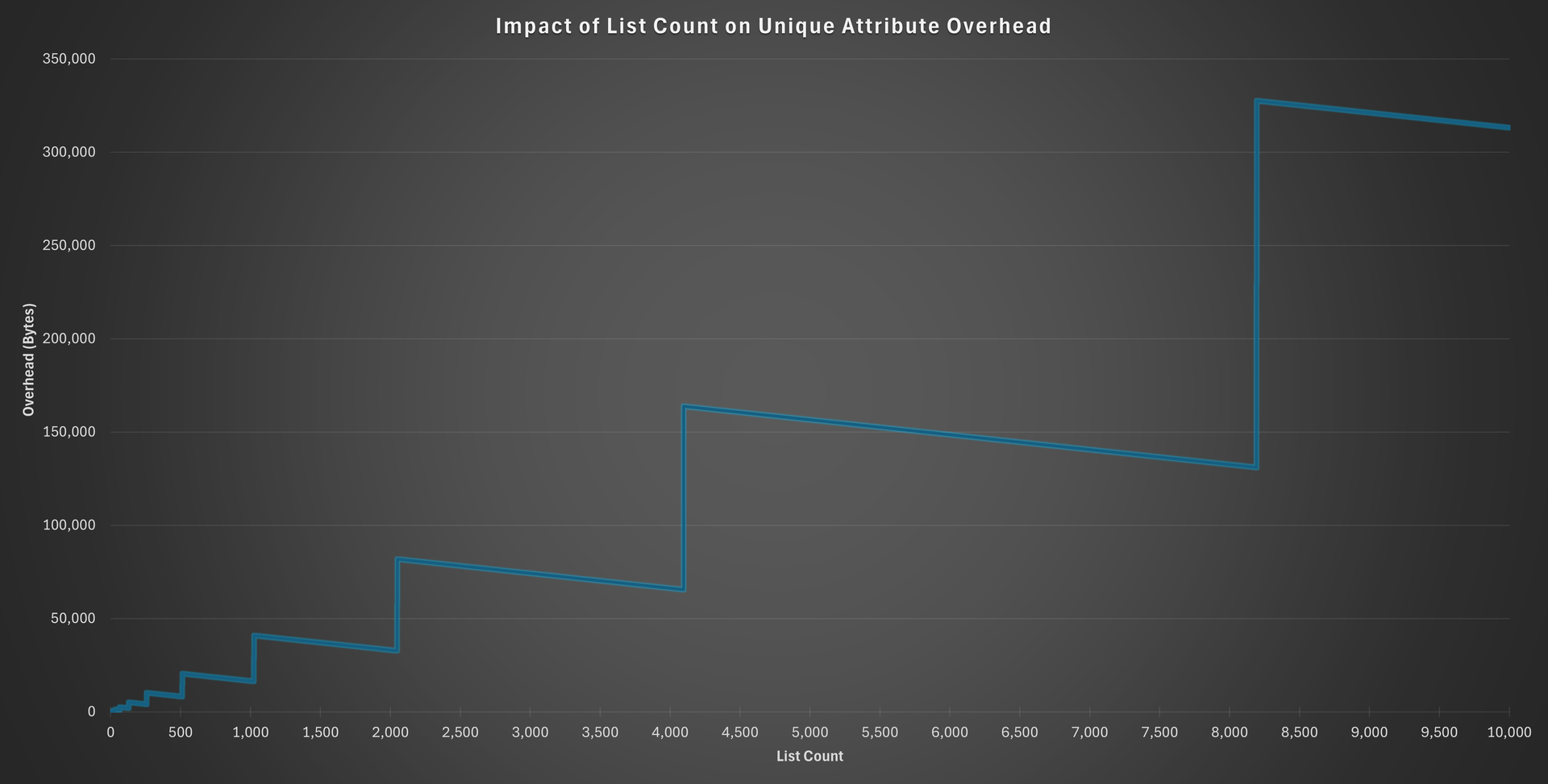
The resulting step-wise growth pattern occurs because KDB+ uses a buddy memory allocation system. When the current memory block is insufficient for the hash map, the system allocates a new block twice as large, causing jumps in overhead.
Interestingly, within each step, the overhead decreases linearly as list count increases — likely due to more efficient packing of the hash structure relative to the allocated memory.
A portion of the data is shown below:
| List Count | Overhead (Bytes) |
|---|---|
| 0 | 0 |
| 1 | 16 |
| 2 | 32 |
| 3 | 72 |
| 4 | 64 |
| 5 | 152 |
| 6 | 144 |
| 7 | 136 |
| 8 | 128 |
| 9 | 312 |
| .. | .. |
| 16 | 256 |
| 17 | 632 |
| .. | .. |
Deriving a Formula
To generalise the memory overhead of the unique attribute, we begin by defining p as the next power of 2 greater than or equal to the list count n:
\[ p = 2 ^ {\lceil \log_{2}{n} \rceil} \]
From the observed data, we note that whenever the list count n is an exact power of 2 (e.g., 1, 2, 4, 8, 16…), the overhead aligns with:
\[ \text{overhead} = 16n \quad \text{where} \space \space n = 2^k, \space \space k \in \mathbb{Z}_{\ge 0} \]
This gives us the base overhead at each power-of-2 boundary. Between those boundaries — that is, for values of n such that \(n \in (p/2, p)\) — the overhead decreases by 8 bytes for every step closer to p. This decreasing pattern suggests the adjustment term:
\[ 8(n - p) \]
To express the general formula for any list count n, we substitute the fixed power-of-2 overhead (16n) with 16p, since p is the power of 2 the list will eventually “grow into”. Applying the adjustment term, the formula becomes:
\[ \begin{align*} \text{overhead} &= 16p - 8(n - p) \\ &= 8(3p - n) \end{align*} \]
This can be computed in Q with:
nextPower2:{[n] "j"$2 xexp ceiling 2 xlog n}

uniqueOverhead:{[n] 8*(3*nextPower2 n)-n}
Example usage:
q)uniqueOverhead 1+til 10
16 32 72 64 152 144 136 128 312 304
Parted
The overhead of the parted attribute depends primarily on the count of unique elements in the list. This is because the internal hash map stores each unique value along with the index of its first occurrence.
To analyse this, we tested 10,000-element lists with varying counts of unique values, from 1 to 10,000.
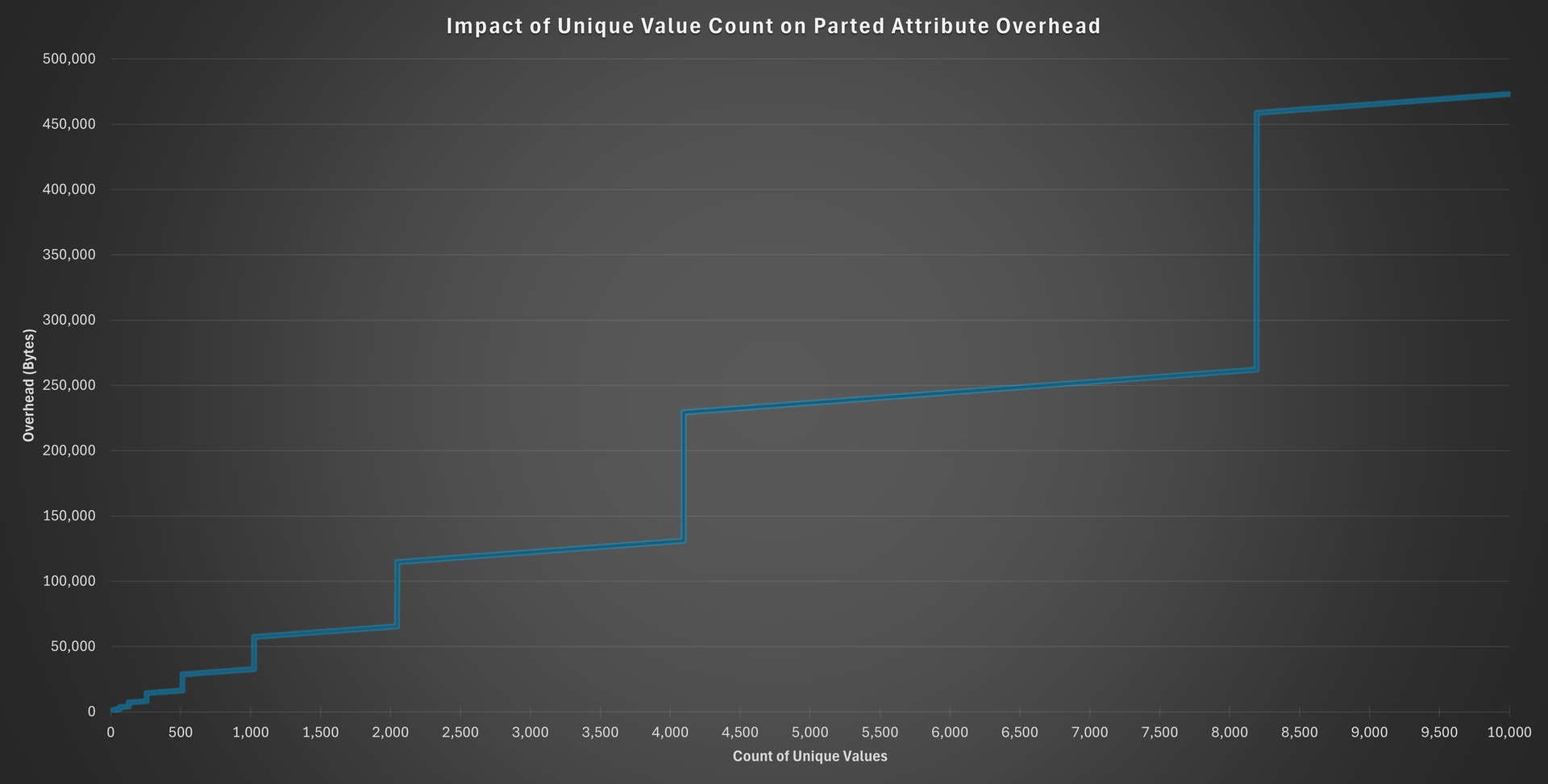
As with the unique attribute, we observe a step pattern, which results from KDB+ allocating memory in powers of 2 (buddy allocation system).
Between each step, the overhead increases linearly with the count of unique values.
A portion of the results is shown below:
| Count of Unique Values | Overhead (Bytes) |
|---|---|
| 1 | 72 |
| 2 | 104 |
| 3 | 160 |
| 4 | 168 |
| 5 | 272 |
| 6 | 280 |
| 7 | 288 |
| 8 | 296 |
| 9 | 496 |
| .. | .. |
| 15 | 544 |
| 16 | 552 |
| 17 | 944 |
| .. | .. |
From this table, we see that at powers of 2 (1, 2, 4, 8, 16), the overheads are:
u:           1  2   4   8   16
overhead:    72 104 168 296 552
Subtracting a constant base of 40 bytes (likely fixed overhead for the hash structure) gives:
32, 64, 128, 256, 512 = 32 × (1, 2, 4, 8, 16)
This suggests the overhead at powers of 2 follows:
\[ \text{overhead} = 40 + 32p \]
where
\[ p = 2 ^ {\lceil \log_{2}{u} \rceil} \]
and u is the count of unique values in the list.
General Formula
For non-power-of-2 u, we observe that the overhead increases by 8 bytes with each additional unique value until the next power-of-2 threshold. This incremental cost can be modelled as:
\[ 8(u - p) \]
Putting it all together, the complete formula becomes:
\[ \begin{align*} \text{overhead} &= 40 + 32p + 8(u - p) \\ &= 8(3p + u + 5) \end{align*} \]
In Q, it can be implemented as:
partedOverhead:{[u] 8*5+u+3*nextPower2 u}
Example:
q)partedOverhead 1+til 10
72 104 160 168 272 280 288 296 496 504
Grouped
The overhead of the grouped attribute depends on both the total count of the list (n) and the count of unique values (u). Internally, KDB+ builds a hash map that stores each unique value along with the indices of all its occurrences in the list, which explains this dual dependency.
To measure the overhead, we tested lists of 10,000 and 20,000 elements with varying counts of unique values. For comparability, the 20,000-element list was tested only up to 10,000 unique values.
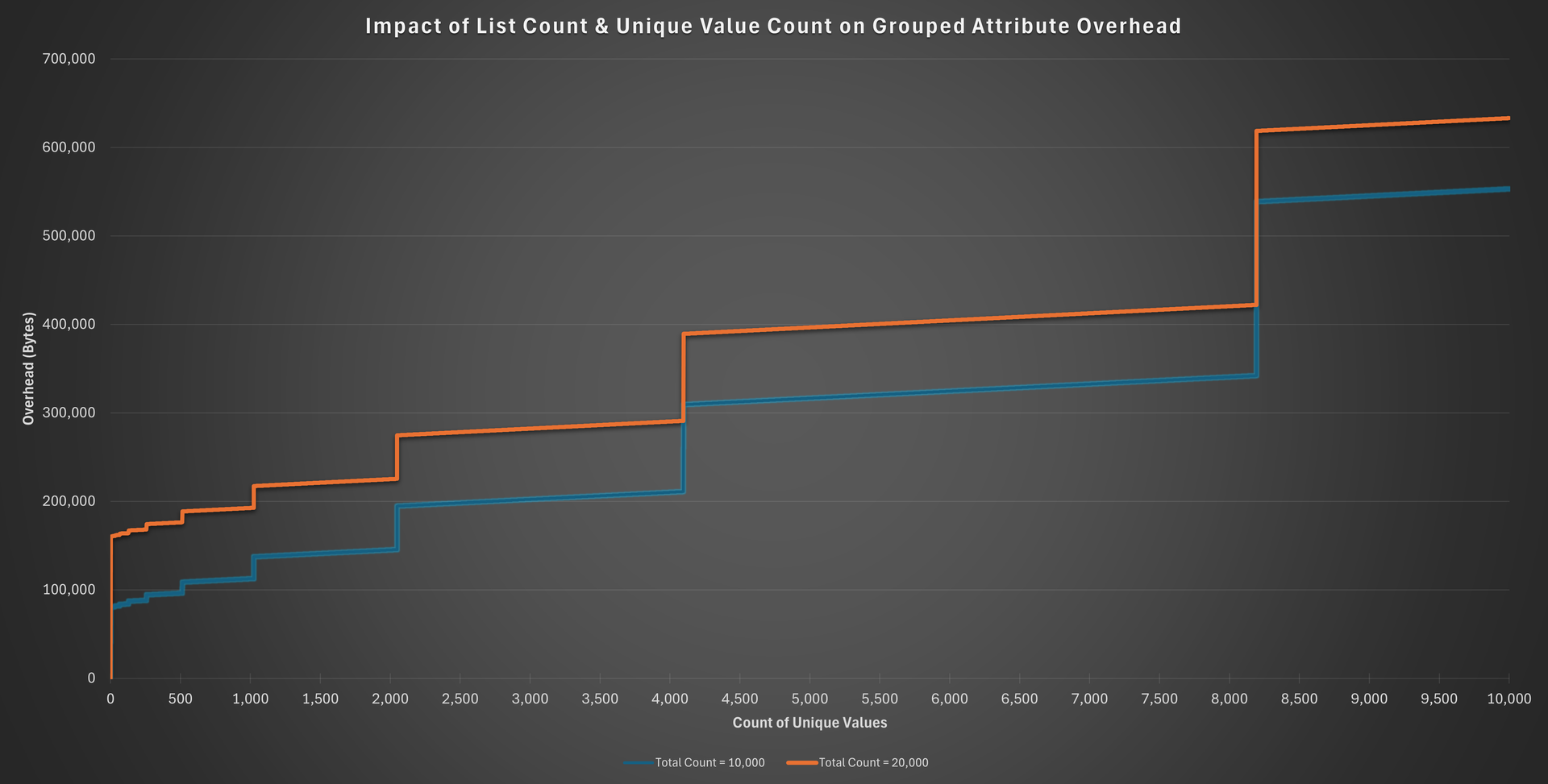
The chart shows two lines — one for each total list count. For a given count of unique values, the larger list incurs higher overhead, confirming that the grouped attribute scales with both list count and the count of unique elements.
Analysing the Overhead
Let’s look at a small snippet of the results for each total list count.
Snippet for List Count = 10,0000
| Count of Unique Values | Overhead (Bytes) |
|---|---|
| 1 | 80,088 |
| 2 | 80,120 |
| 3 | 80,176 |
| 4 | 80,184 |
| 5 | 80,288 |
| 6 | 80,296 |
| 7 | 80,304 |
| 8 | 80,312 |
| 9 | 80,512 |
| .. | .. |
| 15 | 80,560 |
| 16 | 80,568 |
| 17 | 80,960 |
| .. | .. |
At powers of 2 (1, 2, 4, 8, 16), we observe the following overheads:
u:         1       2       4       8       16
overhead:  80,088  80,120  80,184  80,312  80,568
Subtracting 80,056 from these values gives:
32, 64, 128, 256, 512 = 32 × (1, 2, 4, 8, 16)
This suggests that for power-of-2 u, the overhead is:
\[ \text{overhead} = 80,056 + 32𝑝 \]
We’ll revisit the 80,056 in a moment.
Snippet for List Count = 20,0000
| Count of Unique Values | Overhead (Bytes) |
|---|---|
| 1 | 160,088 |
| 2 | 160,120 |
| 3 | 160,176 |
| 4 | 160,184 |
| 5 | 160,288 |
| 6 | 160,296 |
| 7 | 160,304 |
| 8 | 160,312 |
| 9 | 160,512 |
| .. | .. |
| 15 | 160,560 |
| 16 | 160,568 |
| 17 | 160,960 |
| .. | .. |
Again, for powers of 2:
u:        1        2        4        8        16
overhead: 160,088  160,120  160,184  160,312  160,568
Subtracting 160,056 yields the same \(32 × p\) pattern
Interpreting the Base Overhead
Notice that:
- For the 10,000-element list, the offset was 80,056
- For the 20,000-element list, it was 160,056
This suggests the base overhead grows linearly with the list count. Specifically:
\[ \begin{align*} 80,056 &= 56 + 8 × 10,000 \\ 160,056 &= 56+8×20,000 \end{align*} \]
So, the general base overhead is:
\[ base = 56 + 8n \]
where n is the total count of the list, and 56 is likely a fixed base cost for the internal structure.
General Formula
For non-power-of-2 u, we again see 8-byte increments per unique value until the next power-of-2 is reached. Thus, the total overhead can be expressed as:
\[ \begin{align*} \text{overhead} &= 56 + 8n + 32p + 8(u - p) \\ &= 8(3p + n + u + 7) \end{align*} \]
Where:
- n is the list count.
- u is the count of unique values.
- p is the next power of 2 greater than or equal to u.
Q Implementation
groupedOverhead:{[n;u] 8*7+n+u+3*nextPower2 u}
Examples:
q)groupedOverhead[10000;] 1+til 10
80088 80120 80176 80184 80288 80296 80304 80312 80512 80520

q)groupedOverhead[20000;] 1+til 10
160088 160120 160176 160184 160288 160296 160304 160312 160512 160520
Note
The formulas derived for computing attribute overheads are based on the current internal implementation of KDB+. As such, they may change in future versions if the underlying architecture is modified. However, the methodology used to derive these formulas — through systematic measurement and pattern analysis — can still be applied to recalculate overheads if needed. The approach is general and remains valid even if the specific outcomes evolve over time.
Conclusion
While KDB+ attributes offer powerful query optimisations, we have shown that these benefits come with measurable costs in time and memory.
We’ve seen that attributes like unique, parted, and grouped maintain internal data structure — typically hash maps — that vary in size depending on both the total count of the list and the count of unique values. This leads to non-trivial memory overhead, which can scale into hundreds of megabytes or more for large datasets.
We also observed that applying attributes can incur time overhead during operations like loading, writing, or updating data — particularly for attributes that require hashing or maintaining metadata during write time.
The key takeaway is that attributes are not free. Their use should be deliberate and informed. If the expected query performance improvement outweighs the storage and update costs, they can be extremely valuable. But for infrequently queried or write-heavy data, the overhead might not justify their use.
As always with performance tuning, measure before and after, and choose the right tool for the workload.
Performance Benefits of KDB+ Attributes

Attributes in KDB+ are powerful performance optimisations that can dramatically accelerate queries on large datasets. In this blog, we’ll dive into the tangible performance benefits they offer - measuring real-world improvements in speed and efficiency. If you’re new to attributes or want a refresher on their mechanics and use cases, check out my previous blog post for a detailed introduction.
Note
- Results were generated using Q/KDB+ version 4.1 (2025.04.28).
- Times are shown in milliseconds and space in megabytes.
- Figures are shown to three significant figures.
Basic List Operations
To understand the impact of attributes on performance, we begin by analysing basic list operations.
Each test followed this methodology:
-
A sorted list of N unique elements was created using
til N. -
For binary operations, a random element from the list was selected as the second operand.
-
The operation was executed on the list without any attribute, then repeated with each attribute applied.
-
Steps 2–3 were repeated multiple times, and the average execution time was recorded for accuracy.
In addition to the primary list type, I also tested two other structures:
- A unique, unsorted list generated using
neg[N]?N(list is sorted when applying sorted and parted attributes). - A non-unique, unsorted list generated using
N?N div 4(unique attribute excluded for this case).
This allows us to determine if the underlying structure of the list affects performance trends. Unless otherwise noted, the trends were consistent across list types.
Comparison Operators
KDB+ provides several standard comparison operators, familiar to users of other languages:
| Operator | Description |
|---|---|
= | Equal |
<> | Not Equal |
< | Less Than |
> | Greater Than |
<= | Less Than or Equal |
>= | Greater Than or Equal |
How the Sorted Attribute Boosts Performance
The sorted attribute enables Q/KDB+ to use binary search instead of linear search, significantly improving performance on large lists. Consider the following example using the less than (<) operator:
List: 1 2 3 4 5 6 7 8 9 10, searching for < 7
1 2 3 4 5 6 7 8 9 10
        ^              // Midpoint: 5 < 7 → Search right half
1 1 1 1 1 . . . . .

6 7 8 9 10
    ^                  // Midpoint: 8 > 7 → Search left half
. . 0 0 0

6 7
^                      // Midpoint: 6 < 7 → Search right
1 .

7
^                      // 7 = 7 → Done
0
The full comparison is completed in just a few steps using binary search — far faster than checking each element sequentially.
Equal (=) and Not Equal (<>)
| List Count | No Attribute | Sorted | Unique | Parted | Grouped |
|---|---|---|---|---|---|
| 1,000 | 0.000408 | 0.000409 | 0.000409 | 0.000411 | 0.000407 |
| 10,000 | 0.00330 | 0.00337 | 0.00335 | 0.00333 | 0.00331 |
| 100,000 | 0.0481 | 0.0485 | 0.0477 | 0.0482 | 0.0483 |
| 1,000,000 | 0.649 | 0.634 | 0.680 | 0.603 | 0.640 |
| 10,000,000 | 7.46 | 7.75 | 7.80 | 7.48 | 7.51 |
| 100,000,000 | 76.0 | 76.3 | 76.3 | 75.2 | 76.4 |
Surprisingly, the = and <> operators do not appear to benefit from any attribute — even on large lists. The operation time scales roughly linearly with list count. This behaviour contrasts sharply with other comparison operators that benefit from the sorted attribute.
Less Than (<) and Greater Than (>)
| List Count | No Attribute | Sorted | Unique | Parted | Grouped |
|---|---|---|---|---|---|
| 1,000 | 0.00169 | 0.00137 | 0.00176 | 0.00166 | 0.00168 |
| 10,000 | 0.0128 | 0.00239 | 0.0126 | 0.0121 | 0.0124 |
| 100,000 | 0.121 | 0.0094 | 0.117 | 0.119 | 0.123 |
| 1,000,000 | 1.455 | 0.113 | 1.46 | 1.47 | 1.46 |
| 10,000,000 | 12.8 | 1.06 | 12.8 | 13.0 | 12.9 |
| 100,000,000 | 76.9 | 5.40 | 78.3 | 79.6 | 77.4 |
These results clearly demonstrate the benefit of the sorted attribute for range-based comparisons. The performance gain becomes increasingly significant as the data volume grows, thanks to binary search.
Less Than Or Equal (<=) and Greater Than Or Equal (>=)
| List Count | No Attribute | Sorted | Unique | Parted | Grouped |
|---|---|---|---|---|---|
| 1,000 | 0.000724 | 0.000530 | 0.000747 | 0.000712 | 0.000710 |
| 10,000 | 0.0113 | 0.00268 | 0.0113 | 0.0111 | 0.0117 |
| 100,000 | 0.131 | 0.0186 | 0.137 | 0.134 | 0.132 |
| 1,000,000 | 1.633 | 0.312 | 1.651 | 1.661 | 1.658 |
| 10,000,000 | 16.4 | 3.20 | 16.4 | 16.6 | 16.3 |
| 100,000,000 | 79.3 | 16.4 | 77.7 | 78.6 | 78.2 |
These compound comparisons also benefit from the sorted attribute, although not as dramatically as their strict counterparts. This is likely because the equality portion of the operation introduces a slight overhead compared to strict inequality.
The Find Operator (?)
The find operator (?) searches for an item in a list. If found, it returns the index of the first occurrence. If not found, it returns the count of the list, which is one past the last index.
| List Count | No Attribute | Sorted | Unique | Parted | Grouped |
|---|---|---|---|---|---|
| 1,000 | 0.000452 | 0.000350 | 0.000302 | 0.000318 | 0.000300 |
| 10,000 | 0.00243 | 0.000435 | 0.000331 | 0.000369 | 0.000348 |
| 100,000 | 0.0196 | 0.000361 | 0.000258 | 0.000269 | 0.000265 |
| 1,000,000 | 0.224 | 0.000361 | 0.000244 | 0.000279 | 0.000250 |
| 10,000,000 | 2.80 | 0.000339 | 0.000240 | 0.000253 | 0.000242 |
| 100,000,000 | 31.1 | 0.000401 | 0.000249 | 0.000256 | 0.000284 |
The find operation shows dramatic performance improvements when using any of the attributes. The unique, parted, and grouped attributes offer nearly 2× better performance than sorted for a list with 100 million elements.
However, these three attributes require additional overhead to store internal structures (such as hash maps), whereas the sorted attribute does not require any extra space — making it a more lightweight option when applicable.
Minimum (min) and Maximum (max)
The min and max functions return the smallest and largest elements in a list, respectively.
| List Count | No Attribute | Sorted | Unique | Parted | Grouped |
|---|---|---|---|---|---|
| 1,000 | 0.000335 | 0.000102 | 0.000320 | 0.000326 | 0.000320 |
| 10,000 | 0.00203 | 0.0000990 | 0.00204 | 0.00204 | 0.00204 |
| 100,000 | 0.0192 | 0.000104 | 0.0192 | 0.0253 | 0.0195 |
| 1,000,000 | 0.431 | 0.000117 | 0.242 | 0.240 | 0.222 |
| 10,000,000 | 5.21 | 0.000109 | 4.57 | 6.04 | 4.71 |
| 100,000,000 | 55.8 | 0.000284 | 53.1 | 59.2 | 49.2 |
When a list is sorted, the minimum and maximum values are simply the first and last elements. This makes these operations constant time, regardless of list count, as reflected in the table above.
Other attributes (unique, parted, grouped) do not show meaningful benefit.
Special Case: Non-Unique, Unsorted Lists
In the case of a non-unique, unsorted list, we observed a performance gain with the parted attribute:
| List Count | No Attribute | Sorted | Parted | Grouped |
|---|---|---|---|---|
| 1,000 | 0.000731 | 0.000259 | 0.000475 | 0.000764 |
| 10,000 | 0.00457 | 0.000262 | 0.00112 | 0.00428 |
| 100,000 | 0.0386 | 0.000275 | 0.0102 | 0.0396 |
| 1,000,000 | 0.937 | 0.000223 | 0.125 | 1.29 |
| 10,000,000 | 10.6 | 0.000281 | 1.64 | 6.61 |
| 100,000,000 | 57.9 | 0.000147 | 20.9 | 63.1 |
This improvement likely stems from how the parted attribute internally manages buckets of unique values. In a non-unique list, the underlying hash map only needs to examine the keys (i.e., unique values) when computing the minimum or maximum. This subset is often much smaller than the original list, making the operation faster in practice.
Distinct (distinct)
The distinct function returns a list of the unique elements from the input list, preserving their first occurrence.
| List Count | No Attribute | Sorted | Unique | Parted | Grouped |
|---|---|---|---|---|---|
| 1,000 | 0.00290 | 0.00370 | 0.000157 | 0.000801 | 0.0150 |
| 10,000 | 0.0321 | 0.0342 | 0.000135 | 0.00446 | 0.0997 |
| 100,000 | 0.439 | 0.542 | 0.000228 | 0.183 | 1.50 |
| 1,000,000 | 6.77 | 5.82 | 0.000209 | 2.24 | 16.5 |
| 10,000,000 | 50.5 | 40.6 | 0.000212 | 18.2 | 135 |
| 100,000,000 | 432 | 462 | 0.000207 | 159 | 1360 |
With the unique attribute, the distinct operation becomes essentially free — the list is already composed of unique elements, so the function simply returns the list as-is. This results in constant-time performance, regardless of the list count.
The parted attribute also provides a significant performance boost. This is because a parted list internally maintains a hash map of unique values, so distinct can efficiently return the map’s keys, bypassing a full scan of the list.
The sorted attribute, by contrast, offers no substantial benefit. While sorted lists could potentially allow for early exit strategies or linear scanning, this doesn’t appear to be leveraged in the current implementation.
Surprisingly, the grouped attribute — despite also maintaining a hash map — performs worse than having no attribute at all. The reason for this is unclear. It may be due to internal overheads in the way grouped lists are structured or accessed.
Special Case: Non-Unique, Unsorted Lists
When applied to a non-unique, unsorted list, the parted attribute once again offers a meaningful advantage:
| List Count | No Attribute | Sorted | Parted | Grouped |
|---|---|---|---|---|
| 1,000 | 0.00341 | 0.00237 | 0.000271 | 0.00219 |
| 10,000 | 0.0257 | 0.0347 | 0.000685 | 0.0187 |
| 100,000 | 0.454 | 0.576 | 0.0177 | 0.466 |
| 1,000,000 | 7.03 | 8.28 | 0.483 | 4.73 |
| 10,000,000 | 58.9 | 52.0 | 3.76 | 24.1 |
| 100,000,000 | 1330 | 537 | 34.3 | 347 |
In this case, the parted attribute delivers a ~5× improvement compared to the normal case (unique, sorted list). This confirms that parted is particularly effective for lists with high duplication, where the internal hash structure enables fast access to the unique keys.
Disk Read Operations
Up to this point, we’ve explored how attributes affect in-memory lists. While useful for illustration, the more common real-world application of attributes is in on-disk (splayed) tables — particularly to optimise disk reads, which are far more costly than memory access.
In this section, we evaluate a few basic queries to see how disk read performance is affected by applying attributes to specific columns.
For the tests, I created several splayed tables with the following schema, each containing a different number of rows:
// Schema
([] time:`timestamp$(); sym:`symbol$(); price:`float$(); size:`long$(); side:`char$())
Query: time > randTime
In time-series data, the time column typically arrives in order, making it a good candidate for the sorted attribute. This query selects sym and price for rows where the time is greater than a randomly chosen timestamp:
randTime:exec rand time from table
select sym, price from table where time>randTime
Both execution time and memory usage (space) was measured for two cases: with and without the sorted attribute on the time column.
| Row Count | No Attribute (Time) | Sorted (Time) | No Attribute (Space) | Sorted (Space) |
|---|---|---|---|---|
| 100,000 | 36.0 | 26.3 | 0.374 | 0.250 |
| 1,000,000 | 168 | 88.7 | 12.0 | 8.00 |
| 10,000,000 | 1780 | 1140 | 192 | 128 |
| 100,000,000 | 7210 | 1098 | 384 | 256 |
The sorted attribute yields substantial improvements in both speed and memory efficiency. This is due to the underlying binary search strategy enabled by sorted data, which minimises disk reads.
Query: time = randTime
In earlier in-memory tests, we observed that the = operator did not benefit from the sorted attribute. Here, we test whether that holds true for on-disk tables:
select sym, price from table where time=randTime
| Row Count | No Attribute (Time) | Sorted (Time) | No Attribute (Space) | Sorted (Space) |
|---|---|---|---|---|
| 100,000 | 13.0 | 16.5 | 0.125 | 0.000458 |
| 1,000,000 | 100 | 20.2 | 1.00 | 0.000458 |
| 10,000,000 | 560 | 20.8 | 16.0 | 0.000458 |
| 100,000,000 | 5030 | 18.4 | 128 | 0.000458 |
Interestingly, when querying on-disk data, = benefits greatly from the sorted attribute — both in speed and memory usage. This is a contrast to the in-memory case, and it highlights how Q’s columnar storage and I/O behaviour differ between memory and disk.
Query: sym = randSym
The sym column is one of the most commonly queried columns in KDB+, often representing stock tickers or instrument identifiers. Due to its high selectivity and frequent use in filters, it is a natural candidate for attribute optimisation.
In this test, we query for all rows where sym equals a randomly selected symbol:
randSym:exec rand sym from table
select time, side from table where sym=randSym
We evaluate four cases based on the attribute applied to the sym column: No Attribute, Sorted, Parted, and Grouped.
Time
| Row Count | No Attribute | Sorted | Parted | Grouped |
|---|---|---|---|---|
| 100,000 | 21.1 | 16.0 | 15.2 | 28.6 |
| 1,000,000 | 106 | 22.4 | 24.7 | 19.9 |
| 10,000,000 | 526 | 17.5 | 16.2 | 15.4 |
| 100,000,000 | 6200 | 22.3 | 14.3 | 31.6 |
All three attributes — sorted, parted, and grouped — offer significant speedups over the unoptimised case. Of these, the parted attribute delivers the best performance at scale. This aligns with best practices in KDB+, where the sym column in on-disk tables is often parted to optimise equality-based filters.
Space
| Row Count | No Attribute | Sorted | Parted | Grouped |
|---|---|---|---|---|
| 100,000 | 1.13 | 0.000946 | 0.000946 | 0.00140 |
| 1,000,000 | 9.00 | 0.00259 | 0.00259 | 0.00452 |
| 10,000,000 | 144 | 0.0356 | 0.0356 | 0.0668 |
| 100,000,000 | 1150 | 0.282 | 0.282 | 0.532 |
Using attributes also leads to drastic reductions in memory usage — by orders of magnitude. Notably, sorted and parted produce identical memory footprints, suggesting similar internal mechanisms in how the filter is executed. Grouped shows more memory use but still vastly outperforms the baseline.
Query: max price by sym
A common and often costly query pattern in KDB+ involves performing aggregations by a column — typically sym. These select ... by ... queries group data based on distinct values of a column, then apply an aggregation such as max, min, or avg.
For this test, we perform a simple aggregation: finding the maximum price for each symbol.
select max price by sym from table
We again compare performance across four attribute configurations for the sym column: No Attribute, Sorted, Parted, and Grouped.
Time
| Row Count | No Attribute | Sorted | Parted | Grouped |
|---|---|---|---|---|
| 100,000 | 31.6 | 38.4 | 15.4 | 30.6 |
| 1,000,000 | 224 | 131 | 76.1 | 134 |
| 10,000,000 | 1130 | 1080 | 543 | 1130 |
| 100,000,000 | 12400 | 12300 | 5090 | 12200 |
The parted attribute yields the most significant performance improvement. This is because a parted column is already physically grouped by its unique values, allowing the aggregation to operate directly on these pre-formed groups without needing to reorganise the data.
In contrast, sorted and grouped offer no meaningful performance advantage over the unoptimised case in this scenario.
Space
| Row Count | No Attribute | Sorted | Parted | Grouped |
|---|---|---|---|---|
| 100,000 | 1.13 | 1.06 | 0.313 | 1.13 |
| 1,000,000 | 8.13 | 8.06 | 0.313 | 8.13 |
| 10,000,000 | 128 | 128 | 0.313 | 128 |
| 100,000,000 | 1024 | 1024 | 0.313 | 1024 |
When using the parted attribute, memory usage remains constant regardless of dataset size. This suggests that no additional memory is consumed during grouping — likely because the data is already partitioned, and aggregation can proceed without intermediate allocation.
Conclusion
KDB+ attributes offer a powerful way to optimise query performance by influencing how data is accessed and retrieved. As we’ve seen, each attribute — sorted, unique, parted, and grouped — serves a specific purpose and can dramatically reduce query times when applied appropriately. Whether it’s enabling binary search through a sorted list, ensuring fast membership checks via unique, or accelerating group-based operations with parted and grouped, attributes are key to writing high-performance Q code.
KDB+ Attributes

KDB+ provides four attributes — sorted, unique, parted, and grouped — that can be applied to lists and table columns to significantly enhance query performance. However, understanding when these attributes are preserved, lost, or best applied can be subtle and often overlooked. This blog explores how these attributes behave under common operations, where they are most effectively used, and some special behaviours — particularly of the sorted attribute. Whether you’re optimising an RDB or HDB, mastering attribute behaviour is key to writing efficient, high-performance KDB+ code.
What is an Attribute?
In KDB+, an attribute is a form of metadata that can be applied to a list (also dictionaries and tables for sorted), provided the list has a structure compatible with that attribute. This metadata instructs the Q interpreter to apply certain optimisations when processing the list, potentially leading to significant performance improvements in queries and operations.
However, attributes come with trade-offs. Maintaining attribute integrity (attribute preservation) can add complexity to your code. Additionally, attributes can introduce performance overhead, both in terms of memory usage and execution time. For a deeper exploration of performance implications, see my other blog post Performance Costs of KDB+ Attributes.
The Four Attributes
KDB+ provides four attributes that can be applied to lists to enable specific performance optimisations:
| Attribute | Code | Required Structure | Optimisation |
|---|---|---|---|
| Sorted | s | List must be sorted in ascending order. | Enables the use of binary search instead of linear search, improving search performance. |
| Unique | u | List must contain only unique values. | Builds a hash table that maps each unique element to its index in the list. |
| Parted | p | List must be sorted into contiguous blocks of identical elements. | Builds a hash table mapping each unique element to the index of the first element in its group. |
| Grouped | g | No structural requirement. | Builds a hash table mapping each unique element to the list of indexes where it occurs. |
Example: Sorted Searching
To illustrate how different search algorithms operate, let’s search for (the first occurrence of) the number 7 in a sorted list of numbers from 1 to 10.
Linear search sequentially examines each element until a match is found (or the end of the list is reached).
1 2 3 4 5 6 7 8 9 10
^ // 1 ≠ 7
1 2 3 4 5 6 7 8 9 10
^ // 2 ≠ 7
1 2 3 4 5 6 7 8 9 10
^ // 3 ≠ 7
1 2 3 4 5 6 7 8 9 10
^ // 4 ≠ 7
1 2 3 4 5 6 7 8 9 10
^ // 5 ≠ 7
1 2 3 4 5 6 7 8 9 10
^ // 6 ≠ 7
1 2 3 4 5 6 7 8 9 10
^ // 7 = 7 → Found at index 6
// Result: Item found after checking 7 elements
Binary search uses a divide-and-conquer approach and only works on sorted data.
1 2 3 4 5 6 7 8 9 10
^ // Midpoint: 5 < 7 → Search right half
6 7 8 9 10
^ // Midpoint: 8 > 7 → Search left half
6 7
^ // Midpoint: 6 < 7 → Search right
7
^ // 7 = 7 → Found at index 6
// Result: Item found after checking only 4 elements
Example: Unique Hash Table
The following example shows the internal hash table Q creates when the unique attribute is applied:
q)mylist:`u#`a`b`c`z`y`x
// Resulting hash table:
a | 0
b | 1
c | 2
z | 3
y | 4
x | 5
Example: Parted Hash Table
Here’s what Q generates when the parted attribute is applied:
q)mylist:`p#`a`a`a`b`b`b`c`z`z`z`z`z`y`x`x
// Resulting hash table:
a | 0
b | 3
c | 6
z | 7
y | 12
x | 13
Example: Grouped Hash Table
Finally, this example illustrates the hash table built by Q when the grouped attribute is used:
q)mylist:`g#`a`a`b`c`z`a`z`y`x`x`c`y
// Resulting hash table:
a | 0 1 5
b | 2
c | 3 10
z | 4 6
y | 7 11
x | 8 9
Attribute Operations
There are three primary operations related to attributes in KDB+: applying, removing, and checking attributes on a list.
Applying
Attributes are applied using the # operator:
x#y
Where:
- x is the attribute code as a symbol (
`s, `u, `p, or `g). - y is the list to apply the attribute to.
Object Copying
When an attribute is applied to a list, it creates a copy of the original list with the attribute applied. We can confirm this behaviour by inspecting the reference count of the object using the internal function -16!, which reveals how many references point to the same memory location.
q)show n:til 10
0 1 2 3 4 5 6 7 8 9
q)m:n
// Both m and n point to the same object in memory
q)-16!m
2i
q)-16!n
2i
Now apply an attribute (e.g., unique) to n:
q)show n:til 10
0 1 2 3 4 5 6 7 8 9
q)show m:`u#n
`u#0 1 2 3 4 5 6 7 8 9
// m and n now reference separate objects
q)-16!n
1i
q)-16!m
1i
Exception: Sorted Attribute Applied In-Place
Unlike the other attributes, the sorted attribute is applied in-place, i.e., it modifies the original object even without reassignment.
q)n:til 10
q)`s#n
`s#0 1 2 3 4 5 6 7 8 9
// Despite no reassignment, the attribute is applied to n
q)n
`s#0 1 2 3 4 5 6 7 8 9
This behaviour remains even when assigned to another variable:
q)n:til 10
q)show m:`s#n
`s#0 1 2 3 4 5 6 7 8 9
q)n
`s#0 1 2 3 4 5 6 7 8 9
// m and n reference separate objects
q)-16!n
1i
q)-16!m
1i
Other Attributes Require Reassignment
For all other attributes (unique, grouped, parted), reassignment is necessary to retain the attribute:
q)n:til 10
q)`u#n
`u#0 1 2 3 4 5 6 7 8 9
// The attribute is not preserved unless reassigned
q)n
0 1 2 3 4 5 6 7 8 9
q)n:`u#n
q)n
`u#0 1 2 3 4 5 6 7 8 9
List Structure Verification
When applying the sorted, unique, or parted attributes, Q verifies that the list meets the required structure. If not, an error is raised:
q)`s#4 2 5 1 3
's-fail
[0] `s#4 2 5 1 3
^
q)`u#1 2 1 2 1
'u-fail
[0] `u#1 2 1 2 1
^
// For `p, Q also throws a 'u-fail if the list is not properly parted
q)`p#1 2 1 2 1
'u-fail
[0] `p#1 2 1 2 1
^
As a convenience, applying asc to a list will automatically assign the sorted attribute:
q)show n:10?100
93 54 38 97 88 58 68 45 2 39
q)asc n
`s#2 38 39 45 54 58 68 88 93 97
Removing
To remove an attribute, use the null symbol ` as the left argument to the # operator:
`#y
Where y is the list from which the attribute should be removed.
q)show n:`u#til 10
`u#0 1 2 3 4 5 6 7 8 9
q)show n:`#n
0 1 2 3 4 5 6 7 8 9
Checking
You can check the current attribute applied to a list using the attr keyword:
q)show n:`u#til 10
`u#0 1 2 3 4 5 6 7 8 9
q)attr n
`u
If no attribute is applied, the result is the null symbol `.
q)show n:til 10
0 1 2 3 4 5 6 7 8 9
q)attr n
`
Table Attributes
Most operations in KDB+ involve working with tables. Attributes are most commonly applied to table columns, and the principles for applying, removing, and checking attributes are the same as for standalone lists.
Applying
Attributes can be applied to table columns either:
- At the time of table creation, or
- After the table is created, using an
updatestatement or direct column assignment.
Apply on creation
// Apply the unique attribute to col1 when creating the table
q)show t:([] col1:`u#til 5; col2:`a`b`c`d`e)
col1 col2
---------
0 a
1 b
2 c
3 d
4 e
q)attr t`col1
`u
Apply using update
// Create table without attributes, then apply unique to col1
q)t:([] col1:til 5; col2:`a`b`c`d`e)
q)attr t`col1
`
q)update `u#col1 from `t
`t
q)attr t`col1
`u
Apply using column assignment
// Apply attribute via direct column assignment
q)t:([] col1:til 5; col2:`a`b`c`d`e)
q)attr t`col1
`
q)t[`col1]:`u#t`col1
q)attr t`col1
`u
Removing
Attributes can be removed from a table column using `# along with either an update statement or a column assignment.
Removing using update
q)t:([] col1:`u#til 5; col2:`a`b`c`d`e)
q)attr t`col1
`u
q)update `#col1 from `t
`t
q)attr t`col1
`
Removing using column assignment
q)t:([] col1:`u#til 5; col2:`a`b`c`d`e)
q)attr t`col1
`u
q)t[`col1]:`#t`col1
q)attr t`col1
`
Checking
You can use the attr keyword to inspect the attribute of an individual column:
q)t:([] col1:`u#til 5; col2:`a`b`c`d`e)
q)attr t`col1
`u
To view all column attributes at once, use the meta keyword. The "a" field in the metadata output indicates any attribute applied to each column:
q)meta t
c | t f a
----| -----
col1| j u
col2| s
Attribute Preservation
Preserving an attribute on a list can be tricky — many operations will strip an attribute, even if the structure appears unchanged. It’s important to understand which operations preserve attributes and which cause them to be lost.
Append Operations
Append operations will preserve attributes (except parted) as long as the required structure is maintained.
Sorted (s) Attribute
// Sorted preserved: elements appended in order
q)show n:`s#til 10
`s#0 1 2 3 4 5 6 7 8 9
q)show n,:10 11 12
`s#0 1 2 3 4 5 6 7 8 9 10 11 12
// Using upsert, sorted still preserved
q)n:`s#til 10
q)show n:n upsert 10 11 12
`s#0 1 2 3 4 5 6 7 8 9 10 11 12
// Appending unsorted data causes attribute to be lost
q)n:`s#til 10
q)show n,:12 11 10
0 1 2 3 4 5 6 7 8 9 12 11 10
Table append behaves the same
q)show t:([] col1:`s#til 5; col2:`a`b`c`d`e)
col1 col2
---------
0 a
1 b
2 c
3 d
4 e
q)meta t,:([] col1:5 6 7; col2:`x`y`z) // Sorted preserved
c | t f a
----| -----
col1| j s
col2| s
q)meta t upsert flip (5 6 7;`x`y`z) // Sorted preserved
c | t f a
----| -----
col1| j s
col2| s
q)meta t upsert flip (7 6 5;`x`y`z) // Sorted lost
c | t f a
----| -----
col1| j
col2| s
Unique (u) Attribute
// Unique preserved: no duplicates added
q)show n:`u#til 10
`u#0 1 2 3 4 5 6 7 8 9
q)show n,:10 11 12
`u#0 1 2 3 4 5 6 7 8 9 10 11 12
// Unique lost: duplicates introduced
q)n:`u#til 10
q)show n,:7 8 9
0 1 2 3 4 5 6 7 8 9 7 8 9
Grouped (g) Attribute
// Grouped is always preserved when appending
q)show n:`g#til 10
`g#0 1 2 3 4 5 6 7 8 9
q)show n,:til 10
`g#0 1 2 3 4 5 6 7 8 9 0 1 2 3 4 5 6 7 8 9
Comma Join (,) Operation
A standard comma join (without assignment) creates a new list, losing any attribute.
q)show n:`s#til 10
`s#0 1 2 3 4 5 6 7 8 9
q)show n:n,10 11 12
0 1 2 3 4 5 6 7 8 9 10 11 12
// Even grouped is lost
q)show n:`g#til 10
`g#0 1 2 3 4 5 6 7 8 9
q)show n:n,10 11 12
0 1 2 3 4 5 6 7 8 9 10 11 12
// Tables also lose attributes on comma join
q)meta t:([] col1:`s#til 5; col2:`a`b`c`d`e)
c | t f a
----| -----
col1| j s
col2| s
q)meta t,([] col1:5 6 7; col2:`x`y`z)
c | t f a
----| -----
col1| j
col2| s
Parted (p) Attribute and Append
The parted attribute is only preserved when:
- Both lists are parted.
- Their group values are disjoint (except in a special case).
// Valid parted append: disjoint values, both parted
q)x:`p#1 1 1 2 2 3 4 4 4 4
q)y:`p#5 6 7 7
q)show z:x,y
`p#1 1 1 2 2 3 4 4 4 4 5 6 7 7
// Comma assign does not preserve parted
q)show x,:y
1 1 1 2 2 3 4 4 4 4 5 6 7 7
// y not parted → attribute lost
q)x:`p#1 1 1 2 2 3 4 4 4 4
q)y:5 6 7 7
q)show z:x,y
1 1 1 2 2 3 4 4 4 4 5 6 7 7
// Not disjoint → attribute lost
q)x:`p#1 1 1 2 2 3 4 4 4 4
q)y:`p#1 1 2
q)show z:x,y
1 1 1 2 2 3 4 4 4 4 1 1 2
Special Case: Shared edge group
If the last group in x is the same as the first group in y, and all other groups are disjoint, the attribute is preserved.
// Special case: last of x = first of y
q)x:`p#1 1 1 2 2 3 4 4 4 4
q)y:`p#4 4 5 5 6
q)show z:x,y
`p#1 1 1 2 2 3 4 4 4 4 4 4 5 5 6
// Not valid: disjoint condition violated
q)x:`p#1 1 1 2 2 3 4 4 4 4
q)y:`p#6 5 5 4 4
q)show z:x,y
1 1 1 2 2 3 4 4 4 4 6 5 5 4 4
Modification Operations
Any operation that modifies elements in a list (e.g., addition, replacement, deletion) results in a new list with no attribute.
q)show n:`s#til 10
`s#0 1 2 3 4 5 6 7 8 9
// Sorted lost
q)show m:n+1
1 2 3 4 5 6 7 8 9 10
// Even assigning back to n loses the attribute
q)show n+:1
1 2 3 4 5 6 7 8 9 10
// Replacement loses attribute
q)n:`s#5 10 15 20 25
q)n[2]:16
q)n
5 10 16 20 25
// Deletion loses attribute
q)n:`s#til 10
q)show n:-1_n
0 1 2 3 4 5 6 7 8
// Same behaviour applies to unique, parted, grouped
q)n:`u#til 10; show n+:1
q)n:`p#til 10; show n+:1
q)n:`g#til 10; show n+:1
Table Modifications
Updating a table also removes column attributes:
q)meta t:([] col1:`s#til 5; col2:`a`b`c`d`e)
c | t f a
----| -----
col1| j s
col2| s
q)meta update col1+1 from t
c | t f a
----| -----
col1| j
col2| s
When and Where to Use Attributes
Attributes are most commonly applied to table columns that are frequently queried. Choosing the right attribute depends on both:
- The structure of the data in the column (since attributes, except grouped, require specific ordering or uniqueness), and
- The cost and complexity of preserving that attribute across updates or transformations.
The table below summarises typical use cases for each attribute in KDB+:
| Attribute | Where to Apply |
|---|---|
| Sorted | On temporal columns (e.g., timestamps) where values naturally arrive in ascending order. |
| Unique | On columns containing unique identifiers or primary keys. |
| Parted | On symbol columns in a historical database (HDB) where values are fixed after initial writedown (e.g., sym in tick data). |
| Grouped | On frequently queried columns whose values are often repeated but lack a predictable structure (common in RDBs). |
Attribute application should be based on your specific workload and data patterns. While attributes can offer substantial performance improvements, they come with maintenance trade-offs. Always test attribute use in your environment to verify their effectiveness before applying them broadly.
Attribute Interaction in Queries
Only the first column with an attribute referenced in a where clause benefits from the attribute. Subsequent filters operate on a derived sub-table, where attributes are no longer available.
q)meta t:([] col1:`s#til 5; col2:`u#`a`b`c`d`e)
c | t f a
----| -----
col1| j s
col2| s u
// Only 'col1>2' benefits from an attribute
q)select from t where col1>2, col2 in `d`e
col1 col2
---------
3 d
4 e
In this example:
col1>2benefits from the sorted attribute for efficient filtering.col2 in `d`edoes not leverage the unique attribute, since it’s applied on a sub-table.
Special Applications of Sorted
The sorted attribute is unique among KDB+ attributes because it can be applied not only to lists (like all attributes) but also directly to dictionaries, tables, and keyed tables.
Step Functions
Applying the sorted attribute to a dictionary transforms it into a step function. In this context, KDB+ will return the value associated with the largest key less than or equal to the query value:
q)show d:`s#10 20 30 40 50!`a`b`c`d`e
10| a
20| b
30| c
40| d
50| e
q)attr d
`s
// Attribute is visible on the key
q)key d
`s#10 20 30 40 50
q)d 10
`a
q)d 19
`a
q)d 20
`b
q)d 10000
`e
// Null since no key <= 5
q)d 5
`
Note that the key of the dictionary must be in sorted order:
q)`s#20 10 30 40 50!`a`b`c`d`e
's-fail
[0] `s#20 10 30 40 50!`a`b`c`d`e
^
A step function behaves similarly to the bin keyword, except it returns an index rather than a key:
q)10 20 30 40 50 bin 10
0
q)10 20 30 40 50 bin 19
0
q)10 20 30 40 50 bin 20
1
q)10 20 30 40 50 bin 10000
4
// -1 since no value <= 5
q)10 20 30 40 50 bin 5
-1
Note
- The sorted attribute must be applied to the entire dictionary.
- Applying it to just the key list does not create a step function:
// Not a step function – just a dictionary with a sorted key q)d:(`s#10 20 30 40 50)!`a`b`c`d`e q)attr d ` q)attr key d `s q)d 19 `
Tables and Keyed Tables
The behaviour of the sorted attribute differs depending on whether it’s applied to a simple table or a keyed table:
Simple Tables
When sorted is applied to a non-keyed (simple) table, it implicitly applies the parted attribute to the first column only:
q)meta t:([] col1:til 5; col2:`a`b`c`d`e)
c | t f a
----| -----
col1| j
col2| s
q)meta `s#t
c | t f a
----| -----
col1| j p
col2| s
Keyed Tables
For keyed tables:
- If there is only one key column, sorted is applied directly to that key column.
- If there are multiple key columns, only the first receives the parted attribute.
// Single-keyed table: sorted applies to the key column
q)meta t:([col1:til 5] col2:`a`b`c`d`e)
c | t f a
----| -----
col1| j
col2| s
q)meta `s#t
c | t f a
----| -----
col1| j s
col2| s
// Multi-keyed table: parted applied to the first key only
q)meta t:([col1:til 5;col2:`a`b`c`d`e;col3:"abcde"] col4:1 2 3 4 5f)
c | t f a
----| -----
col1| j
col2| s
col3| c
col4| f
q)meta `s#t
c | t f a
----| -----
col1| j p
col2| s
col3| c
col4| f
Conclusion
Understanding where and how to apply attributes in KDB+ is essential for optimising query performance, especially when working with large datasets. Each attribute — sorted, unique, parted, and grouped — has specific use cases and constraints based on the structure of your data. While this blog focused on where attributes are most effectively applied and the special behaviour of the sorted attribute across different structures, it’s important to test and benchmark attribute usage in your specific environment for best results.
For an in-depth look at the performance impact of these attributes, including benchmarks and practical query comparisons, please refer to my follow-up blog on Performance Benefits of KDB+ Attributes.
Floating-Point Datatypes in Q/KDB+
Floating-point numbers are essential for representing real-world values that require fractional precision. These numbers are used to model quantities such as measurements, scientific data, financial calculations, and approximations of irrational numbers like \(\pi\). Unlike integers, which represent whole numbers, floating-point numbers allow for the representation of both very small and very large numbers by using a decimal point and an exponent.
In Q/KDB+, floating-point numbers are implemented using two primary datatypes, each suited for different levels of precision. These datatypes are built on the IEEE 754 standard, which defines formats for representing floating-point numbers in a binary system. Understanding how floating-point numbers work in Q/KDB+ is critical for efficiently handling numerical data, particularly in high-performance time series and financial applications where precision and performance are crucial.
This blog will explore how floating-point numbers behave in Q/KDB+, including their characteristics, default types, and practical considerations such as comparison tolerance and the implications of rounding errors.
Floating-Point Datatypes in Q/KDB+
Q/KDB+ provides two primary floating-point datatypes:
-
real: A 4-byte (32-bit) single-precision floating-point number, adhering to the IEEE 754 standard. This type can hold approximately 6 decimal digits of precision. -
float: An 8-byte (64-bit) double-precision floating-point number, also based on the IEEE 754 standard. This type supports approximately 15 decimal digits of precision.
The table below provides a concise overview of the properties of real and float datatypes:
| Type | Internal Code | Character | Size (bytes) | Example | Null | Infinity | Approx. Range |
|---|---|---|---|---|---|---|---|
| real | 8 | e | 4 | 17.5e | 0Ne 0ne | 0We 0we | \([-3.403 \times 10^{38}, 3.403 \times 10^{38}]\) |
| float | 9 | f | 8 | 17.5f 17.5 | 0Nf 0nf 0n | 0Wf 0wf 0w | \([-1.798 \times 10^{308}, 1.798 \times 10^{308}]\) |
Default Floating-Point Datatype
In Q/KDB+, the default floating-point type is the float. Any number with a decimal point and without a type character suffix will automatically be a float.
To explicitly define a real, the value must include the e suffix. Here are some examples:
7.5e // Real
7.5f // Float
7.5 // Float
.1 // Float
1. // Float
2e3 // Float (Scientific notation)
2e3e // Real (Scientific notation)
Note on Scientific Notation
Scientific notation is a compact way of expressing numbers using powers of 10. Examples include 1.23e5 for \(1.23 \times 10^5\). For more details, see the Scientific Notation section.
Infinities and Nulls
Floating-point operations involving infinity or null values behave as expected in Q/KDB+, without wrapping like integers. For example:
q)10+0we
0we
q)10+0w
0w
q)-10+0we
0we
q)-10+0w
0w
Division by zero produces positive or negative infinity:
q)123%0
0w
q)-123%0
-0w
Dividing zero by zero produces a null float:
q)0%0
0n
Scientific Notation
Floating-point numbers in Q can be expressed using scientific notation, where e indicates the exponent:
q)1.234e05
123400f
q)1.234e+5
123400f
q)1.234e5
123400f
q)1.234e-3
0.001234
To the right of the e is a signed exponent. The + and leading 0 for a positive exponent are optional.
To explicitly define a real in scientific notation, the e type suffix must be included:
q)1.234e3e
1234e
Display Precision and Formatting
The Q console defaults to displaying up to 7 significant digits for floating-point values, even though the actual stored precision may be higher. You can adjust the display precision using the \P system command:
q)\P 2
q)3.14159265358979323
3.1
q)\P 10
q)3.14159265358979323
3.141592654
q)\P 0 // Full precision (17 digits for floats - the last digit is unreliable)
q)3.14159265358979323
3.1415926535897931
Comparison Tolerance
Floating-point comparisons in Q use a tolerance mechanism to account for precision limitations. This ensures that two values close to each other are considered equal:
q)sum 7#1%7
0.99999999999999978
q)1f=sum 7#1%7
1b
q)1f>sum 7#1%7
0b
q)1f<sum 7#1%7
0b
However, only zero is tolerantly the same as zero:
q)0=1e-300
0b
q)0=0
1b
Therefore, for intolerant comparison, one can check if
\[ 0 = x - y \]
q)1f=sum 7#1%7
1b
q)0=1f-sum 7#1%7
0b
Built-in Comparison Tolerance
Comparison tolerance is automatically applied in the following cases:
- Operators:
=<<=>=>~ - Keywords:
differwithin - Iterators: Converge, Do, and While
However, comparison tolerance is not used in:
- Operators:
? - Keywords:
distinctexceptgroupininterunionxgroupascdesciascidescrankxascxdesc
Transitivity Caveat
q)a:96.099999999999994
q)b:96.10000000001
q)c:96.10000000002
q)a=b
1b
q)b=c
1b
q)a=c
0b
Because of this, floats are unsuitable for use as database keys or in operations that rely on strict equality.
Formal Definition of Tolerance
The comparison tolerance T in Q/KDB+ is defined as:
\[ T = 2^{-43} \approx 1.14 \times 10^{-13} \]
This tolerance ensures that floating-point comparisons account for small relative differences between values.
Two floating-point values x and y are considered equal if:
\[ | x - y | \le T \times max(|x|, |y|) \]
Why Non-Zero Values Cannot Equal Zero
Under this definition, no non-zero value can be considered equal to zero. Here’s the proof:
\[
\begin{align*}
| x - 0 | &\gt T \times max(|x|, |0|) \\
|x| &\gt T \times |x| \\
1 &\gt T
\end{align*} \qquad \forall \space x \ne 0
\]
Since T is a very small positive constant, the inequality \(1 > T\) always holds, making the condition true for all non-zero values of x.
Additional Notes
Floating-Point Addition is Not Associative
Due to rounding errors, the order of operations can affect the result of summing floating-point values:
q)\P 0
q)x:1e-10*til 10000000
q)sum x
4999.9995000000017
q)sum reverse x
4999.9994999999999
q){x+y} over x
4999.9994999999635
q){x+y} over reverse x
4999.9995000000026
q)sum sum 2 cut x
4999.9995000000199
Datetime Comparisons
datetime values in Q/KDB+ are stored as float and therefore use tolerance in comparisons:
q)a:2000.01.02+sum 1000#1%86400
q)b:2000.01.02T00:16:40.000
q)a=b // Tolerantly equal
1b
q)0=a-b // Strict comparison
0b
Conclusion
Floating-point numbers are a fundamental part of numerical computing, enabling the representation of continuous and approximate values in Q/KDB+. By understanding the two main floating-point types — real and float — along with their behaviour in operations, we can make more informed decisions about precision and performance in our applications.
While Q/KDB+ handles floating-point numbers with built-in comparison tolerance to mitigate small precision errors, it’s important to be mindful of the limitations, especially when working with large datasets or performing operations that require strict equality. Whether you’re using floating-point values in time series analysis, financial computations, or scientific modeling, a solid grasp of how these datatypes work will help ensure that your results are both accurate and efficient.
As always, when dealing with floating-point numbers, it’s essential to choose the appropriate type based on the required precision, and to be aware of potential pitfalls like non-transitive comparisons and rounding errors. By keeping these considerations in mind, you can avoid subtle bugs and make the most of Q/KDB+’s powerful numerical capabilities.
Measuring Compression Performance in Q/KDB+

Compression performance in Q/KDB+ is influenced by several critical factors, including the choice of compression parameters — logical block size (LBS), compression algorithm, and algorithm level. These parameters significantly impact the compression factor (how effectively data is compressed) and influence the speed of reading and writing compressed data. Since these parameters are user-configurable, selecting the optimal combination for a specific use case is essential.
Equally important is the nature of the data being compressed. Characteristics such as data type, structure, and repetitiveness can heavily influence compression performance.
In this blog, we’ll explore strategies for evaluating compression performance in Q/KDB+ and discuss how to identify the parameter configurations best suited to your data and requirements. If you’re new to compression in Q/KDB+, I recommend starting with my earlier post, An Introduction to Compression in Q/KDB+, where I cover the basics of compression methods and their usage. Understanding those fundamentals will provide helpful context for the experiments and analyses discussed here.
Setup
To evaluate compression performance in Q/KDB+, I created a standalone tool available in the QTools repository. The specific script for measuring compression performance can be found here. Simply copy or download this script to use it, and refer to the documentation for detailed instructions on the tool’s functions.
I have included all the code used to generate the results, so you can see examples of how this tool is used throughout this blog.
Note
- All times (write and read) are reported in milliseconds.
- Q/KDB+ version used: 4.1 (2024.05.31)
Important
The results of these tests can vary based on factors such as machine architecture, the specific random values used, and other environmental conditions. The results in this blog are illustrative and intended to guide you in conducting your own performance evaluations.
Saving/Loading Results
Running some of these tests can be time-consuming. To avoid losing your results and allow for future analysis, you can save them to disk and reload them later. The following functions facilitate saving and loading data:
dataDir:`:/<DATA-PATH>/data;
// Save data
sd:{.Q.dd[x;` sv y,`csv] 0: "," 0: value y}[dataDir;];
// Load data
ld:{y set ("jjjhjfffn";enlist ",") 0: .Q.dd[x;` sv y,`csv]}[dataDir;];
Simply set the dataDir variable to the desired directory for saving the results. Once set, you can save and load the results table as shown below:
// Save the results table
q)sd `results
// Load the results table
q)ld `results
Static Data
Historic data is static and unlikely to change. For such data, we can optimise compression by testing different parameter configurations and selecting the best fit for our requirements.
Example Dataset
Consider a simple example: a list of 10,000 randomly generated long integers ranging from 0 to 999.
data:10000?1000
Although generated randomly, this dataset is now static. Using the zipPerf tool introduced in the setup, we can evaluate various compression parameters to understand their impact on performance.
Testing Compression Parameters
First, load the performance measurement tool and run the test:
q)\l <PATH>/qtools/src/zipPerf.q
// Run the test - Takes approx. 4 minutes (%1e6 converts timespan to milliseconds)
q)results:update writeTime%1e6, readTime%1e6 from .zipPerf.testAll data
Performance Metric Statistics
Key performance statistics for compression factor, write time, and read time can be summarised with the following query:
select
metric:`compFactor`writeTime`readTime,
maximum:(max compFactor; max writeTime; max readTime),
minimum:(min compFactor; min writeTime; min readTime),
average:(avg compFactor; avg writeTime; avg readTime)
from results
Example output:
metric maximum minimum average
---------------------------------------
compFactor 4.957621 0.9974073 3.649513
writeTime 170.298 0.188266 12.57895
readTime 2.733323 0.060592 0.7867975
This analysis reveals the range and average values for each metric. To determine the best compression configuration, let’s examine each metric individually.
Compression Factor
The compression factor measures space savings, with higher values indicating more efficient compression. We identify the configuration yielding the highest compression factor:
q)select compFactor, lbs, alg, lvl from results where compFactor=max compFactor
compFactor lbs alg lvl
----------------------
4.957621 17 5 1
4.957621 17 5 2
4.957621 18 5 1
4.957621 18 5 2
4.957621 19 5 1
4.957621 19 5 2
4.957621 20 5 1
4.957621 20 5 2
The highest compression factor (4.957621) is achieved with the zstd algorithm at level 1 or 2 and LBS values between 17 and 20.
Write Time
Write time measures how quickly data is compressed and written to disk. Lower values are preferable:
q)select writeTime, lbs, alg, lvl from results where writeTime=min writeTime
writeTime lbs alg lvl
---------------------
0.188266 13 2 0
The fastest write time (0.188266 ms) is achieved using the gzip algorithm at level 0 with an LBS of 13.
Read Time
Read time measures how quickly compressed data can be retrieved and decompressed. Again, lower values are better:
q)select readTime, lbs, alg, lvl from results where readTime=min readTime
readTime lbs alg lvl
--------------------
0.060592 12 5 10
The fastest read time (0.060592 ms) is achieved using the zstd algorithm at level 10 with an LBS of 12.
Choosing the Best Configuration
The ideal compression configuration depends on specific requirements:
- Maximising Compression Factor: Suitable when storage is limited.
- Minimising Write Time: Ideal for scenarios with time-sensitive writes.
- Minimising Read Time: Common in read-heavy environments, such as historical databases.
Balancing Metrics
In practice, trade-offs between metrics are often necessary. Suppose we prioritise a quick write time (<0.3 ms) while maintaining a compression factor >2. We can refine our query:
q)`writeTime xasc select compFactor, writeTime, lbs, alg, lvl from results where writeTime<0.3, compFactor>2
compFactor writeTime lbs alg lvl
--------------------------------
2.67451 0.263748 17 3 0
2.469249 0.264199 14 3 0
2.4869 0.268497 19 1 0
2.368178 0.274438 13 1 0
This query identifies configurations that balance write time and compression efficiency. The final choice should align with operational priorities and system constraints.
Generalised Compression Testing with Random Data
While historic data in KDB+ is typically static, it’s often impractical to test compression across all columns, tables, and partitions due to the sheer volume of data. Instead, we can simulate different data scenarios by generating random datasets and testing compression on them.
This approach allows us to evaluate compression performance across a variety of data organisations, providing insights into the parameters that yield “good” performance in the general case.
The Tool
The zipPerf tool includes the function .zipPerf.testAllRand for this purpose. This function takes two arguments:
- Number of Lists: The number of random datasets to generate and test.
- Data Generator Function: A function to generate random datasets.
For example, the following call generates 10 random lists, each containing 10,000 longs between 0 and 999, and evaluates compression performance for each list:
.zipPerf.testAllRand[10;{10000?1000}]
The results are aggregated, computing the average performance metrics for each parameter configuration.
Running the Test
To demonstrate, let’s run the test and convert the time metrics to milliseconds:
// Run the test - Takes approx. 30 minutes
q)results:update writeTime%1e6, readTime%1e6 from .zipPerf.testAllRand[10;{10000?1000}];
Using the same queries from the Static Data section, we summarise the key statistics from the results:
// Key performance statistics
metric maximum minimum average
---------------------------------------
compFactor 4.954066 0.9974073 3.649914
writeTime 60.00062 0.1174 9.881192
readTime 1.236025 0.328472 0.6572004
// Maximum compression factor
compFactor lbs alg lvl
----------------------
4.954066 17 5 1
4.954066 18 5 1
4.954066 19 5 1
4.954066 20 5 1
// Minimum write time
writeTime lbs alg lvl
---------------------
0.1174 0 0 0
// Minimum read time
readTime lbs alg lvl
--------------------
0.328472 0 0 0
Observations
-
Compression Factor: The best compression factor (4.954066) is achieved using the zstd algorithm at level 1, with any LBS between 17 and 20.
-
Write and Read Times Without Compression: The fastest write (0.1174 ms) and read (0.328472 ms) times occur when no compression is applied, which is expected since compression and decompression introduce overhead.
Let’s exclude the results for uncompressed data and identify the best configurations for write and read times:
Best Write Time with Compression:
q)select writeTime, lbs, alg, lvl from (select from results where alg<>0) where writeTime=min writeTime
writeTime lbs alg lvl
---------------------
0.153473 17 2 0
The most favourable write time (0.153473 ms) occurs with the gzip algorithm at level 0 and an LBS of 17.
Best Read Time with Compression:
q)select readTime, lbs, alg, lvl from (select from results where alg<>0) where readTime=min readTime
readTime lbs alg lvl
--------------------
0.364619 13 4 12
The most favourable read time (0.364619 ms) occurs with the lz4hc algorithm at level 12 and an LBS of 13.
Impact of Algorithm Level on Compression Performance
In this section, we explore how varying the algorithm level affects compression performance. Using the results from the previous section, we focus on the zstd algorithm with a fixed LBS of 17 to analyse performance trends.
Results
The below query can be used to gather the results:
q)select lvl, compFactor, writeTime, readTime from results where alg=5, lbs=17
lvl compFactor writeTime readTime
---------------------------------
-7 4.057967 0.315761 0.602378
-6 4.05925 0.29988 0.540294
-5 4.055668 0.313296 0.6288
-4 4.056856 0.299043 0.636049
..
Visualisation
To better understand these trends, the following graph illustrates the relationship between the algorithm level and the performance metrics:
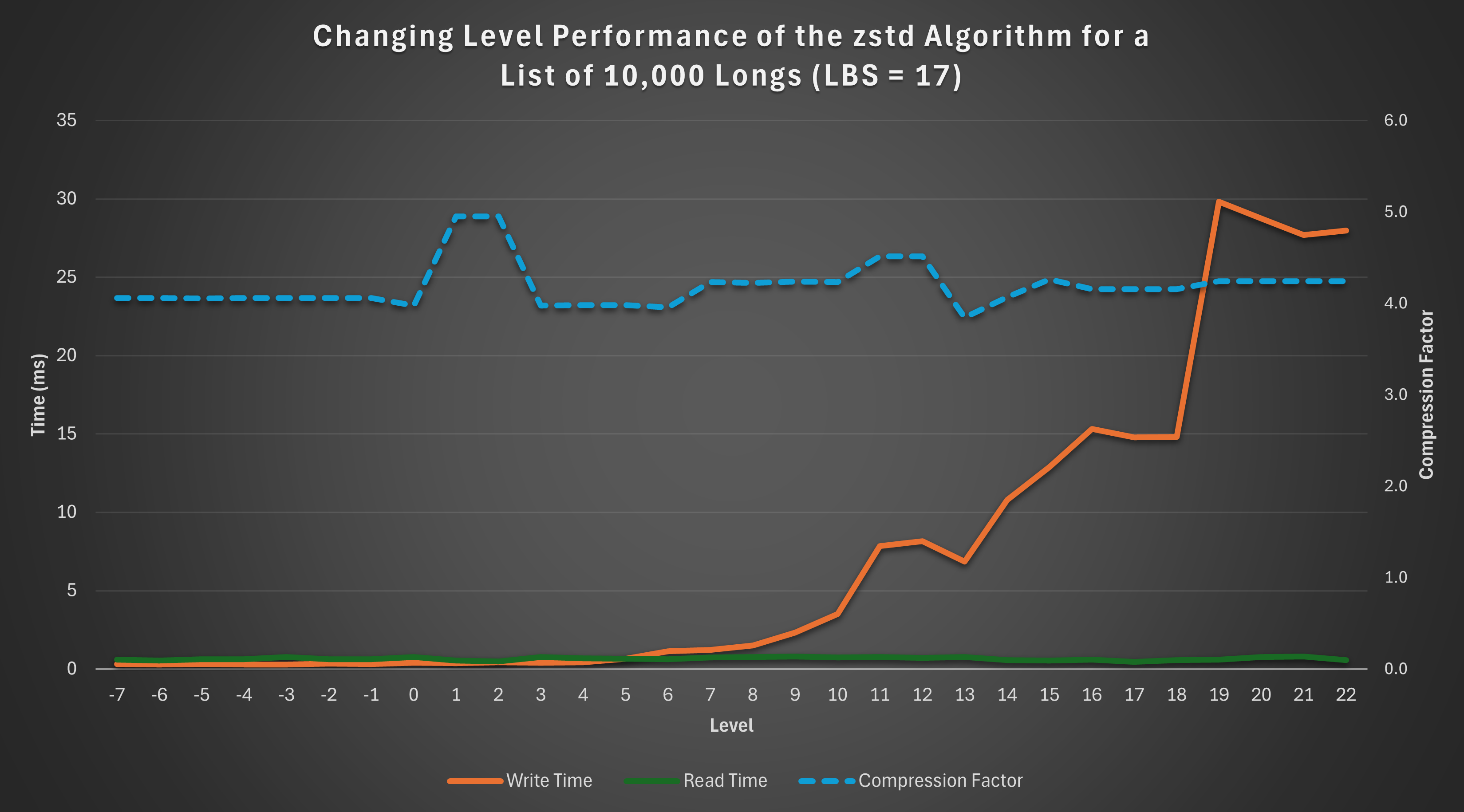
Observations
-
Read Time: The read time remains relatively constant across levels, showing no significant variation.
-
Compression Factor: The compression factor is generally stable, with a slight “bump” observed at levels 1 and 2, indicating better compression efficiency at these levels.
-
Write Time: Write time exhibits an exponential increase as the level rises, highlighting the trade-off between compression level and write performance.
This analysis demonstrates that if constrained to the zstd algorithm with an LBS of 17, levels 1 or 2 are optimal. These levels achieve the maximum compression factor while keeping write time low.
Impact of Logical Block Size (LBS) on Compression Performance
This section examines how varying the Logical Block Size (LBS) affects compression performance. For consistency, we analyse results using the zstd algorithm at a fixed level of 18.
Results
The below query can be used to gather the results:
q)select lbs, compFactor, writeTime, readTime from results where alg=5, lvl=18
lbs compFactor writeTime readTime
---------------------------------
12 3.419139 18.3573 0.55395
13 3.545852 21.61034 0.513634
14 3.787947 25.07718 0.686512
15 3.907031 14.57396 0.636689
16 4.059368 15.26676 0.68913
17 4.155016 14.82453 0.563237
18 4.155016 14.19188 0.650421
19 4.155016 14.71257 0.675492
20 4.155016 14.67119 0.833243
Visualisation
The graph below visualizes how the compression factor, write time, and read time vary with LBS:
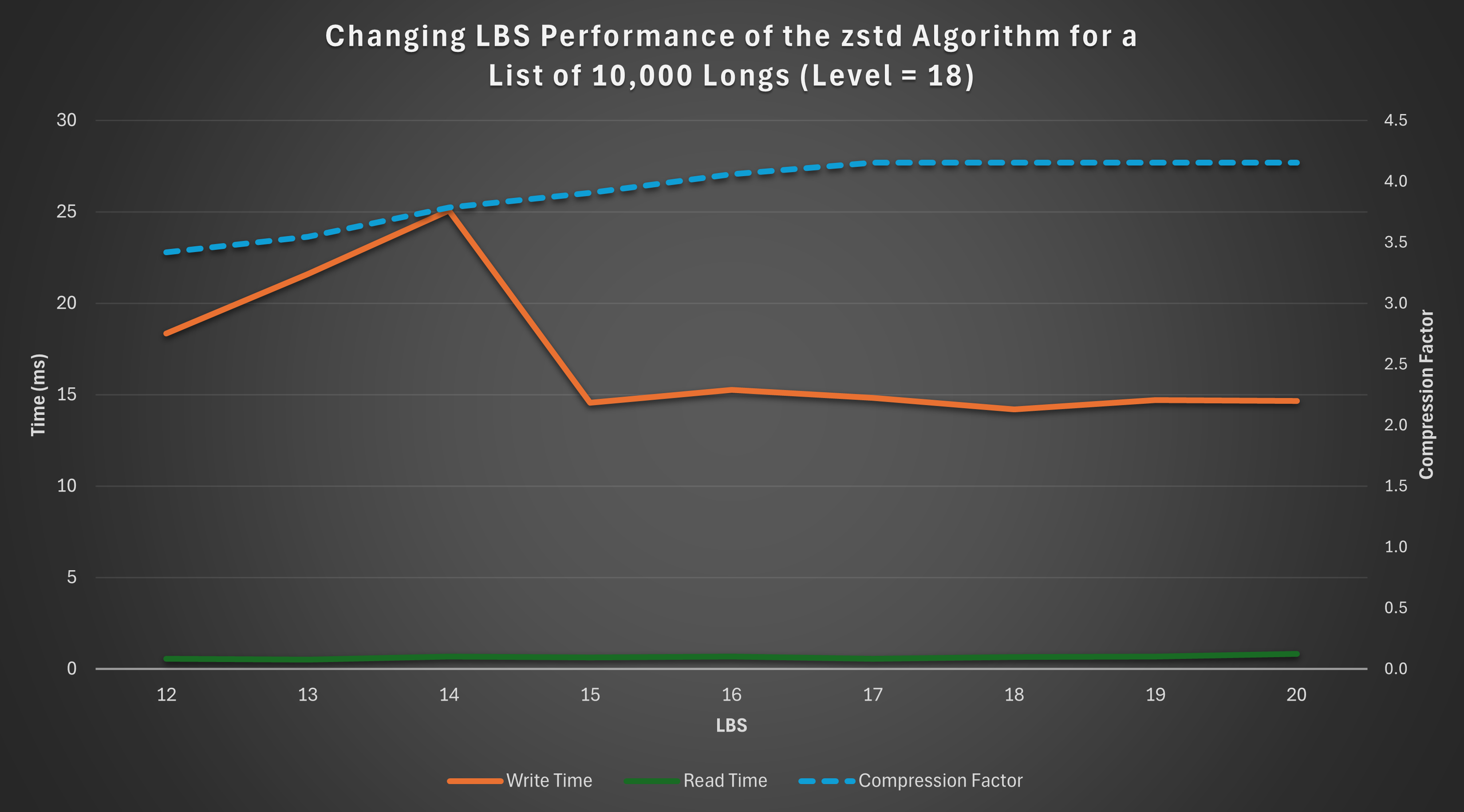
Observations
-
Compression Factor: The compression factor steadily increases as the LBS grows, peaking at LBS values 17–20.
-
Write Time: Write time initially rises with increasing LBS but stabilises and even slightly decreases beyond LBS 14.
-
Read Time: Read time remains relatively constant across the range of LBS values, with minor variations.
Based on these results, if the zstd algorithm is used at level 18, the optimal choice of LBS is 17 or 18, depending on whether read or write performance takes priority. These configurations maximise the compression factor while maintaining stable read and write times, offering a balanced trade-off between efficiency and performance.
Structure and Size of Data
Compression performance can be significantly influenced by the structure and size of the data.
This section explores the effects of sorted, contiguous, and larger datasets on compression performance, comparing the results to the unsorted, smaller dataset analysed earlier.
For consistency, each test was performed with a fresh Q session using the same random seed, ensuring direct comparability of results.
Sorted Data
To assess the impact of sorting, we rerun the general random data test seen previously, with the data sorted in ascending order. Sorting is achieved using the asc keyword in Q.
// Run the test - Takes approx. 30 minutes
q)results:update writeTime%1e6, readTime%1e6 from .zipPerf.testAllRand[10;{asc 10000?1000}];
Summary of Results
metric maximum minimum average
---------------------------------------
compFactor 41.2923 0.9974073 23.22625
writeTime 238.3535 0.14515 15.27876
readTime 1.084563 0.183848 0.3457299
Analysis
Compared to the unsorted data summary table, sorting results in a dramatic increase in both the maximum and average compression factors, demonstrating significant space-saving potential.
However, there is a small penalty in terms of read and write times, as seen in the increase in their maximum and average values. Additionally, if the data isn’t already sorted, the time required for sorting must also be factored in.
Contiguous Data
Contiguous ordering arranges identical values side by side, enhancing compression opportunities.
For example:
Contiguous: 3 3 3 3 1 1 1 2 2
Not contiguous: 3 1 2 1 3 1 2 3 3
We transform the random data into a contiguous order by grouping identical values using group and then flattening the result with raze.
// Run the test - Takes approx. 30 minutes
q)results:update writeTime%1e6, readTime%1e6 from .zipPerf.testAllRand[10;{raze d group d:10000?1000}];
Summary of Results
metric maximum minimum average
---------------------------------------
compFactor 32.44508 0.9974073 20.15545
writeTime 218.1142 0.120421 12.29244
readTime 1.102754 0.19812 0.3532618
Analysis
Contiguous data demonstrates a significant increase in compression factors compared to unsorted data. While the improvements are not as pronounced as those seen with sorted data, the degradation in read and write times is less severe.
Contiguous data therefore offers a balance between space-saving benefits and read/write performance, making it a practical alternative to sorting.
Larger Data
Compression performance can also vary based on dataset size.
We reran the test with a larger list of 1,000,000 longs to evaluate its effect on compression.
// Run the test - Takes approx. 8 hours
q)results:update writeTime%1e6, readTime%1e6 from .zipPerf.testAllRand[10;{1000000?1000}];
Summary of Results
metric maximum minimum average
--------------------------------------
compFactor 4.985321 0.9980438 3.734221
writeTime 759141 3.421783 2301.216
readTime 5.054386 0.4867 1.579741
Analysis
The larger dataset achieves slightly improved compression factors due to increased redundancy and repetition within the data. However, write and read times are significantly longer, which is expected given the greater volume of data being processed.
Different Datatypes
So far, we have focused exclusively on the long datatype. However, the tests described earlier can be applied to any datatype in Q.
This section explores the impact of compression on two additional datatypes: boolean (a simpler datatype) and symbol (a more complex datatype).
Boolean
In Q/KDB+, a boolean is a single-byte (8-bit) value that represents one of two possible states: true (1b) or false (0b). The simplicity of its structure and the high likelihood of repeated values make it an interesting candidate for compression.
General Test
The test was rerun for a random list of 10,000 booleans:
// Run the test - Takes approx. 25 minutes
q)results:update writeTime%1e6, readTime%1e6 from .zipPerf.testAllRand[10;{10000?0b}];
Summary of Results
metric maximum minimum average
---------------------------------------
compFactor 5.844129 0.9928628 4.395721
writeTime 6.01018 0.109531 1.858013
readTime 0.643794 0.151092 0.2843463
Analysis
Compared to the results for longs (summary table), booleans show:
- Higher compression factors: The simpler structure and greater redundancy in boolean data improve compression.
- Faster read and write times: Smaller memory requirements for booleans contribute to quicker operations.
Sorted Test
The test was repeated for a sorted list of 10,000 booleans.
metric maximum minimum average
---------------------------------------
compFactor 120.6747 0.9928628 96.03797
writeTime 2.937618 0.109034 0.1614437
readTime 0.708015 0.174412 0.2824265
Analysis
Sorting results in dramatic improvements in compression performance:
- The average compression factor jumps to 96, significantly outperforming sorted longs.
- The write times are notably reduced, reflecting the efficient encoding of long runs of identical values in sorted boolean data.
Large Dataset Test
The test was scaled up to a list of 1,000,000 booleans to observe the effects of larger datasets.
metric maximum minimum average
---------------------------------------
compFactor 7.715686 0.9979961 4.951624
writeTime 4447.509 0.563583 353.4303
readTime 4.269396 0.277281 0.9963099
Analysis
- The compression factor increases with the larger dataset, reflecting the enhanced opportunities for compression in longer sequences of boolean values.
- Write and read times scale up as expected, but the performance remains manageable due to the datatype’s simplicity.
Symbol
In Q/KDB+, the symbol datatype is analogous to a string in that it can represent sequences of characters. However, unlike strings, symbols are irreducible atomic values in Q/KDB+, with each symbol internally stored as an integer reference to a global dictionary of unique values. This representation makes symbols more complex than simpler data types like longs.
Given their structure, we can expect compression results for symbols to differ from those observed for longs.
General Test
The compression test was rerun on a random list of 10,000, 3-character symbols:
// Run the test - Takes approx. 25 minutes
q)results:update writeTime%1e6, readTime%1e6 from .zipPerf.testAllRand[10;{10000?`3}];
Summary of Results
metric maximum minimum average
---------------------------------------
compFactor 2.053863 0.9968108 1.60796
writeTime 5.365143 0.212508 1.26698
readTime 1.450128 0.63938 0.9329227
Analysis
Compared to the results for longs (summary table), symbols exhibit the following key differences:
- Lower Compression Factor: The more complex structure of symbols, coupled with potentially lower redundancy, reduces compression efficiency.
- Faster Write Times: While uncompressed long data is typically written faster than symbol data, the opposite trend is observed for compressed data. On average, compressed symbol data is written faster than compressed long data. This is likely because symbols tend to achieve lower compression ratios due to their more complex structure and representation, resulting in less computational overhead during the compression phase of the write process.
Sorted Test
The test was repeated for a sorted list of 10,000, 3-character symbols:
metric maximum minimum average
---------------------------------------
compFactor 10.58119 0.9968108 5.523273
writeTime 4.763245 0.20937 1.005981
readTime 1.161317 0.498619 0.6530251
Analysis
Sorting significantly impacts the compression performance of symbols:
- Improved Compression Factor: Sorting amplifies redundancy, enabling compression algorithms to achieve a much higher compression factor. This effect is similar to that observed for longs and booleans.
- Improved Write and Read Times: Unlike longs, where sorting often increases write and read times, symbols see slight improvements. This might be due to better memory locality and more efficient processing of the sorted dictionary references.
Contiguous Test
The test was repeated for a contiguous list of 10,000, 3-character symbols:
metric maximum minimum average
---------------------------------------
compFactor 5.316126 0.9968108 3.300586
writeTime 5.221845 0.221293 1.118578
readTime 2.431121 0.520317 0.7447879
Analysis
The results for contiguous data fall between those for unsorted and fully sorted data:
- Moderate Compression Factor Improvement: While not as effective as full sorting, contiguous ordering still groups identical symbols together, improving compression efficiency.
- Slight Improvements in Write and Read Times: The impact on performance is not as pronounced as with fully sorted data, reflecting the less regular structure of contiguous ordering.
Overall, contiguous ordering provides a trade-off, achieving better compression factors than unsorted data without the full processing cost of sorting.
Large Dataset Test
Finally, the test was scaled up to a list of 1,000,000, 3-character symbols to observe the impact of dataset size:
metric maximum minimum average
--------------------------------------
compFactor 2.139341 0.9980379 1.651971
writeTime 858.8655 6.676792 147.2629
readTime 70.03013 31.14028 40.45668
Analysis
- Slightly Improved Compression Factor: Larger datasets provide more opportunities for redundancy, resulting in a modest increase in the compression factor.
- Significant Increase in Write and Read Times: As expected, processing times scale with dataset size. However, the faster write times relative to longs are maintained, suggesting symbols’ internal structure benefits compression algorithms even for larger datasets.
Conclusion
In this blog, we explored the performance of compression algorithms in Q/KDB+ across various dimensions, including algorithm choice, compression levels, logical block sizes, data structure, size, and datatype. Through extensive testing and analysis, we uncovered several key insights:
-
Compression Algorithms and Parameters: The choice of algorithm, level, and logical block size (LBS) has a significant impact on compression performance. Optimal settings often require balancing compression factor, write time, and read time based on specific use cases.
-
Data Structure and Size: Sorting or grouping data (contiguous ordering) before compression can significantly improve compression factors, albeit at the cost of increased read and write times. Larger datasets often achieve better compression factors due to higher redundancy but require more time to process.
-
Datatypes: Simpler datatypes like booleans generally achieve better compression performance compared to complex datatypes like symbols. However, symbols showed faster write times for compressed data, highlighting the role of underlying data representation in compression efficiency.
Understanding these factors can help you make informed decisions when implementing compression in Q/KDB+, enabling you to tailor configurations to your specific data and performance needs. By leveraging the insights and methodologies discussed here, you can strike the right balance between storage efficiency and operational performance, optimising your use of compression in a production environment.
The results in this blog are a starting point. Real-world performance will depend on your specific data and workload, so it’s worth experimenting to find what works best for your use case.
An Introduction to Compression in Q/KDB+

In the realm of computer science, compression refers to the process of reducing the size of a data object, such as a file, to save disk space and accelerate data transfer. In Q/KDB+, compression is both efficient and seamless: compressed data can be written to and read from disk without any additional effort on the user’s part. The language’s built-in methods for file handling automatically support both compressed and uncompressed formats, ensuring a smooth and transparent user experience.
This blog explores the fundamentals of compression in Q/KDB+, focusing on how to write and read compressed files. We will examine how compression operates for various data structures, such as tables and columns, and discuss how to apply compression settings effectively to optimise storage.
Writing Compressed Files
In Q/KDB+, there are two main methods for writing compressed files:
-
Method 1: Write data to disk in an uncompressed form, then compress it later on disk.
-
Method 2: Write data directly to disk in compressed form.
Method 1 is beneficial when you want to bypass the overhead of compression during data saving, allowing it to be deferred until later when resources are less constrained. However, in most cases, it’s more efficient to compress the data and save it in a single step (Method 2).
Method 1: Write Uncompressed, Compress Later
To write data to disk in an uncompressed form, use the set keyword:
q)`:/path/to/file set data
Once saved, you can compress the file on disk using the set keyword again, but this time specifying compression parameters:
q)(targetFile;blockSize;algorithm;level) set srcFile
Where:
targetFile- The path to the compressed file.blockSize- The logical block size, determining how much data to compress at a time.algorithm- The compression algorithm to use.level- The compression (zip) level.srcFile- The path to the uncompressed source file.
Note
Performance depends heavily on the number of disk seeks. Placing the source and target files on separate physical disks can reduce seek time and improve performance.
Example
Let’s create a list of random data:
q)show data:1000?100 // List of 1000 random longs between 0 and 100
7 62 89 15 9 37 23..
Write the data to disk in uncompressed form:
q)`:data set data
`:data
Check the file’s size on disk:
C:\> ls
Mode LastWriteTime Length Name
---- ------------- ------ ----
-a---l 02/10/2024 12:39 8016 data
Now, compress the uncompressed file:
// Compress using the q IPC compression algorithm
q)(`:compressedData1;16;1;0) set `:./data
`:compressedData1
Verify the compressed file size:
C:\> ls
Mode LastWriteTime Length Name
---- ------------- ------ ----
-a---l 02/10/2024 12:51 2297 compressedData1
-a---l 02/10/2024 12:39 8016 data
As shown, the compressed file is much smaller than the uncompressed version.
Method 2: Write Compressed Data Directly
To compress and save data directly to disk in one step, use the set keyword with compression parameters:
q)(targetFile;blockSize;algorithm;level) set data
Where data is any Q object you wish to save in a compressed format.
Example
Using the same random data from the previous example, compress and save it directly:
q)(`:compressedData2;16;1;0) set data
`:compressedData2
Verify the compressed file size:
C:\> ls
Mode LastWriteTime Length Name
---- ------------- ------ ----
-a---l 02/10/2024 12:51 2297 compressedData1
-a---l 02/10/2024 13:05 2297 compressedData2
-a---l 02/10/2024 12:49 8016 data
The compressed file compressedData2 is the same size as compressedData1, showing that the compression methods produce an equivalent result.
Appending to Compressed Data
It is also possible to append data to a compressed file using the upsert keyword. This allows you to add more data without needing to decompress the existing file:
q)`:compressedData2 upsert 1000?100 // Append another 1000 random longs
`:compressedData2
Check the file’s size after appending:
C:\> ls
Mode LastWriteTime Length Name
---- ------------- ------ ----
-a---l 02/10/2024 12:51 2297 compressedData1
-a---l 02/10/2024 13:15 4403 compressedData2
-a---l 02/10/2024 12:49 8016 data
We can see that the size of compressedData2 has increased after appending more data.
Reading Compressed Files
Reading data from a compressed file in Q/KDB+ is identical to reading from an uncompressed file, both done using the get keyword:
q)get `:/path/to/file
Example
Let’s read the files created in the previous examples:
q)get `:data
7 62 89 15 9 37 23..
q)get `:compressedData1
7 62 89 15 9 37 23..
As shown, from the user’s perspective, reading data is the same whether it’s stored in compressed or uncompressed form.
However, there is a performance difference when reading compressed vs. uncompressed data:
// Create large uncompressed and compressed files
q)bigData:100000000?100
q)`:bigData set bigData
`:bigData
q)(`:bigDataCompressed;16;1;0) set bigData
`:bigDataCompressed
// Time and space statistics
q)\ts get `:bigData
0 560
q)\ts get `:bigDataCompressed
36 459472
In this case, reading the compressed file takes slightly longer and consumes significantly more memory than reading the uncompressed version.
Logical Block Size
The logical block size (LBS) is a crucial parameter that dictates the amount of data compressed in each block. This size plays a significant role in both compression efficiency and performance during data access.
Impact on Compression
A larger LBS allows for better identification of repeated values within the data, which can lead to a better compression ratio. By processing more data at once, the compressor has a greater chance of finding redundancies and achieving more effective compression.
However, a larger block size also influences the decompression process. If the LBS is set too high compared to the amount of data typically accessed during queries, it can lead to excessive and unnecessary decompression work. This inefficiency can slow down query performance as the system processes more data than needed at once.
Possible Values
The LBS can be set to a power of two between 12 and 20. Here’s a table mapping each LBS value to its corresponding block size in bytes:
| LBS Value | Physical Size |
|---|---|
| 12 | 4 kB |
| 13 | 8 kB |
| 14 | 16 kB |
| 15 | 32 kB |
| 16 | 64 kB |
| 17 | 128 kB |
| 18 | 256 kB |
| 19 | 512 kB |
| 20 | 1 MB |
Attempting to set an LBS outside this range results in an error. For example:
q)(`:data;11;1;0) set data
'bad blockSize 2048 for data$
[0] (`:data;11;1;0) set data
^
q)(`:data;21;1;0) set data
'bad blockSize 2097152 for data$
[0] (`:data;21;1;0) set data
^
Choosing the appropriate LBS value can impact both compression efficiency and speed. Larger values can improve compression ratios by capturing more repeated data patterns but may also slow down compression.
System Constraints
The minimum LBS is bound by the system’s allocation granularity. If the block size is smaller than this granularity, it could result in wasted space. Typical values for allocation granularity include:
- AMD64: 4 kB
- SPARC: 8 kB
- Windows: 64 kB (default)
- Apple Silicon: 16 kB
When selecting a LBS, it’s important to consider the minimum allocation granularity across all platforms that will access the files. Failing to do so may result in sub-optimal performance.
Compression Algorithms
As of Q/KDB+ version 4.1, the following compression algorithms are available:
| Name | Number | Level |
|---|---|---|
| none | 0 | 0 |
| q IPC | 1 | 0 |
| gzip | 2 | 0 - 9 |
| snappy | 3 | 0 |
| lz4hc | 4 | 0 - 16 |
| zstd | 5 | -7 - 22 |
The Number column indicates the value to be supplied as the algorithm parameter during compression. The Level column denotes the range of possible compression levels for each algorithm.
Example Usage
You can specify the algorithms and levels as follows:
q)(16;1;0) // Using q IPC compression algorithm with level 0
q)(16;2;6) // Using gzip compression algorithm with level 6
q)(16;5;-2) // Using zstd compression algorithm with level -2
The q IPC algorithm is built into Q/KDB+ and is always available. In contrast, the other algorithms depend on external libraries, which must be installed on your system to function properly. For more information on meeting the requirements for each algorithm, see Requirements.
If Q/KDB+ cannot access an algorithm, it will raise an error. For example:
q)(`:data;16;2;6) set data // Attempting to use gzip algorithm
'zlib libs required to compress data$. The specified module could not be found.
[0] (`:data;16;2;6) set data
^
q)(`:data;16;3;0) set data // Attempting to use snappy algorithm
'snappy libs required to compress data$. The specified module could not be found.
[0] (`:data;16;3;0) set data
^
Compression Defaults
In Q/KDB+, we can set default compression parameters using .z.zd, allowing us to compress files without explicitly passing these parameters to set each time. This can simplify file writing operations when compression is needed consistently across multiple files.
By default, these compression parameters are not set:
q).z.zd
'.z.zd
[0] .z.zd
^
For example, in earlier cases, we saved a file (data) without compression. Now, let’s apply default compression settings:
q).z.zd:(16;1;0) // Set default values (blockSize, algorithm, zipLevel)
q)`:compressedData3 set data
This will compress the data and save it to a new file, compressedData3, without needing to specify compression parameters explicitly to set.
C:\> ls
Mode LastWriteTime Length Name
---- ------------- ------ ----
-a---l 02/10/2024 12:51 2297 compressedData1
-a---l 02/10/2024 13:15 4403 compressedData2
-a---l 02/10/2024 13:22 2297 compressedData3
-a---l 02/10/2024 12:49 8016 data
As shown, even though no explicit compression parameters were passed to set, the data was saved in compressed form in compressedData3 using the default settings.
Removing Defaults
You can reset or remove the compression defaults by either setting .z.zd values to zero or expunging the setting altogether:
q).z.zd:3#0 // Reset default compression settings to 0
or
q)\x .z.zd // Expunge .z.zd
After removing the defaults, the system reverts to not applying compression unless explicitly specified.
Handling File Extensions
It’s important to note that files with extensions, such as .txt, will not be compressed by default, even if the compression defaults are set:
q).z.zd
'.z.zd
[0] .z.zd
^
q)`:data1.txt set data
`:data1.txt
q).z.zd:(16;1;0)
q)`:data2.txt set data
`:data2.txt
C:\> ls
Mode LastWriteTime Length Name
---- ------------- ------ ----
-a---l 02/10/2024 13:34 8016 data1.txt
-a---l 02/10/2024 13:34 8016 data2.txt
Both data1.txt and data2.txt are the same size because no compression was applied to data2.txt, even though defaults were set. Files with extensions remain uncompressed unless explicitly handled.
Compression Statistics
Q/KDB+ provides an internal function, -21!, to view compression statistics for files stored on disk. This allows you to inspect how effectively a file has been compressed. The syntax is as follows:
q)-21!`:/path/to/file
For uncompressed files, this command returns nothing:
q)-21!`:data
q)
However, for compressed files, it returns a dictionary with detailed statistics:
q)-21!`:compressedData1
compressedLength | 2297
uncompressedLength| 8016
algorithm | 1i
logicalBlockSize | 16i
zipLevel | 0i
q)-21!`:compressedData2
compressedLength | 4403
uncompressedLength| 16016
algorithm | 1i
logicalBlockSize | 16i
zipLevel | 0i
The statistics include:
compressedLength- Size of the file after compression.uncompressedLength- Original size of the data before compression.algorithm- The algorithm used for compression.logicalBlockSize- The size of each logical block used during compression.zipLevel- The level of compression applied.
We can easily calculate the compression factor (the ratio of uncompressed size to compressed size) from this data:
q)stats:-21!`:compressedData1
q)(%). stats`uncompressedLength`compressedLength
3.489769
In this example, the compression factor is approximately 3.49, meaning the file size has been reduced to about 1/3.49 or 29% of its original size.
Compressing and Decompressing Tables
In Q/KDB+, tables are a common data structure, and the system offers robust methods for compressing and decompressing tables, whether they are flat or splayed. Below, we outline key strategies for efficiently handling table compression.
Flat Tables
Flat tables are stored in a single file, so compression and decompression work the same way as with simpler lists or vectors. To save a flat table in compressed form, you simply pass the desired parameters to set:
q)(targetFile;blockSize;algorithm;level) set table
Example
Let’s create a simple flat table containing symbols, quantities, and prices (sym, qty, and px):
q)n:10000 // Number of rows
q)show t:([] sym:n?`3; qty:n?100; px:n?100f)
sym qty px
----------------
cbl 6 39.27524
afi 67 51.70911
pga 95 51.59796
..
Now we save it both uncompressed and compressed:
q)`:table set t // Uncompressed
`:table
q)(`:tableCompressed;16;1;0) set t // Compressed
`:tableCompressed
We can then compare the file sizes:
C:\> ls
Mode LastWriteTime Length Name
---- ------------- ------ ----
-a---l 02/10/2024 16:54 200046 table
-a---l 02/10/2024 16:54 159152 tableCompressed
As expected, the compressed file is smaller.
Reading Compressed Tables
Reading tables back into memory is seamless with the get function, whether they are compressed or not:
q)get`:table
sym qty px
----------------
cbl 6 39.27524
afi 67 51.70911
pga 95 51.59796
..
q)get`:tableCompressed
sym qty px
----------------
cbl 6 39.27524
afi 67 51.70911
pga 95 51.59796
..
Both commands will return the same table, but with different performance and memory usage characteristics.
Splayed Tables
For large tables, it’s often useful to “splay” them, meaning each column is stored separately on disk. Compression can still be applied, but each column is handled individually.
Creating an Uncompressed Splayed Table
We can splay the table t to a directory:
q)`:uncompressed/t/ set .Q.en[`:uncompressed;t]
`:uncompressed/t/
This will store each column as a separate file inside the t directory.
C:\> ls .\uncompressed\
Mode LastWriteTime Length Name
---- ------------- ------ ----
dar--l 03/10/2024 11:59 t
-a---l 03/10/2024 11:59 14924 sym
C:\> ls .\uncompressed\t\
Mode LastWriteTime Length Name
---- ------------- ------ ----
-a---l 03/10/2024 11:59 19 .d
-a---l 03/10/2024 11:59 80016 px
-a---l 03/10/2024 11:59 80016 qty
-a---l 03/10/2024 11:59 84096 sym
Creating a Compressed Splayed Table
To compress a splayed table, we pass the same compression parameters used earlier:
q)(`:compressed/t/;16;1;0) set .Q.en[`:compressed;t]
`:compressed/t/
After saving the compressed splayed table, we can again compare file sizes:
C:\> ls .\compressed\
Mode LastWriteTime Length Name
---- ------------- ------ ----
dar--l 03/10/2024 12:02 t
-a---l 03/10/2024 12:02 14924 sym
C:\> ls .\compressed\t\
Mode LastWriteTime Length Name
---- ------------- ------ ----
-a---l 03/10/2024 12:02 75 .d
-a---l 03/10/2024 12:02 80080 px
-a---l 03/10/2024 12:02 21559 qty
-a---l 03/10/2024 12:02 33397 sym
Column Files
The compression significantly reduces the size of the qty and sym column files, but interestingly, the px file increases in size after compression. (The .d file, which holds the column order, also grows slightly but remains small in comparison.) This highlights a key point: not all columns compress well, and it would be ideal to apply compression selectively based on the characteristics of each column.
Column-by-Column Compression
Since each column in a splayed table is stored as a separate file, Q/KDB+ allows for column-by-column compression. Different compression algorithms, levels, and block sizes can be assigned to each column individually. This flexibility is useful because certain columns, depending on factors such as data type, value repetition, and overall structure, may respond better to specific compression strategies. By selectively applying compression, you can optimise performance and storage efficiency without being limited to a single compression method across the entire table.
To apply column-specific compression to a splayed table, use the following syntax:
q)(dir;dic) set t
Where
dir- The path to the splayed table directory.dic- A dictionary that maps each column to its respective compression parameters.t- The table to be splayed.
In the earlier example, the px column didn’t compress effectively, so we’ll exclude it from compression:
q)show dic:`px`qty`sym!(0 0 0;16 1 0;16 1 0)
px | 0 0 0 // No compression on px
qty| 16 1 0
sym| 16 1 0
q)(`:compressedCByC/t/;dic) set .Q.en[`:compressedCByC;t]
`:compressedCByC/t/
This results in:
C:\> ls .\compressedCByC\
Mode LastWriteTime Length Name
---- ------------- ------ ----
dar--l 03/10/2024 12:46 t
-a---l 03/10/2024 12:46 14924 sym
C:\> ls .\compressedCByC\t\
Mode LastWriteTime Length Name
---- ------------- ------ ----
-a---l 03/10/2024 12:46 19 .d
-a---l 03/10/2024 12:46 80016 px
-a---l 03/10/2024 12:46 21559 qty
-a---l 03/10/2024 12:46 33397 sym
The px column file remains the same size as in the uncompressed table. We can confirm that no compression was applied to px, while the qty and sym columns were successfully compressed using q IPC compression:
q)-21!`:compressedCByC/t/px
q)-21!`:compressedCByC/t/qty
compressedLength | 21559
uncompressedLength| 80016
algorithm | 1i
logicalBlockSize | 16i
zipLevel | 0i
q)-21!`:compressedCByC/t/sym
compressedLength | 33397
uncompressedLength| 84096
algorithm | 1i
logicalBlockSize | 16i
zipLevel | 0i
dic can also include a null key to define default compression parameters for any columns not explicitly listed in the dictionary. This allows for flexible control over compression behaviour across multiple columns. For example:
q)show dic:``qty`sym!(0 0 0;16 1 0;16 1 0)
| 0 0 0 // Default: No compression
qty| 16 1 0
sym| 16 1 0
In this case, columns not specified in the dictionary, like px, would automatically use the default compression (0 0 0), which applies no compression. This offers a concise way to manage compression policies while avoiding the need to specify every column individually.
Compress a Splayed Table on Disk
If you already have a splayed table saved on disk that is too large to fit into memory, you can pass the splayed table’s path directly to set, allowing compression without needing to load the data in memory. Here’s an example of applying compression to the uncompressed splayed directory we created earlier:
q)(`:uncompressed/t/;dic) set `:uncompressed/t
`:uncompressed/t/
Now let’s check the files:
C:\> ls .\uncompressed\t
Mode LastWriteTime Length Name
---- ------------- ------ ----
-a---- 03/10/2024 13:27 19 .d
-a---- 03/10/2024 13:27 80016 px
-a---l 03/10/2024 13:27 21559 qty
-a---l 03/10/2024 13:27 33397 sym
You can see that the qty and sym files have been successfully compressed on disk.
The Sym File
The file size of the sym file remains unchanged between the compressed and uncompressed versions. Let’s inspect the compression statistics to confirm:
q)-21!`:compressed/sym
q)
Since no output is returned, it indicates that the sym file was not compressed.
It’s important to note that the sym file should not be compressed for two key reasons:
- Unique values: The
symfile contains only distinct values (symbols), which typically doesn’t compress well since there’s no repetition in the data. - Appending restrictions: Once compressed, the
symfile becomes non-appendable, as illustrated below.
q)(`:bad/t/;16;1;0) set .Q.en[`:bad;t] // Create a new splay
`:bad/t/
q)(`:bad/sym;16;1;0) set `:bad/sym // Manually compress the sym file
`:bad/sym
q)-21!`:bad/sym // Check the sym file compression stats
compressedLength | 14980
uncompressedLength| 14924
algorithm | 1i
logicalBlockSize | 16i
zipLevel | 0i
Though the file is compressed, compressedLength is actually greater than uncompressedLength, confirming poor compression efficiency.
Furthermore, trying to append data to a compressed sym file results in an error:
q)(`:bad/t2/;16;1;0) set .Q.en[`:bad;([] sym:`a`b`c; val:1 2 3)]
'no append to zipped enums: bad/sym
[0] (`:bad/t2/;16;1;0) set .Q.en[`:bad;([] sym:`a`b`c; val:1 2 3)]
^
This shows that once a sym file is compressed, Q/KDB+ raises an error when attempting to append new symbol data. Compression offers little benefit for sym files and can restrict common operations, making it unsuitable for this specific file.
Appending to a Compressed Splayed Table
Appending new data to compressed splayed tables works exactly the same as for uncompressed ones. Here’s an example of appending a few rows to the compressedCByC splayed table:
q)`:compressedCByC/t upsert .Q.en[`:.;] ([] sym:`a`b`c; qty:1 2 3; px:1 2 3f)
`:compressedCByC/t
q)\l compressedCByC // Load the splayed database
q)-5#t // Inspect the last 5 rows
sym qty px
----------------
ngh 89 99.18507
jic 28 23.3976
a 1 1
b 2 2
c 3 3
Checking the directory confirms that the file sizes have slightly increased due to the addition of the new rows:
C:\> ls .\compressedCByC\t
Mode LastWriteTime Length Name
---- ------------- ------ ----
-a---l 04/10/2024 16:00 19 .d
-a---l 04/10/2024 16:00 80040 px
-a---l 04/10/2024 16:00 21565 qty
-a---l 04/10/2024 16:00 33407 sym
As expected, the qty, sym, and px files have grown, reflecting the addition of new data.
Conclusion
In this blog, we explored the fundamentals of compression in Q/KDB+, focusing on how to write and read compressed files effectively. We discussed the significance of compression in optimising storage and enhancing data management, particularly regarding tables and columns. We also examined the implications of logical block size, emphasizing the trade-offs between compression efficiency and performance during data access.
Understanding these concepts is vital for effectively managing data in Q/KDB+. By applying the right compression techniques, you can maximise storage efficiency while minimising the performance overhead during query operations.
Check out part two of this series on compression in Q/KDB+, where we will explore algorithm performance, analyse the efficiency of querying compressed data, benchmark various compression methods, and discuss practical strategies to optimise your compression choices.
Command Line Arguments in Q/KDB+

In Q/KDB+, command line arguments allow users to customise the behaviour of a session when it is started. By passing specific arguments, you can configure memory usage, port bindings, and even pre-load scripts, among other settings. This can be especially useful in automated environments or when dealing with large data sets that require specific resources.
Typically, a Q session is started by simply typing q in the command line or terminal:
C:\> q
KDB+ 4.1 2024.03.12 Copyright (C) 1993-2024 Kx Systems
w64/ 8(24)core 32448MB ..
q)
However, Q also supports additional arguments that can be passed after the q invocation to modify its behaviour. The general syntax looks like this:
q [file] [-option [params] … ]
Loading Files and Directories
One of the simplest ways to initialise a Q session is by loading files or directories at start-up. The first argument you provide after invoking q is a file or directory that Q will automatically load upon launch. This is especially useful for preloading variables or scripts when starting a Q session.
For example, let’s consider a file called test.q with the following content:
a:10
To load this file when starting Q, simply pass it as the first argument:
C:\> q test.q
KDB+ 4.1 2024.03.12 Copyright (C) 1993-2024 Kx Systems
w64/ 8(24)core 32448MB ..
q)a
10
As you can see, the variable a from test.q is now available in the session.
Loading Multiple Files from a Directory
Q also allows you to load multiple scripts from a directory by passing the directory name as the argument. In this case, all Q scripts in the directory will be executed in alphabetical order.
For example, consider a directory called test with the following files:
// test1.q
a:10
// test2.q
b:20
By passing the directory test to the Q command, both files are loaded:
C:\> q test\
KDB+ 4.1 2024.03.12 Copyright (C) 1993-2024 Kx Systems
w64/ 8(24)core 32448MB ..
q)a
10
q)b
20
Here, both variables a and b are accessible because test1.q and test2.q were loaded sequentially.
Handling Non-Q Files
If the directory contains non-Q compatible files (files without .q, .k, or .s extensions), Q will raise an error and halt the loading process:
C:\> ls test\
Mode LastWriteTime Length Name
---- ------------- ------ ----
-a---- 13/09/2024 12:09 4 test1.q
-a---- 13/09/2024 12:09 4 test2.q
-a---- 13/09/2024 12:14 17 test3.txt
C:\> q test\
KDB+ 4.1 2024.03.12 Copyright (C) 1993-2024 Kx Systems
w64/ 8(24)core 32448MB ..
'./test3.txt
[0] (.Q.lo)
.Q )
To avoid such errors, ensure that all files in the directory have valid extensions like .q, .k, or .s.
File Extensions Explained
-
.q– Extension used for Q scripts. Files with the.qextension contain Q code that can be executed or loaded directly into the session. -
.k– Extension associated with K scripts, the predecessor of Q. Files ending in.kcan still be executed within Q, ensuring backward compatibility with older K code. -
.s– Extension for SQL code (not to be confused with the more common use of.sfor assembly source code files). For more information on using SQL in Q, see here.
Use Case: Loading Databases
One practical and common use case for command-line arguments in Q is loading splayed or partitioned databases directly into a session. By passing the root directory of the database as an argument when launching Q, the system will automatically memory-map the data, making its contents available for immediate querying without needing to fully load it into memory.
This approach is particularly useful when working with large datasets, as memory-mapping allows Q to efficiently handle data on disk while still providing high-speed access. Here’s an example:
C:\> ls db/t
Mode LastWriteTime Length Name
---- ------------- ------ ----
-a---- 16/09/2024 09:55 12 .d
-a---- 16/09/2024 09:55 40 a
-a---- 16/09/2024 09:55 40 b
C:\> q db/
KDB+ 4.1 2024.03.12 Copyright (C) 1993-2024 Kx Systems
w64/ 8(24)core 32448MB ..
q)t
a b
---
1 4
2 5
3 6
In the above example, a splayed database located at the db/ directory is loaded. The database contains a table t, which is instantly available in the Q session. This makes it possible to interact with large tables or partitions of data without the overhead of fully loading them into memory, which is crucial when working with vast amounts of time-series data or transactional records.
By leveraging memory-mapping, Q ensures that only the necessary parts of the data are accessed, optimising performance while maintaining minimal memory usage. This functionality makes Q an efficient choice for handling large-scale databases, especially in financial and real-time data environments where speed and resource management are critical.
This example demonstrates how easy it is to load a splayed or partitioned database with a simple command-line argument, highlighting Q’s ability to streamline database management and access.
Built-in Options
Q provides several built-in command line options that allow you to control various aspects of a Q session. These options follow the format:
-? [param/s]
where ? is replaced by a single lowercase or uppercase letter, and [param/s] represents optional parameters that configure the behaviour of the option.
Example 1: Set a Listening Port with -p
The -p option allows you to set a listening port for your Q process, which is essential when running Q as a server to handle client queries. For instance, to set the port to 5000, you would use:
C:\> q -p 5000
KDB+ 4.1 2024.03.12 Copyright (C) 1993-2024 Kx Systems
w64/ 8(24)core 32448MB ..
q)\p // Verify the port setting
5000i
To let Q choose any available ephemeral port, pass 0W as the argument:
C:\> q -p 0W
KDB+ 4.1 2024.03.12 Copyright (C) 1993-2024 Kx Systems
w64/ 8(24)core 32448MB ..
q)\p // Check which port was automatically assigned
61411i
Alternatively, setting -p 0 means Q will not listen on any port (which is also the default behaviour):
C:\> q -p 0
KDB+ 4.1 2024.03.12 Copyright (C) 1993-2024 Kx Systems
w64/ 8(24)core 32448MB ..
q)\p
0i
Example 2: Set a Workspace Memory Limit with -w
Since Q is an in-memory database, it’s important to manage memory usage carefully, especially in long-running processes. The -w option allows you to set a memory limit, preventing the Q process from consuming excessive system resources.
To set a memory limit of 1 GB, pass 1024 (since the value is in megabytes) as an argument to -w:
C:\> q -w 1024
KDB+ 4.1 2024.03.12 Copyright (C) 1993-2024 Kx Systems
w64/ 8(24)core 32448MB ..
q).Q.w[]`wmax // Check memory limit (in bytes)
1073741824
If the process attempts to use more memory than the specified limit, it will terminate with a -w abort error. For example:
q)til 100000000 // Create a large list of longs
'-w abort
C:\>
The default memory limit is 0, meaning no limit is enforced:
C:\> q
KDB+ 4.1 2024.03.12 Copyright (C) 1993-2024 Kx Systems
w64/ 8(24)core 32448MB ..
q).Q.w[]`wmax
0
Example 3: Set a Query Timeout with -T
In server setups, Q processes can execute queries from external clients. Ill-formed or long-running queries can monopolise resources, so the -T option is used to set a timeout for client queries. Any query exceeding this time limit will be aborted automatically.
To set a timeout of 5 seconds, along with a listening port on 5000, you would use:
C:\> q -T 5 -p 5000
KDB+ 4.1 2024.03.12 Copyright (C) 1993-2024 Kx Systems
w64/ 8(24)core 32448MB ..
q)\T // Verify the timeout setting
5i
Now, let’s set up another Q process to act as a client and query the server:
C:\> q
KDB+ 4.1 2024.03.12 Copyright (C) 1993-2024 Kx Systems
w64/ 8(24)core 32448MB ..
q)h:hopen 5000
q)h"(0<){1+x}/1" // Infinite loop query
'stop
[0] h"(0<){1+x}/1"
The server automatically killed the query after 5 seconds and returned a 'stop error to the client.
Note: The timeout only applies to client queries. If you execute an infinite loop directly on the server itself, it will not be interrupted.
The default timeout is 0, which means no timeout is enforced:
C:\> q
KDB+ 4.1 2024.03.12 Copyright (C) 1993-2024 Kx Systems
w64/ 8(24)core 32448MB ..
q)\T
0i
Example 4: Changing Values After Start-Up
The built-in command-line options provided during the start of a Q session are set automatically and persist throughout the session. However, the values of most options can be modified dynamically after the session starts using system commands, without restarting Q. This feature adds flexibility when working in Q environments, particularly when it’s necessary to adjust settings based on runtime conditions.
For example, you can adjust the listening port (-p) during a session:
C:\> q -p 5000
KDB+ 4.1 2024.03.12 Copyright (C) 1993-2024 Kx Systems
w64/ 8(24)core 32448MB ..
q)\p // Initially set to 5000
5000i
q)\p 8000
q)\p // Now changed to 8000
8000i
q).z.X // Raw command line unchanged
,"q"
"-p"
"5000"
In the above example, the port was initially set to 5000 using the command line, and then dynamically changed to 8000 within the Q session. Importantly, the raw command line (.z.X) remains unchanged, preserving the initial values passed during start-up (see below for more on .z.X).
You can achieve the same result using the system keyword to invoke system commands:
C:\> q -p 5000
KDB+ 4.1 2024.03.12 Copyright (C) 1993-2024 Kx Systems
w64/ 8(24)core 32448MB ..
q)system"p" // Check current port
5000i
q)system"p 8000"
q)system"p" // Port changed to 8000
8000i
This approach provides more flexibility by allowing you to modify system settings dynamically, based on the needs of your application or environment. Whether you need to change the port number or other built-in options, using system commands within Q gives you control and adaptability during runtime.
Custom Options
Q also provides the flexibility to define your own custom command line options, which follow a similar syntax to the built-in options:
-myOpt [param/s]
Reserved Single-Letter Option Names
It is important to note that Q reserves single-letter names exclusively for its built-in options. Even if a specific single-letter option is not currently in use, attempting to assign it as a custom option will result in an error. This ensures that future Q updates do not conflict with user-defined options.
C:\> q -a 1 2 3
KDB+ 4.1 2024.03.12 Copyright (C) 1993-2024 Kx Systems
w64/ 8(24)core 32448MB ..
'a invalid
In this case, the single-letter option -a is reserved, and Q throws an error when trying to use it. To avoid such issues, always use multi-letter names for custom options to ensure compatibility.
Example 1: A Single Custom Option
In this example, we pass a custom option -myOpt with a value of 10:
C:\> q -myOpt 10
KDB+ 4.1 2024.03.12 Copyright (C) 1993-2024 Kx Systems
w64/ 8(24)core 32448MB ..
q)
You can inspect the custom command line option using the .z.x system variable, which captures the custom options passed during start-up:
q).z.x
"-myOpt"
"10"
Here, .z.x shows that the custom option -myOpt and its value 10 were correctly passed to the Q session.
Example 2: Multiple Custom Options
You can also pass multiple custom options. In this example, we use two custom options, -myOpt1 and -myOpt2, with values of 10 and hello world, respectively:
C:\> q -myOpt1 10 -myOpt2 hello world
KDB+ 4.1 2024.03.12 Copyright (C) 1993-2024 Kx Systems
w64/ 8(24)core 32448MB ..
q).z.x
"-myOpt1"
"10"
"-myOpt2"
"hello"
"world"
Notice that .z.x splits hello world into two separate arguments. On the command line, spaces are treated as argument separators. If you intended to pass hello world as a single argument, you need to wrap the argument in quotes:
C:\> q -myOpt1 10 -myOpt2 'hello world'
KDB+ 4.1 2024.03.12 Copyright (C) 1993-2024 Kx Systems
w64/ 8(24)core 32448MB ..
q).z.x
"-myOpt1"
"10"
"-myOpt2"
"hello world"
Now .z.x correctly captures hello world as a single argument.
Example 3: Custom and Built-in Options Together
You can mix custom options with Q’s built-in options. In this example, we pass a custom option -myOpt and the built-in -p option to set a listening port:
C:\> q -myOpt 10 -p 5000
KDB+ 4.1 2024.03.12 Copyright (C) 1993-2024 Kx Systems
w64/ 8(24)core 32448MB ..
q).z.x
"-myOpt"
"10"
Here, .z.x only displays the custom option -myOpt. This is because .z.x is designed to capture only the custom command line options, not the built-in ones.
To view the entire command line, including built-in options, you can use .z.X (uppercase X), which provides the raw command line used to start the Q session:
q).z.X
"C:\\q\\w64\\q.exe"
"-myOpt"
"10"
"-p"
"5000"
The first item in this list is the path to the Q executable, followed by all the options passed in the command line, including both custom and built-in options, in the order they were provided.
Parsing the Command Line
.z.x and .z.X provide a way to view the options and arguments supplied at the command line. However, extracting the values manually from these strings can be cumbersome.
Fortunately, Q offers a more convenient way to parse the command line options.
Converting to a Dictionary with .Q.opt
In the following example, we pass a script file test.q, two custom options -myOpt1 and -myOpt2 with values 10 and 'Hello World', and the built-in -p option with a value of 5000:
C:\> q test.q -myOpt1 10 -p 5000 -myOpt2 'Hello World'
KDB+ 4.1 2024.03.12 Copyright (C) 1993-2024 Kx Systems
w64/ 8(24)core 32448MB ..
q).z.x
"-myOpt1"
"10"
"-myOpt2"
"Hello World"
q).Q.opt .z.x
myOpt1| "10"
myOpt2| "Hello World"
Applying .Q.opt to .z.x converts the options into a dictionary, mapping the option names (as symbols) to their respective values (as strings).
.Q.opt also works with .z.X, even when the first two items are the Q binary and a script file:
q).z.X
"C:\\q\\w64\\q.exe"
"test.q"
"-myOpt1"
"10"
"-p"
"5000"
"-myOpt2"
"Hello World"
q).Q.opt .z.X
myOpt1| "10"
p | "5000"
myOpt2| "Hello World"
Casting and Providing Defaults with .Q.def
.Q.def allows you to provide default values for command line options. It also casts the option values to the same type as the default.
.Q.def takes two arguments:
- A dictionary mapping option names to their default values.
- A dictionary mapping provided option names to their values (i.e.,
.Q.opt .z.X).
Example 1: Casting
q)show defaults:`myOpt1`myOpt2`p!(100f;`Nothing;1234)
myOpt1| 100f
myOpt2| `Nothing
p | 1234
q).Q.def[defaults;.Q.opt .z.X]
myOpt1| 10f
myOpt2| `Hello World
p | 5000
In this example, the value for myOpt1 is cast to a float (10f) because the default value is a float. The value for myOpt2 is cast to a symbol ( `Hello World) since the default is a symbol.
Example 2: Defaulting
In this example, we provide values for myOpt2 and p, but omit myOpt1. The missing option uses the default:
C:\> q test.q -p 5000 -myOpt2 'Hello World'
KDB+ 4.1 2024.03.12 Copyright (C) 1993-2024 Kx Systems
w64/ 8(24)core 32448MB ..
q)show defaults:`myOpt1`myOpt2`p!(100f;`Nothing;1234)
myOpt1| 100f
myOpt2| `Nothing
p | 1234
q).Q.def[defaults;.Q.opt .z.X]
myOpt1| 100f
myOpt2| `Hello World
p | 5000
Since myOpt1 was not provided on the command line, .Q.def uses the default value 100f.
Example 3: List of Arguments
myOpt2 is cast to a symbol because its default value was a symbol ( `Nothing). However, it would be better if it were a string since the user’s input might include spaces.
q)show defaults:`myOpt1`myOpt2`p!(100f;"Nothing";1234)
myOpt1| 100f
myOpt2| "Nothing"
p | 1234
q)show args:.Q.def[defaults;.Q.opt .z.X]
myOpt1| 100f
myOpt2| ," "
p | 5000
The value of myOpt2 has been replaced with an enlisted null char.
When providing a default for a string type, we must ensure that the default value is enlisted so it is handled correctly by .Q.def:
q)show defaults:`myOpt1`myOpt2`p!(100f;enlist "Nothing";1234)
myOpt1| 100f
myOpt2| ,"Nothing"
p | 1234
q).Q.def[defaults;.Q.opt .z.X]
myOpt1| 100f
myOpt2| ,"Hello World"
p | 5000
This issue does not affect other list types, for example:
C:\> q -longs 1 2 3 -syms abc xyz
KDB+ 4.1 2024.03.12 Copyright (C) 1993-2024 Kx Systems
w64/ 8(24)core 32448MB ..
q)show defaults:`longs`missingLongs`syms`missingSyms!(10 20 30;8 9;`123`789;`hey`ho)
longs | 10 20 30
missingLongs| 8 9
syms | `123`789
missingSyms | `hey`ho
q).Q.def[defaults;.Q.opt .z.X]
longs | 1 2 3
missingLongs| 8 9
syms | `abc`xyz
missingSyms | `hey`ho
However, if you want to default to a single value but expect a list from the user, you must ensure the default is enlisted:
C:\> q -longs 1 2 3
KDB+ 4.1 2024.03.12 Copyright (C) 1993-2024 Kx Systems
w64/ 8(24)core 32448MB ..
q)show defaults:`longs`missingLongs!(100;10 20 30)
longs | 100
missingLongs| 10 20 30
q).Q.def[defaults;.Q.opt .z.X]
longs | 1
missingLongs| 10 20 30
The provided values 1 2 3 were truncated to just 1 because the default was not enlisted.
q)show defaults:`longs`missingLongs!(enlist 100;10 20 30)
longs | ,100
missingLongs| 10 20 30
q).Q.def[defaults;.Q.opt .z.X]
longs | 1 2 3
missingLongs| 10 20 30
Applying Defaults to Built-in Options
In a previous example, we set 5000 as the default value for the -p option. If the value is not provided, we may specify a default, but it’s up to the user to actually apply these defaults:
C:\> q
KDB+ 4.1 2024.03.12 Copyright (C) 1993-2024 Kx Systems
w64/ 8(24)core 32448MB ..
q)\p
0i
q)show defaults:enlist[`p]!enlist 5000
p| 5000
q).Q.def[defaults;.Q.opt .z.X]
p| 5000
q)\p
0i
q)"p ",string .Q.def[defaults;.Q.opt .z.X]`p
"p 5000"
q)system "p ",string .Q.def[defaults;.Q.opt .z.X]`p // Set the listening port
q)\p
5000i
Conclusion
Parsing and handling command-line options in Q can significantly enhance the flexibility and configurability of your scripts. By using the built-in functions .z.x, .z.X, .Q.opt, and .Q.def, you can easily access, process, and apply default values to both custom and built-in options. These tools allow you to convert command-line arguments into structured data like dictionaries, cast values to appropriate types, and handle multiple arguments efficiently.
Understanding these features not only improves the maintainability of your Q code but also allows you to build scripts that can adapt to various input configurations seamlessly. Whether you are working with custom options or using default values for built-in commands, Q provides the mechanisms needed to simplify these processes, making it easier to develop dynamic and reusable Q scripts.
Incorporating these best practices into your development workflow will help ensure that your Q scripts remain robust, adaptable, and user-friendly.
An Introduction to Interacting with REST APIs in Q/KDB+

In today’s interconnected world, many websites and services provide programmatic access to their data through REST APIs. REST (Representational State Transfer) APIs allow different systems to securely exchange data over the internet. The Q programming language includes built-in HTTP request capabilities and, in this blog, we’ll explore how to interact with REST APIs using Q.
HTTP GET via .Q.hg
The .Q.hg function in Q is a powerful tool that allows you to perform HTTP GET requests directly from your Q session. By simply passing a URL to .Q.hg, you can retrieve raw data, such as the HTML of a webpage, which can then be processed or analysed.
q).Q.hg `:http://www.google.com
"<!doctype html><html itemscope=\"\" itemtype=\"http://schema.org/WebPage\" lang=\"en-GB\"><head>...
HTTPS
HTTPS (Hypertext Transfer Protocol Secure) is an extension of HTTP that uses SSL/TLS protocols to encrypt data, ensuring secure communication between clients and servers. To make HTTPS requests in Q, your environment must be configured to support SSL/TLS. If this configuration is missing, Q will raise an error when attempting an HTTPS request.
q).Q.hg `:https://www.google.com
'conn. OS reports: The requested protocol has not been configured into the system, or no implementation for it exists.
[0] .Q.hg `:https://www.google.com
^
SSL verification can be bypassed by setting the SSL_VERIFY_SERVER environment variable to NO. This should only be used in trusted environments, as disabling SSL verification can expose your application to security risks.
Windows Command Prompt
set "SSL_VERIFY_SERVER=NO"
Linux & macOS Terminal
export SSL_VERIFY_SERVER=NO
Example in Q
Once the environment variable is set, you can verify it and perform an HTTPS request:
q)getenv `SSL_VERIFY_SERVER
"NO"
q).Q.hg `:https://www.google.com
"<!doctype html><html itemscope=\"\" itemtype=\"http://schema.org/WebPage\" lang=\"en-GB\"><head>...
JSON
JSON (JavaScript Object Notation) is a lightweight data interchange format widely used in REST APIs due to its simplicity and ease of parsing. In Q, JSON objects and arrays map naturally to dictionaries and tables, respectively, making it straightforward to work with API data.
JSON Objects
JSON objects are structured as a collection of key-value pairs, which directly correspond to Q dictionaries. Each key is a string, and its associated value can be a string, number, array, object, or Boolean.
{
"firstName": "John",
"lastName": "Smith"
}
In this example, firstName and lastName are keys, and "John" and "Smith" are their respective values.
JSON Arrays
JSON arrays are ordered collections of values, which can include objects, similar to a list of dictionaries, i.e., a table, in Q.
[
{ "firstName": "John", "lastName": "Wick" },
{ "firstName": "Mary", "lastName": "Sue" }
]
In this example, the array contains two JSON objects, each representing a person with firstName and lastName fields.
Working with JSON in Q
Q simplifies the process of decoding JSON data using the .j.k function. This function parses a JSON string into a corresponding Q data structure—dictionaries for objects and tables for arrays of objects.
Example 1: Parsing a JSON Object
q).j.k "{ \"firstName\": \"John\", \"lastName\": \"Smith\" }"
firstName| "John"
lastName | "Smith"
Here, the JSON object is parsed into a Q dictionary with firstName and lastName as keys.
Example 2: Parsing a JSON Array
q).j.k "[ { \"firstName\": \"John\", \"lastName\": \"Wick\" }, { \"firstName\": \"Mary\", \"lastName\": \"Sue\" } ]"
firstName lastName
------------------
"John" "Wick"
"Mary" "Sue"
This JSON array is parsed into a Q table, with firstName and lastName as column names.
JSON is a common format for data exchange in APIs, and Q’s built-in capabilities make it easy to decode and manipulate this data efficiently.
A Real Example: Using the CheapShark API
CheapShark is a website that aggregates the best deals on PC games from various popular stores like Steam, Humble Bundle, Fanatical, and more. It offers a free, easy-to-use REST API that does not require an authorisation key, making it an excellent resource for learning how to work with real-world APIs.
Understanding the API
Most sites that provide a REST API will offer documentation to guide users on how to interact with their endpoints. The documentation for the CheapShark API can be found here.
Making API Calls
API calls typically begin with a base URL, which serves as the root address that you extend with specific endpoints to access different resources.
q)baseURL:`:https://www.cheapshark.com/api/1.0
In this example, 1.0 denotes the API version. API versions can change over time as the service evolves, so it’s essential to check the documentation for the correct version.
To request specific data, the base URL is extended with an endpoint. According to the CheapShark documentation, one available endpoint is deals, which provides information on current game deals.
Querying the Deals Endpoint
The base URL can be extended with the deals endpoint to retrieve information about ongoing sales:
q).Q.dd[baseURL;`deals]
`:https://www.cheapshark.com/api/1.0/deals
The above code constructs the full URL to the deals endpoint. To fetch data from this endpoint, use the .Q.hg function to send an HTTP GET request and then parse the JSON response with .j.k:
q)deals:.j.k .Q.hg .Q.dd[baseURL;`deals]
This command retrieves and decodes the JSON response into a Q table. You can then inspect the data:
q)type deals
98h
q)count deals
60
q)first deals
internalName | "METAMORPHOSIS"
title | "Metamorphosis"
metacriticLink | "/game/metamorphosis/"
dealID | "oML4oLCz0hlxkKKQpDwVSBwm6NNQUvEBx1igr7uOgWw%3D"
storeID | ,"1"
gameID | "218750"
salePrice | "10.50"
normalPrice | "34.98"
isOnSale | ,"1"
savings | "69.982847"
metacriticScore | ,"0"
steamRatingText | "Very Positive"
steamRatingPercent| "83"
steamRatingCount | "405"
steamAppID | "1025410"
releaseDate | 1.724976e+09
lastChange | 1.724246e+09
dealRating | "10.0"
thumb | "https://shared.akamai.steamstatic.com/store_item_assets/steam/apps/1025410/c..
In the deals table, each row corresponds to a game deal, with fields like title, salePrice, and normalPrice providing details about the game and its discount.
This example demonstrates how to use Q to interact with a real REST API, retrieving and processing JSON data effectively.
Schema Mapping
When working with external data, especially from APIs, the incoming data might not always match the desired format or types. In such cases, it’s essential to “clean” the data—formatting, casting types, and removing erroneous rows to ensure consistency and usability. A good approach is to define a schema that outlines the expected structure and data types, which can then be applied to the incoming data.
Defining the Schema
One effective way to define and manage this schema is by using a CSV file. The schema can specify the column names, data types, whether the columns are required, and any additional attributes.
column,origColumn,ty,required,enabled,isKey,attrib,description
internalName,internalName,s,0,0,0,,Game title used internally by CheapShark
title,title,*,1,1,0,,Game title
metacriticLink,metacriticLink,*,0,0,0,,Link to game page on Metacritic
dealID,dealID,*,1,1,1,u,Deal identifier
storeID,storeID,j,1,1,0,,Game store identifier
gameID,gameID,j,1,1,0,,Game identifier
salePrice,salePrice,f,1,1,0,,Deal/reduced price of game (USD)
normalPrice,normalPrice,f,1,1,0,,Usual/full price of game (USD)
isOnSale,isOnSale,b,0,1,0,,True if game is currently on sale
savings,savings,f,0,1,0,,Percent saved on sale price compared to normal price
metacriticScore,metacriticScore,j,1,1,0,,Score on Metacritic (0-100)
steamRatingText,steamRatingText,*,1,1,0,,Rating on Steam
steamRatingPercent,steamRatingPercent,j,1,1,0,,Percentage rating on Steam (0-100)
steamRatingCount,steamRatingCount,j,1,1,0,,Number of ratings given on Steam
steamAppID,steamAppID,j,0,0,0,,Application identifier on Steam
releaseDate,releaseDate,j,1,1,0,,Date game was released
lastChange,lastChange,j,0,0,0,,Date of last change made to game
dealRating,dealRating,f,1,1,0,,CheapShark deal rating (0.0-10.0)
thumb,thumb,*,0,0,0,,Link to thumbnail image
Loading the Schema
Q provides a straightforward way to load a CSV file into a table. For our schema configuration, we can use the following command to load the schema from a CSV file:
q)show schema:("sscbbbs*";enlist ",") 0: `:schema/deals.csv
column origColumn ty required enabled isKey attrib description ..
-------------------------------------------------------------------------------------------------..
internalName internalName s 0 0 0 "Game title used internall..
title title * 1 1 0 "Game title" ..
metacriticLink metacriticLink * 0 0 0 "Link to game page on Meta..
dealID dealID * 1 1 1 u "Deal identifier" ..
storeID storeID j 1 1 0 "Game store identifier" ..
gameID gameID j 1 1 0 "Game identifier" ..
..
This command reads the schema/deals.csv file and displays its contents as a table. Each row in the schema configuration corresponds to a column in the deals table.
column: The desired name for the column in Q.origColumn: The original column name from the external source.ty: The expected data type for the column.required: A flag indicating whether the column is mandatory.enabled: A flag indicating whether the column should be included in the final table.isKey: A flag to indicate if the column should be used as a key.attrib: Any attributes that should be applied to the column (e.g.,ufor unique).description: A brief explanation of what the column represents.
This schema setup provides a clear structure for managing and validating the data we receive from the deals API.
The applySchema Function
To ensure the deals table conforms to the expected schema, the following function is defined:
// Ensure a table conforms to the given schema
applySchema:{[schema;tab]
// Select only enabled columns from the schema - useful for excluding unnecessary columns
schema:select from schema where enabled;
// Ensure all required columns are present in the data
reqCols:exec origColumn from schema where required;
if[not all b:reqCols in cols tab;
msg:"Required columns missing: ",", " sv string reqCols where not b;
-1 msg;
'msg
];
// Keep only columns that are both expected and received
tab:#[;tab] cols[tab] inter exec origColumn from schema;
// Rename columns to conform to Q's naming conventions
tab:xcol[;tab] exec origColumn!column from schema;
// Cast columns to their correct data types
tab:cast[cols tab;exec (column!ty) cols tab from schema;tab];
// Apply attributes to the appropriate columns
tab:applyAttr[;tab] exec column!attrib from schema where not null attrib;
// Set the specified columns as the key(s) of the table
tab:xkey[;tab] exec column from schema where isKey;
// Return the cleaned and formatted table
tab
}
Explanation of the applySchema Function:
-
Selecting Enabled Columns: The schema may include columns that are not needed for the current operation. This step filters out any columns that are not marked as enabled in the schema.
-
Checking for Required Columns: Ensures that all columns marked as required in the schema are present in the incoming data. If any required columns are missing, the function throws an error with a descriptive message.
-
Filtering Received Columns: The function retains only those columns in the incoming data that are both expected (as per the schema) and present in the received data. This helps to discard any extraneous columns.
-
Renaming Columns: Column names are often inconsistent with Q’s conventions when received from external sources (not the case with CheapShark data). This step renames the columns to conform to Q’s naming conventions, which are specified in the schema.
-
Casting Columns to Correct Data Types: The function casts each column to its appropriate data type as specified in the schema. This is important for ensuring that the data can be accurately and efficiently processed.
-
Applying Attributes: Certain attributes, like
u(unique), may need to be applied to specific columns. This step applies those attributes based on the schema configuration. -
Setting the Table Key: The function sets the key for the table using the columns marked as
isKeyin the schema. This is crucial for operations that depend on uniquely identifying rows in the table. -
Returning the Cleaned Table: Finally, the function returns the table with all the above transformations applied, ensuring it is in a clean, consistent, and usable format.
Helper Functions Used in applySchema
Column Type Casting
The applySchema function relies on the following helper function to cast columns to their correct data types:
// Cast column types in tab
cast:{[columns;ty;tab]
col2Ty:columns!ty;
col2Ty,:exec c!upper col2Ty c from meta tab where t="C";
col2Ty:{($),x,y}'[col2Ty;key col2Ty];
![tab;();0b;col2Ty]
}
Explanation:
- The
castfunction creates a mapping (col2Ty) between column names and their intended types. - For columns that are received as strings, the function checks their actual data type and applies the appropriate casting by converting the type character to its uppercase form.
- The function then generates a list of applicable casting functions and applies these to the corresponding columns in the table. This ensures that each column in the table is correctly typed according to the schema.
Applying Attributes to Columns
Another important aspect of schema application is setting the correct attributes for columns. The following helper function is used for this purpose:
// Apply attributes to columns
applyAttr:{[col2Attr;tab] ![tab;();0b;] {(#;enlist x;y)}'[col2Attr;key col2Attr]}
Explanation:
- The
applyAttrfunction creates a mapping (col2Attr) between column names and their associated attributes. - In the example provided, the mapping could look like
dealID | `u, which means that theu(unique) attribute should be applied to thedealIDcolumn within the table.
Applying the Schema
Now that we’ve defined the applySchema function, let’s put it into action by applying the schema to the deals table. This will ensure that the table conforms to the expected structure, with the appropriate data types, column names, and attributes as defined in the schema.
q)deals:applySchema[schema;deals]
After applying the schema, we can inspect the first row of the deals table to verify that the data has been correctly formatted (note that dealID is a key column and is not shown when the first keyword is applied):
q)first deals
title | "Metamorphosis"
storeID | 1
gameID | 218750
salePrice | 10.5
normalPrice | 34.98
isOnSale | 1b
savings | 69.98285
metacriticScore | 0
steamRatingText | "Very Positive"
steamRatingPercent| 83
steamRatingCount | 406
releaseDate | 1724976000
dealRating | 10f
Converting Unix Epoch Timestamps to Q Timestamps
In the deals table, the releaseDate column is currently a long integer. According to the CheapShark documentation, this column represents a Unix Epoch timestamp, which is the number of seconds elapsed since 1970.01.01.
To make this data more usable, we need to convert these Unix Epoch timestamps into Q timestamps, which are based on the number of nanoseconds since 2000.01.01.
Q provides a straightforward way to perform this conversion, as shown below:
q)"P"$string 1724976000
2024.08.30D00:00:00.000000000
The "P"$ operation converts a string representation of the Unix Epoch timestamp into a Q timestamp.
This conversion isn’t handled within the applySchema function because the releaseDate column is received as a float. To correctly convert the Unix Epoch timestamp to a Q timestamp, the value must first be cast to a long, then converted from a string representation of that long integer.
We can automate this process with a helper function:
// Convert Unix Epoch timestamps to Q timestamps
convertEpoch:{[epochCols;tab]
![tab;();0b;] epochCols!("P"$string@),/:epochCols:(epochCols,()) inter cols tab
}
This function:
- Takes as input the names of the columns (
epochCols) that store Unix Epoch timestamps and the table (tab) containing these columns. - Converts the values in these columns from Unix Epoch timestamps to Q timestamps.
Now, let’s apply this function to the deals table:
q)deals:convertEpoch[`releaseDate;deals]
q)first deals
title | "Metamorphosis"
storeID | 1
gameID | 218750
salePrice | 10.5
normalPrice | 34.98
isOnSale | 1b
savings | 69.98285
metacriticScore | 0
steamRatingText | "Very Positive"
steamRatingPercent| 83
steamRatingCount | 406
releaseDate | 2024.08.30D00:00:00.000000000
dealRating | 10f
Example Queries
With the formatted deals table, you can now easily extract valuable insights. Below are some examples of useful queries you can perform:
Find Games That Are Free
To identify which games are currently free, you can run the following query:
q)select from deals where salePrice=0
dealID | title storeID gameID salePrice normalPrice isOnSale savings ..
--------------------------------------------------------| -----------------------------------------------------------------------------------..
"hnqzhI6mSozJT13ntObN06QUeuLOaArkDyEu%2BiBplK4%3D" | "Wild Card Football" 25 269270 0 29.99 1 100 ..
"l%2BZiBW2Mu0W4B%2BipW%2FpUJ%2BAn218BfeYzAKecxjhUGO0%3D"| "Fallout Classic Collection" 25 120604 0 19.99 1 100 ..
This query filters the deals table to return only the rows where the salePrice is 0, showing which games are currently available for free.
Sort Games by Metacritic Rating
If you want to see the games sorted by their Metacritic score, with the highest-rated games first, use this query:
q)`metacriticScore xdesc deals
dealID | title storeID gameID salePrice normalPrice ..
------------------------------------------------------| ----------------------------------------------------------------------------------..
"OGCfBOUZvvl8JPIWeBbYeWvtFw%2BBEy9WgFdO7pM999Q%3D" | "Deus Ex: Human Revolution - Director's Cut" 2 102249 2.55 19.99 ..
"h1pI0RMkHs6sjcjboS%2FvYhEytAI7XAat%2BSiXmP%2FL0OA%3D"| "Metro 2033 Redux" 25 109746 1.99 19.99 ..
"Ersqftfht15yRvVi%2BQtYqzHcXHuORprGmyDT0uvo5zc%3D" | "Homeworld Remastered Collection" 1 141243 3.49 34.99 ..
"3vW2Xy%2BiwEVnQOoN7KB2RlEAYz1%2FqK0IheNSCUA3g64%3D" | "Shadow Tactics: Blades of the Shogun" 25 158443 3.99 39.99 ..
"chTGFNtThpFwF7mhwKUFmuh101BeXYsHrDyGbnwDLw0%3D" | "Deus Ex: Mankind Divided" 2 143165 3.83 29.99 ..
..
This query sorts the deals table by the metacriticScore in descending order, allowing you to quickly identify the top-rated games.
Identify Games with High Discounts
To find games where you can save more than 90%, use the following query:
q)select from deals where savings>90
dealID | title storeID gameID salePrice normalPrice ..
----------------------------------------------------------| ------------------------------------------------------------------------------..
"hnqzhI6mSozJT13ntObN06QUeuLOaArkDyEu%2BiBplK4%3D" | "Wild Card Football" 25 269270 0 29.99 ..
"syEZpIi1rsbwUJ1YU1OKiLx1O3gN1Ax0ei1ANNvNsqI%3D" | "NHRA: Speed for All - Ultimate Edition" 25 277998 7.99 79.99 ..
"ut1jqPlDrAYP%2BfA%2BWwDTf7DX%2B69aQWre5UlfuOLtLwE%3D" | "Strange Brigade - Deluxe Edition" 2 186386 6 79.99 ..
"Kp3%2BW%2B6AtA%2FpJ5TzS9HpxUmOT0xZIWoiB%2BEgs%2F9JzpU%3D"| "Sniper Elite 4 Deluxe Edition" 2 158734 6.75 89.99 ..
"l%2BZiBW2Mu0W4B%2BipW%2FpUJ%2BAn218BfeYzAKecxjhUGO0%3D" | "Fallout Classic Collection" 25 120604 0 19.99 ..
..
This query selects games where the savings column shows a discount greater than 90%, helping you to spot the best deals available.
Filtered Queries
Instead of retrieving all deals from the API (which may be constrained by page size), you can apply filters directly in your API queries to target specific data.
Building the Filter
First, we’ll create a dictionary that maps filter names to their respective values. In this example, we want to retrieve all deals from storeID = 1 with a salePrice less than or equal to $10:
q)flts:`storeID`upperPrice!("1";"10")
Composing the Filter String
Next, we’ll use a helper function to convert this dictionary into a filter string that can be appended to the API URL:
q)buildFltStr:"&" sv value {[flts] {x,"=",y}'[string key flts;flts]}@
This function generates an &-delimited string of key=value pairs from the dictionary:
q)buildFltStr flts
"storeID=1&upperPrice=10"
Constructing the API URL
We can now construct the full API URL with the filter string included:
q).Q.dd[baseURL;] `$"deals?",buildFltStr flts
`:https://www.cheapshark.com/api/1.0/deals?storeID=1&upperPrice=10
Fetching Filtered Data
Let’s call the API using the constructed URL to retrieve the filtered deals:
q)filteredDeals:.j.k .Q.hg .Q.dd[baseURL;] `$"deals?",buildFltStr flts
q)first filteredDeals
internalName | "HOMEWORLDREMASTEREDCOLLECTION"
title | "Homeworld Remastered Collection"
metacriticLink| "/game/homeworld-remastered-collection/"
dealID | "Ersqftfht15yRvVi%2BQtYqzHcXHuORprGmyDT0uvo5zc%3D"
storeID | ,"1"
gameID | "141243"
salePrice | "3.49"
..
Since this query still uses the deals API endpoint, the data structure returned follows the same schema as before.
Applying the Schema and Converting Timestamps
Finally, we’ll apply the schema and convert any Unix Epoch timestamps in the retrieved data:
q)filteredDeals:applySchema[schema;filteredDeals]
q)filteredDeals:convertEpoch[`releaseDate;filteredDeals]
q)first filteredDeals
title | "Homeworld Remastered Collection"
storeID | 1
gameID | 141243
salePrice | 3.49
normalPrice| 34.99
isOnSale | 1b
savings | 90.02572
..
Response Header
When making HTTP requests, responses include not only the requested content (like the deals we’ve seen) but also a header. Headers can contain valuable information, such as the status of the call (e.g., OK, Not Found) and other metadata.
Extracting the Response Header
The utility function .Q.hg simplifies our lives by focusing on the content we need and hiding the header. However, there are cases where the header information is crucial. For example, the CheapShark API returns only up to 60 deals per page by default. To retrieve more data, you’ll need to know how many pages of deals exist, which is indicated by the x-total-page-count header element.
How to Access the Header
To access the header, we can bypass .Q.hg and use the underlying function .Q.hmb directly. Here’s a quick look at the definition of .Q.hg:
q).Q.hg
k){hmb[x;`GET;()]1}
The function .Q.hg calls .Q.hmb, indexing the second item in the result, which is the content of the response. To access the header, we’ll need to capture the first item returned by .Q.hmb.
Let’s examine what .Q.hmb returns:
q)show res:.Q.hmb[;`GET;()] .Q.dd[baseURL;`deals]
"HTTP/1.1 200 OK\r\ndate: Tue, 03 Sep 2024 14:48:26 GMT\r\ncontent-type: application/json\r\ncont..
"[{\"internalName\":\"METAMORPHOSIS\",\"title\":\"Metamorphosis\",\"metacriticLink\":\"\\/game\\/..
The first item in res is the HTTP header, and the second item is the familiar JSON content. To extract individual elements from the header, we can split the string using "\r\n":
q)show res:"\r\n" vs first res
"HTTP/1.1 200 OK"
"date: Tue, 03 Sep 2024 14:50:13 GMT"
"content-type: application/json"
"content-length: 8548"
"connection: close"
"cf-ray: 8bd68d08e961cca9-MAN"
"cf-cache-status: HIT"
..
Filtering and Formatting Header Elements
To clean up the header, we remove any empty elements:
q)res@:where 0<count each res
The first element in the header is the response status, which we can handle separately:
q)show header:enlist[`status]!enlist first res
status| "HTTP/1.1 200 OK"
For the remaining elements, we split them into key: value pairs:
q)x:first 1_res
q)(0,x?":") cut x
"date"
": Tue, 03 Sep 2024 14:51:39 GMT"
The key should be converted to a symbol and the value should have the leading ":" removed along with any other leading whitespace:
q)(`$;ltrim 1_)@'(0,x?":") cut x
`date
"Tue, 03 Sep 2024 14:51:39 GMT"
We can apply this operation to all elements:
q){(`$;ltrim 1_)@'(0,x?":") cut x} each 1_res
`date "Tue, 03 Sep 2024 14:51:39 GMT"
`content-type "application/json"
`content-length "8548"
`connection "close"
`cf-ray "8bd68f23fef1b3e7-MAN"
`cf-cache-status "HIT"
..
Then, convert the result into a Q dictionary:
q)(!). flip {(`$;ltrim 1_)@'(0,x?":") cut x} each 1_res
date | "Tue, 03 Sep 2024 14:51:39 GMT"
content-type | "application/json"
content-length | "8548"
connection | "close"
cf-ray | "8bd68f23fef1b3e7-MAN"
cf-cache-status| "HIT"
..
Finally, we can merge this with the header status:
q)show header,:(!). flip {(`$;ltrim 1_)@'(0,x?":") cut x} each 1_res
status | "HTTP/1.1 200 OK"
date | "Tue, 03 Sep 2024 14:51:39 GMT"
content-type | "application/json"
content-length | "8548"
connection | "close"
cf-ray | "8bd68f23fef1b3e7-MAN"
cf-cache-status| "HIT"
..
Wrapping It Up in a Function
For convenience, let’s encapsulate these steps in a function:
hg:{[url]
r:.Q.hmb[url;`GET;()];
h@:where 0<count each h:"\r\n" vs first r;
header:enlist[`status]!enlist first h;
header,:(!). flip {(`$;ltrim 1_)@'(0,x?":") cut x} each 1_h;
`header`content!(header;last r)
}
Using the Function
Now, we can use this function to extract the x-total-page-count from the header:
q)res:hg .Q.dd[baseURL;`deals]
q)show pageCount:"J"$res[`header]`$"x-total-page-count"
50
This initial query retrieves the first page of deals and the total number of pages. The content can be stored in a variable:
q)deals:.j.k res`content
For subsequent queries, we can revert to using .Q.hg and apply the filtered query approach:
q)queryPage:.j.k .Q.hg .Q.dd[baseURL;] `$"deals?",buildFltStr enlist[`pageNumber]!enlist string@
q)queryPage 25 // Get 26th page (page numbering starts at 0)
internalName title ..
-------------------------------------------------------------------------------------------..
"THETOWNOFLIGHT" "The Town Of Light" ..
"MXGP2021THEOFFICIALMOTOCROSSVIDEOGAME" "MXGP 2021 - The Official Motocross Videogame" ..
"KINGSBOUNTYIIDUKESEDITION" "Kings Bounty II - Dukes Edition" ..
"NINOKUNIWRATHOFTHEWHITEWITCHREMASTERED" "Ni no Kuni: Wrath of the White Witch Remastered" ..
"SIDMEIERSCIVILIZATIONVIANTHOLOGY" "Sid Meiers Civilization VI Anthology" ..
..
To retrieve all pages, apply queryPage across the range of available pages (note that this may take some time):
q)pages:queryPage each 1+til pageCount
q)count pages
50
Finally, combine all pages into a single deals table by using raze:
q)deals,:raze pages
q)deals:applySchema[schema;deals]
q)deals:convertEpoch[`releaseDate;deals]
q)count deals
3060
Conclusion
Integrating external APIs with Q/KDB+ can significantly enhance the data capabilities of your applications, particularly when dealing with large datasets or dynamic content. In this blog, we’ve explored how to interact with the CheapShark API, covering everything from basic API requests to more advanced topics like filtering queries, handling paginated data, and extracting valuable information from HTTP response headers.
By understanding these techniques, you can efficiently pull in and manipulate external data within your Q/KDB+ environment, opening up new possibilities for data analysis, application development, and real-time decision-making. Whether you’re querying for specific information or managing large datasets across multiple pages, these tools provide the flexibility needed to handle a wide range of scenarios.
With the knowledge from this guide, you should be well-equipped to integrate other APIs into your Q/KDB+ workflows, making your data processes even more powerful and versatile.
The Little Q Keywords That Could

In programming, keywords are predefined words with special meanings that form part of a language’s syntax. The Q programming language is rich with keywords, many of which were introduced to improve the readability of its predecessor, K4, by “wordifying” many primitive operations. In this blog, we’ll explore some of Q’s lesser-known or underutilised keywords that can be quite powerful when used effectively. We’ll also examine a few keywords whose usefulness might be questionable.
csv
The csv keyword is a synonym for ",", often used to represent a comma delimiter.
Example Usage
csv is primarily used when specifying a delimiter for preparing or saving text data:
q)csv 0: ([] a:1 2 3; b:`a`b`c)
"a,b"
"1,a"
"2,b"
"3,c"
q)"," 0: ([] a:1 2 3; b:`a`b`c)
"a,b"
"1,a"
"2,b"
"3,c"
In the past, csv was particularly useful for working with comma-separated values (CSV) files. However, other delimited file formats have become popular, and it’s now common to use different delimiters when preparing or saving text data:
q)"|" 0: ([] a:1 2 3; b:`a`b`c)
"a|b"
"1|a"
"2|b"
"3|c"
Given this shift, csv is less useful than it once was. To maintain consistency, especially when using different delimiters, one should prefer to specify "," explicitly.
dsave
Introduced in version 3.2, dsave is a convenient keyword used to write global tables to disk as splayed, enumerated, indexed KDB+ tables. It simplifies the process of saving data, especially when dealing with partitions.
Syntax
x dsave y
x: The save path as a file symbol (atom or vector).y: One or more table names as a symbol (atom or vector).
Example Usage
In a fresh Q session, let’s define simple trade and quote tables:
q)trade:`sym xasc flip `sym`price`qty!5?/:(`3;100f;100)
q)quote:`sym xasc flip `sym`ask`bid!10?/:(distinct trade`sym;100f;100f)
You can save these tables to disk using dsave:
q)`:db1 dsave `trade`quote
`trade`quote
The command above creates a new root directory named db1. Within this directory, two subdirectories, trade and quote, are created for the respective tables. Additionally, dsave automatically enumerates any symbol columns in the tables, resulting in the creation of a sym file under the root directory (e.g., db1/sym).
dsave will apply the parted attribute to the first column of the saved tables (sym in this case).
q)\l db1 // Load db1
::
q)meta trade
c | t f a
-----| -----
sym | s p
price| f
qty | j
q)meta quote
c | t f a
---| -----
sym| s p
ask| f
bid| f
You can also save to a specific partition by providing a two-item list as the left argument. In a fresh Q session, we define the trade and quote tables as before and then save them to a partition:
q)`:db2`2024.01.17 dsave `trade`quote
`trade`quote
Comparison: dsave vs .Q.en & .Q.dpft
While similar results can be achieved using set combined with .Q.en, or .Q.dpft, dsave offers a simpler and more direct approach.
Using set and .Q.en (fresh Q session):
q)`:db3/trade/ set .Q.en[`:db3;update `p#sym from trade]
`:db3/trade/
q)`:db3/quote/ set .Q.en[`:db3;update `p#sym from quote]
`:db3/quote/
Using .Q.dpft (fresh Q session):
q).Q.dpft[`:db4;2024.01.17;`sym;] each `trade`quote
`trade`quote
dsave streamlines this process by combining these steps into a single, more intuitive operation.
next
The next keyword retrieves the next item in a list, returning null for the last item since it has no successor.
Syntax
next x
x: A list from which to retrieve the next items.
Example Usage
q)next 10 20 30
20 30 0N
For mixed lists, the last item is an empty list of the same type as the first item:
q)next (10 20 30f;"hello";`blah)
"hello"
`blah
`float$()
next is particularly useful when dealing with temporal types:
q)quote:([] sym:6#`a`b; time:00:01:00.000+"j"$1e3*0 0 17 42 68 112)
q)update next[time]-time by sym from quote // Duration of a quote
sym time
----------------
a 00:00:17.000
b 00:00:42.000
a 00:00:51.000
b 00:01:10.000
a
b
Implementation
Conceptually, next performs the following operation:
1_x,enlist x 0N
prev
The prev keyword retrieves the previous item in a list, returning null for the first item since it has no predecessor.
Syntax
prev x
x: A list from which to retrieve the previous items.
Example Usage
q)prev 10 20 30
0N 10 20
For mixed lists, the first item is an empty list of the same type as the first item in the original list:
q)prev (10 20 30f;"hello";`blah)
`float$()
10 20 30f
"hello"
Implementation
prev is effectively doing this:
(enlist x 0N),-1_x
xprev
The xprev keyword allows you to access the item x places before the current item in a list, padding with nulls where necessary.
Syntax
x xprev y
x: The number of positions to look back.y: The list from which to retrieve the previous items.
Example Usage
q)2 xprev 10 20 30 40 50
0N 0N 10 20 30
For mixed lists, the first x items are empty lists of the same type as the first item in the original list:
q)2 xprev (10 20 30f;"hello";`blah;1 2 3f;101b)
`float$()
`float$()
10 20 30f
"hello"
`blah
Implementation
Conceptually, xprev performs the following:
y (til count y)-x
rand
The rand keyword is used to pick or generate a random value.
Syntax
rand x
x: A list (to select a random element) or a number (to generate a random number between 0 and x).
Example Usage
q)rand 10 20 30 40 50
50
q)rand 1000
360
rand is a shorthand for the following:
first 1?x
While rand is convenient for generating a single random item, the ? operator should be preferred for generating larger sets:
q)\ts rand each 1000000#10
626 41164880
q)\ts 1000000?10
19 8388800
reciprocal
The reciprocal keyword computes the reciprocal of a number or a list of numbers.
Syntax
reciprocal x
x: A number or a list of numbers for which to compute the reciprocal.
Example Usage
q)reciprocal 1 2 3 4 5
1 0.5 0.3333333 0.25 0.2
This operation is equivalent to applying the % operator with 1 as its left operand:
q)1%1 2 3 4 5
1 0.5 0.3333333 0.25 0.2
Both forms have similar performance:
q)\ts:100 reciprocal 1+til 10000000
4127 402660944
q)\ts:100 1%1+til 10000000
4070 402660384
While reciprocal is more verbose, % is often preferred for its succinctness and clarity.
rload & rsave
The rload and rsave keywords are used to load and save splayed tables from and to directories, respectively.
Syntax
rload x
x: The directory path (as a symbol) from which to load a splayed table.
rsave x
x: The directory path (as a symbol) to which a global table will be saved.
Example Usage
In a fresh Q session, define and save a splayed trade table:
q)trade:update `sym?sym from flip `sym`price`qty!5?/:(`3;100f;100)
q)rsave `:db/trade
`:db/trade/
The trade table can be loaded using rload:
q)delete trade from `. // remove from memory
`.
q)rload `:db/trade
`trade
Comparison: rload & rsave vs get & set
rload and rsave are less flexible than the get and set keywords, which allow specifying different target directory names.
For example, saving with a different name using set and loading using get:
q)`:db/tradeOther/ set trade
`:db/tradeOther/
q)delete tradeOther from `.
`.
q)tradeOther:get `:db/tradeOther/
rload and rsave also require global tables, whereas get and set can work with local tables.
q)f:{[] tradeLocal:update `sym?sym from flip `sym`price`qty!5?/:(`3;100f;100); rsave `:db/tradeLocal}
q)f[]
'tradeLocal
[1] f:{[] tradeLocal:update `sym?sym from flip `sym`price`qty!5?/:(`3;100f;100); rsave `:db/tradeLocal}
^
q)f:{[] tradeLocal:update `sym?sym from flip `sym`price`qty!5?/:(`3;100f;100); `:db/tradeLocal/ set tradeLocal}
q)f[]
`:db/tradeLocal/
Implicit iteration is a benefit of rload and rsave:
q)t1:([] a:1 2 3; b:"abc")
q)t2:([] a:4 5 6; b:"def")
q)rsave `t1`t2
`:t1/`:t2/
q)delete t1, t2 from `.
q)rload `t1`t2
Explicit iteration is required with get and set:
q)`:t1/`:t2/ set' (t1;t2)
`:t1/`:t2/
q)get each `:t1`:t2
+`a`b!(1 2 3;"abc")
+`a`b!(4 5 6;"def")
If you don’t need the extra flexibility of get and set, rload and rsave offer a simpler method for saving and loading splayed tables.
signum
The signum keyword evaluates an integer value and returns:
-1ifor a null or negative value0ifor a zero value1ifor a positive value
Syntax
signum x
x: An integer value.
Example Usage
q)signum -1 0 1 0N
-1 0 1 -1i
You can use signum to categorise and count price movements by their direction:
q)t:([] price:10 11 9 8 8 15)
q)select ct:count i by direction:signum deltas price from t
direction| ct
---------| --
-1 | 2
0 | 1
1 | 3
This example demonstrates how signum can be used to summarise directional price changes in a dataset.
sublist
The sublist keyword selects a subset of a list.
Syntax
x sublist y
x: The number of items to take from the start of the list if positive, or from the end if negative.y: The list from which to extract the sublist.
Example Usage
q)3 sublist 10 20 30 40 50
10 20 30
q)-3 sublist 10 20 30 40 50
30 40 50
If the requested sublist exceeds the available items, it returns as many items as possible:
q)10 sublist 10 20 30 40 50
10 20 30 40 50
You can also select a slice of the list:
q)1 3 sublist 10 20 30 40 50
20 30 40
q)1 10 sublist 10 20 30 40 50
20 30 40 50
Comparison: sublist vs take (#)
Use sublist when you want to avoid exceeding the number of available items, unlike the # operator which always returns the requested number of items:
q)10#"Hey"
"HeyHeyHeyH"
q)10 sublist "Hey"
"Hey"
Conclusion
In the Q programming language, while some keywords are well-known and frequently used, there are others that, though lesser-known, offer powerful functionality that can simplify and optimise your code. From efficient data-saving methods with dsave, to navigating lists with next, prev, and xprev, and managing splayed tables with rload and rsave, these keywords may seem minor at first glance, but they can make a significant difference in your code’s clarity and maintainability.
However, not all keywords are equally valuable in every context. For instance, the csv keyword, a shorthand for comma-delimited text, might be less useful in modern coding practices where other delimiters are also prevalent. Similarly, while reciprocal provides a way to calculate the reciprocal of a number, the more concise 1% is usually preferred for its brevity and clarity.
Understanding and utilising these underappreciated keywords not only enhances your proficiency in Q but also opens up new possibilities for writing more readable, efficient, and maintainable code. So, the next time you’re coding in Q, consider reaching for these keywords – they might just become your new favourites.
Analysis of Q Memory Allocation
Memory allocation is a crucial aspect of any programming language, affecting performance and resource management. This blog delves into how the Q programming language handles memory allocation using the buddy memory allocation system.
Buddy Memory Allocation in Q
Q uses a form of buddy memory allocation for its memory management. Memory is requested in chunks whose sizes are powers of two, regardless of the actual memory required by an object.
For instance, if an object needs 1,000 bytes, a block of 1,024 bytes (\(2^{10}\)) will be allocated. If the object grows to need 1,025 bytes, the allocated block size will increase to 2,048 bytes (\(2^{11}\)). This system allows efficient memory usage by minimising the frequency of allocations as objects grow.
List Memory Usage
A long integer in Q is an 8-byte value. Thus, a list of N long integers requires \(8 \times N\) bytes of memory. We can use the -22! command to check the uncompressed length (in bytes) of a list.
Example
Creating a list of 10,000,000 long integers and viewing its memory usage:
q)mylist:til 10000000
q)-22!mylist
80000014
The list requires 80,000,014 bytes. The extra 14 bytes store metadata about the list, such as type, count, reference count, and attributes. This overhead is consistent across lists in Q.
// A list of 2 longs : (2 * 8) + 14 = 30
q)-22!til 2
30
// A list of 5 chars : (5 * 1) + 14 = 19
q)-22!"hello"
19
Heap Allocation
Initial Memory Usage
In a fresh Q session, we can check the initial used and heap memory:
q)show before:`used`heap#.Q.w[]
used| 362736
heap| 67108864
-
Used Memory: Total memory currently used by all defined objects in the Q process, including internal structures.
-
Heap Memory: Total system memory allocated to the Q process, initially 64 MB (\(2^{26}\) bytes).
Dynamic Memory Allocation
As memory demands increase, the heap size will adjust accordingly. For instance, creating a list of 10,000,000 longs:
q)mylist:til 10000000
q)show after:`used`heap#.Q.w[]
used| 134580608
heap| 201326592
The heap size increased to accommodate the list. The heap size formula in Q is:
\[ 2^{26} + 2^{n} \times x \]
where \(n \ge 26\) and x is 0 or 1 depending on whether the initial memory is sufficient or not.
Example Calculation
Creating a list of 10,000,000 longs requires 80,000,014 bytes. Initially, the heap size is 64 MB. After creating the list, the heap increases to 192 MB, i.e., \(2^{26} + 2^{27}\) bytes.
Used Allocation
Used memory represents the actual memory required by objects, while allocated blocks follow the buddy system.
Example
Comparing memory before and after list creation:
q)after-before
used| 134217872
heap| 134217728
The increase in used memory by 134,217,872 bytes indicates the buddy system’s allocation, where the block size must be a power of two, plus some overhead and memory to store the before dictionary (\(134,217,872 = 134,217,728 + 144\), where the 144 bytes is the overhead to store the before dictionary).
Object Reserved Memory
Q reserves memory blocks as powers of two for objects, allowing efficient growth without frequent reallocations.
Example
Appending 1,000,000 longs to a list of 10,000,000 longs:
q)mylist:til 10000000
q)show before:`used`heap#.Q.w[]
used| 134580512
heap| 201326592
q)mylist,:til 1000000
q)show after:`used`heap#.Q.w[]
used| 134580608
heap| 201326592
q)after-before
used| 96
heap| 0
The used memory barely changes, as the additional longs fit into the reserved memory of the list.
New List Allocation
If we create a new list, Q must allocate a different memory block for it, causing a significant increase in used memory:
q)newlist:til 1000000
q)show afterNewList:`used`heap#.Q.w[];
used| 142968208
heap| 201326592
q)afterNewList-after
used| 8387600
heap| 0
The creation of newlist increases the used memory by 8,387,600 bytes, reflecting the allocation of a new memory block.
Releasing Reserved Memory
Clearing data from an object releases its memory back to the heap.
Example
Clearing a list:
q)mylist:til 10000000
q)show before:`used`heap#.Q.w[]
used| 134579200
heap| 201326592
q)mylist:0#mylist
q)show after:`used`heap#.Q.w[]
used| 361584
heap| 201326592
q)after-before
used| -134217616
heap| 0
The used memory returns to its initial state.
Garbage Collection
Q’s default garbage collection mode is deferred, meaning it triggers in two cases:
.Q.gc[]is called manually.- Memory limit is hit (set with
-won the command line).
It is important to think about how certain operations in Q work behind the scenes when it comes to memory.
When we join items to a list using the join operator (,) Q will copy data from one list to the other. Therefore, at some stage, we will have two copies of the list, requiring double the memory of the original list to perform the operation.
Example
In a fresh Q session, we create an empty list of longs, then join 10,000,000 longs:
q)mylist:"j"$()
q)show before:`used`heap#.Q.w[]
used| 362800
heap| 67108864
q)\ts mylist,:til 10000000
28 268435680
q)show after:`used`heap#.Q.w[]
used| 134580608
heap| 335544320
Previously, a heap size of 201,326,592 bytes was enough to accommodate our list of 10,000,000 longs. However, at one point in the join operation we will have two copies of 10,000,000 longs (20,000,000 longs in total). Therefore, we require more memory. Using the \ts command confirms this by showing us that the join operation used 268,435,680 bytes of memory to perform.
After this operation, the heap is unnecessarily big, consuming system resources that we do not need. We can release this unused memory back to the OS by invoking .Q.gc[]:
q).Q.gc[] // Manual garbage collection
134217728
q)show afterGC:`used`heap#.Q.w[]
used| 134579456
heap| 201326592
The heap size reduces after garbage collection, freeing up system resources.
Conclusion
Understanding memory allocation in Q, particularly through the buddy memory allocation system, provides insight into efficient memory management and helps in optimising performance. The examples illustrate how Q handles memory for lists, the impact of heap allocation, and the benefits of manual garbage collection. Moreover, it is essential to consider how operations like joining lists impact memory usage, potentially doubling the memory required during the operation and necessitating periodic garbage collection to free up resources.